How to QA an E-Learning Course from a Vendor
15 min read
Short answer: to QA an e-learning course from a vendor, you test the thing you will actually deploy: the published package. Ask for the right deliverables up front, open the ZIP and check imsmanifest.xml, take the course from the first slide to the last exactly like a learner would, run it in an LMS sandbox to see what it reports, and send the vendor findings they can act on: a slide number, what you did, and what happened. You do not need the source file or the authoring tool for any of it.
That's the whole method. The rest of this post is the detail, written for L&D managers, procurement leads and LMS administrators who receive finished courses from outside studios and have to say "yes, we accept this" without ever having opened the project file.
I build courses for a living, mostly in Articulate Storyline. I have been on both sides of this handoff, and the bugs that hurt most were almost never the ones anyone looked for. A typo gets caught on day one. A course that never reports completion gets caught three weeks later, when 400 employees are marked "incomplete" on a mandatory training and the helpdesk is on fire.
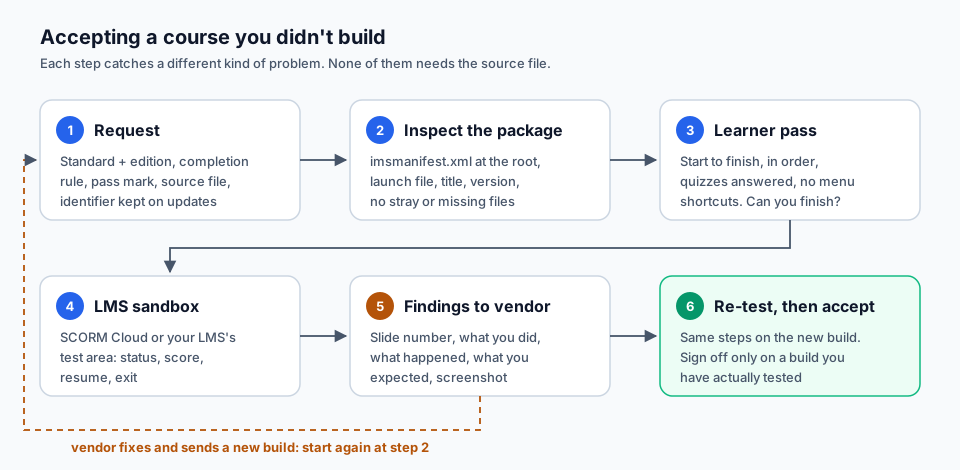 The acceptance flow. Every new build from the vendor goes back through steps 2 to 6. None of the steps needs the source file.
How to QA an e-learning course from a vendor: what changes
When your own team builds a course, QA happens inside the authoring tool. The developer can open the trigger panel, check a variable, preview a single slide. When a course arrives from a vendor, you usually get a ZIP file and an invoice. You are testing a black box.
That changes three things:
- You can't see why something is broken, only that it is. That's fine. Diagnosing is the vendor's job. Your job is to find it and describe it precisely enough that they can't misunderstand it.
- Your definition of "done" is different from theirs. For the vendor, done means "it published without errors and looks like the storyboard." For you, done means "every learner in our LMS can finish it, and the LMS knows they finished it."
- You only get leverage before you sign. After acceptance, every fix becomes a change request. This is why e-learning acceptance testing matters: it is the last point where the vendor has a reason to fix things quickly and for free.
Step 1: What to ask the vendor for before delivery
Most acceptance problems are really specification problems. Put these in the contract or statement of work, and confirm them again in writing before the vendor publishes.
The LMS standard and edition. "SCORM" is not enough. Storyline 360, for example, can publish to cmi5, xAPI, SCORM 2004, SCORM 1.2 and AICC, according to Articulate's own publishing guide. Ask your LMS administrator which one your platform handles best and name it exactly, including the edition for SCORM 2004.
The completion rule. How is "complete" decided: by slides viewed, by a quiz result, or by a specific trigger? In Storyline these are the three tracking options, and Articulate notes that whichever criterion a learner meets first is the one reported (source). If the vendor ticks both "slides viewed" and "quiz passed," a learner who clicks through the slides might be reported complete without ever taking the quiz. Decide which you want and write it down.
The pass mark and the reporting wording. If there is a quiz, what score passes? And for SCORM and AICC, which status wording should the LMS show learners and admins? Storyline asks the author to choose this when publishing. Your LMS reports and compliance dashboards depend on it.
The source file. Ask for the project file (for Storyline, the .story file) and every asset: fonts, narration, video, images. Even if you never open it, you will need it the day the vendor relationship ends and a regulation changes one paragraph on slide 14. Without it, a one-line fix becomes a rebuild.
A stable course identifier. When a course is republished, the identifier in its package must not change, or your LMS may treat the update as a different course and learners lose their progress. Articulate's guide says so directly about its LMS course information field: if you are republishing a course that is already in your LMS, don't change it. Ask the vendor to confirm the identifier stays the same on every update.
The accessibility evidence. If accessibility is a requirement, ask the vendor for the results of their accessibility review. Storyline 360 has a built-in Accessibility Checker that runs inside the authoring app and covers up to 15 WCAG success criteria that can be tested automatically, across 24 issue types (Articulate). Because it runs on the project file, the vendor is the one who can run it. Articulate itself notes that no automated tool finds every barrier, so ask what manual testing (keyboard, screen reader) they did as well.
Step 2: Inspect the package before you launch it
Before anyone takes the course, open the ZIP on your computer and look. It takes five minutes and catches the problems that make an upload fail.
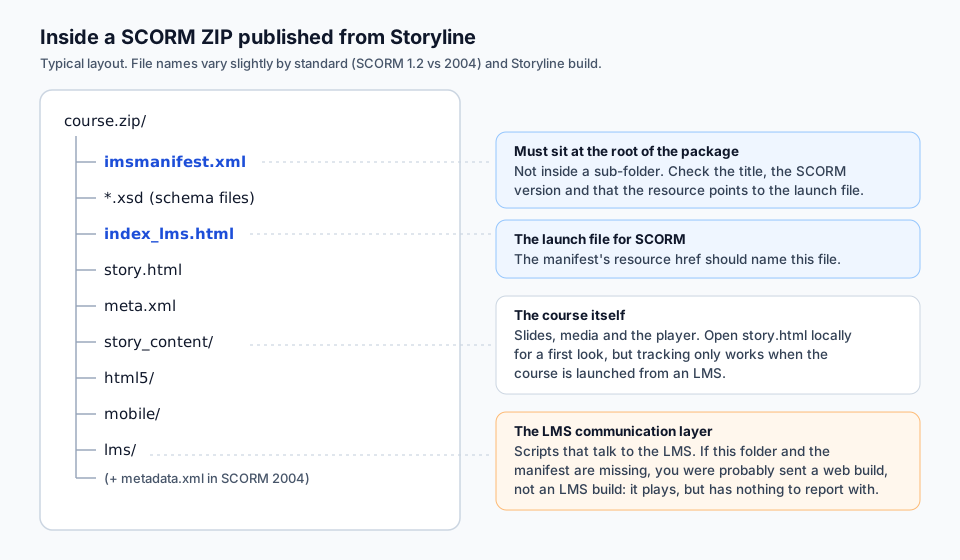 What a SCORM package published from Storyline typically contains, and what to check in each part.
imsmanifest.xml must be at the root. This is the file your LMS reads first. It describes the course, its structure and the files it uses. SCORM.com is blunt about it: the manifest "must always exist at the root of the content" (SCORM content packaging). The most common packaging mistake is a ZIP that contains a folder, which contains the manifest. An LMS that looks for the manifest at the root won't find it, and the import fails or the course won't launch. If you unzip and see a single folder instead of the manifest, ask for a re-zip.
Open the manifest in a text editor and read three things.
- The title inside
<organization>. This is what learners and admins see in many LMSs. "Untitled" or a working title like "Module3_v7_FINAL" is a finding. - The SCORM version. Look for
<schemaversion>:1.2means SCORM 1.2;CAM 1.3or a 2004 edition string means SCORM 2004. It must match what you asked for. - The launch file. The
<resource>element has anhrefattribute that names the file the LMS opens. For a Storyline SCORM package that is normallyindex_lms.html, which Articulate's publishing guide describes as the file that launches your course. The file it names must exist in the ZIP.
Check that you got an LMS build at all. A vendor sometimes sends the "Web" publish by mistake. It plays perfectly when you double-click story.html, so nobody notices. But there is no manifest and no LMS communication layer, so it can never report anything. If there is no imsmanifest.xml in the ZIP, stop here.
Look for leftovers. Old builds in sub-folders, a Thumbs.db, a 300 MB uncompressed video nobody uses. They don't always break anything, but they are a signal about the vendor's release process, and large files slow the course down for learners on weak connections.
Step 3: Take the course as a learner, from start to finish
This is the step that finds the expensive bugs, and the one most often skipped. Reviewers tend to jump around: open the menu, look at slide 12, check the quiz, close. A learner can't do that. A learner starts on slide 1 and has to earn every next slide.
So do exactly that.
Use a fresh browser profile or a private window. Courses remember progress. If you have opened this course before, you might resume halfway through and never see the first gate.
Don't use the menu or the seek bar. Click only what a learner would see as clickable: the Next button when it appears, the buttons on the slide, the options in a layer that opens. If the course has a menu, you'll test it separately; the first pass is about whether the intended path works.
Wait for each slide to finish. Many slides hide the Next button until narration ends, or until every tab has been clicked. That's design, not a bug. What you are looking for is the slide where you have done everything and nothing lets you continue. That is a bug, and it is the most serious kind, because a learner who is stuck doesn't file a ticket. They close the course.
Answer every quiz question, both ways if you can. Take it once aiming to pass and once aiming to fail. Check that the result slide shows the right score, that "Retry" actually resets the questions, and that a failed attempt doesn't silently count as complete. Pay attention to drag-and-drop, matching and fill-in-the-blank questions: these have the most ways to be unanswerable.
Write down where you are, every time something is off. Storyline shows a slide counter or a menu; note the scene and slide number, or the slide title, and take a screenshot.
What a stuck learner looks like in practice:
- A tab interaction where clicking all four tabs never reveals the Continue button, because the condition waits for a fifth tab that was deleted.
- A button that lights up when you hover over it, so it looks clickable, but does nothing when you click.
- A video that pauses for a question and never resumes, with no Play button.
- A results slide that says "You passed" while the LMS records "failed," or the reverse.
For a longer list of what typically breaks in Storyline courses, see our post on common Storyline bugs, and for a general checklist, Storyline QA checklist.
Step 4: Test it in an LMS sandbox (SCORM Cloud)
Playing a course in a browser tells you whether it works. It doesn't tell you whether it reports. For that, the course has to run inside a system that speaks SCORM and records what the course says.
SCORM Cloud is the usual choice. It is a hosted service from Rustici Software, and Articulate's own troubleshooting guide calls it "an industry-standard testing engine" for published content (Articulate). As of October 6, 2026, Rustici lists a free trial plan with up to 3 courses and 10 resettable registrations (Rustici), which is enough for acceptance testing.
The basic flow (Rustici's testing guide):
- Import the vendor's ZIP as a course.
- Launch it and take it as a learner, the same way as in Step 3.
- Exit the course properly.
- Open the registration and read what was recorded: completion status, success status, score and time.
- If something looks wrong, open the debug log for that registration. It shows each call the course made to the LMS.
What to look for in the results:
- Completion and success. SCORM 1.2 has one status field,
cmi.core.lesson_status, with values such aspassed,completed,failedandincomplete. SCORM 2004 splits it into two:cmi.completion_status(completed/incomplete) andcmi.success_status(passed/failed) (SCORM run-time reference). Make sure the values match the rule you agreed on in Step 1. - Exit and resume. Close the course halfway through, relaunch it, and check that it offers to resume where you left off. Then finish it. Articulate notes that, because of SCORM 2004 requirements, learners must fully exit the course for completion data to show in LMS reports (source). Check that the course gives learners a clear way to exit.
- Long courses and resume data. Courses store their progress in
cmi.suspend_data. The limit is 4,096 characters in SCORM 1.2 and 4,000 in SCORM 2004 2nd and 3rd editions; the 4th edition raised it to 64,000 (SCORM run-time reference). A long, interaction-heavy course published to an older standard can outgrow the smaller limits, and the symptom is a course that "forgets" progress. If resume fails only after many slides, this is a good suspect to raise with the vendor.
Then test in your own LMS. SCORM Cloud tells you whether the package behaves correctly. Your LMS might still behave differently. Articulate's guidance is a useful rule for triage: if the content works in SCORM Cloud but not in your LMS, it's a question for your LMS provider; if it fails in SCORM Cloud as well, it's a question for whoever built the course. That one comparison saves days of three-way finger-pointing between you, the vendor and the LMS team.
If completion is the problem you are chasing, our post on Storyline SCORM completion not reporting goes deeper.
Step 5: Write findings the vendor can act on
A finding is only as good as the vendor's ability to reproduce it. "The quiz is broken" will get you a reply asking which quiz, in which browser, and what you clicked. That costs a week.
A good finding has five parts:
| Part | Example |
|---|---|
| Where | Slide 3.6, "Reporting an incident" |
| What you did | Clicked all three tabs, then clicked the "Continue" button |
| What happened | Nothing. The button highlights on hover but the slide doesn't change |
| What you expected | The course moves to slide 3.7 |
| Evidence | Screenshot, browser and version, LMS or SCORM Cloud registration |
Notice what's missing: any instruction about how to fix it inside the authoring tool. You don't know whether the problem is a trigger, a condition, a layer or a state, and you don't need to. "On slide 3.6 the Continue button doesn't respond" is a complete, professional finding. "Please add a Jump to Slide trigger on the Continue button" is a guess, and if the guess is wrong you've wasted the vendor's time and your credibility.
Use the vendor's own numbering. Storyline numbers slides by scene and slide (3.6 is the sixth slide of the third scene), and that's the number the vendor sees in their project. A running count like "the 27th screen" forces them to count, and they will count differently than you did.
Group and prioritize. A useful order:
- Blocks the learner: the learner can't continue or can't finish.
- Breaks reporting: the LMS records the wrong status, score or no status at all.
- Visibly broken: a missing image, a button that doesn't respond on an optional path, audio with no controls.
- Inconsistent: a font, color or wording that differs from the rest of the course.
Ask for the first two to be fixed before acceptance, no exceptions. Negotiate the rest.
Re-test the actual new build. When the fix arrives, go back through Steps 2 to 4 on the new package, not just the slides you reported. A fix on slide 3.6 can break slide 3.7, and a republish can change the manifest. Accept only a build you have tested end to end.
Step 6: Privacy, or why some teams can't upload the course anywhere
Everything above assumes you are allowed to put the course on someone else's server. For many organizations, that's not a given.
Think about what an internal course actually contains. A security awareness module for a bank shows the real phishing scenarios its fraud team sees. A cyber-defense course walks through an incident playbook. A hospital's onboarding module shows patient workflows and screenshots of internal systems. A product course for a manufacturer shows something that won't be announced for six months. The course is the sensitive document.
Uploading it to a hosted testing service, even a reputable one, means the content sits on a third party's servers. In a regulated or security-conscious organization, that usually means a vendor security review, a data processing agreement, and a conversation with someone whose job is to say no. For one acceptance test, most teams won't go through that, so the test simply doesn't happen.
Some practical options:
- Use your own LMS's test or staging area instead of a public sandbox. The course stays inside systems you already approved.
- Ask the vendor to test in SCORM Cloud on their side and send you the registration results and debug log. They already have the content.
- Run checks locally. Inspecting the package, reading the manifest and taking the learner pass in a browser on your own machine send nothing anywhere.
- Check what the course itself talks to. Open your browser's developer tools on the Network tab while you take the course and look for requests to domains you don't recognize: web fonts, embedded web objects, analytics scripts, video hosts. A course you host internally may still call out to the internet at runtime, and for some organizations that's a finding in itself.
The principle is simple: the QA process shouldn't create a privacy problem the course didn't have.
Where Story Checker fits
Steps 2 to 5 are slow when done by hand, and the learner pass is the step that gets cut when the deadline is close. Story Checker automates most of it for courses built in Articulate Storyline, and it was designed for exactly this situation: a published course, no source file.
- It scans what you received. The published course, uploaded as a ZIP (a Web or LMS publish). If you also have the
.storyfile, upload it too: either one is enough to start, and for the full results you need both. When an input is missing, the report says which checks couldn't run without it, instead of implying the course is clean. - It takes the course like a learner. Alongside a slide-by-slide scan, a separate learner pass starts at the first slide and moves forward only through what a learner can see and click, answering questions on the way, and reports where it got stuck.
- It learns the course's own norms. There's no fixed style guide. If 94 of 95 buttons in the course have a hover state, the one without is flagged as a deviation, with the count, and you decide whether it matters.
- It speaks to both audiences. Each finding uses the vendor's numbering (slides numbered as in Storyline), is located down to the exact word or object with a red frame on the screenshot, says what the learner experiences, and gives a fix in Storyline's terms for the author. The CSV export adds a plain-language column for the person who received the course from a supplier.
- It's clear about where the course goes. You upload the course, and the scan runs on a server in the EU (Frankfurt). During the scan the course plays in an isolated browser where every attempt it makes to reach the internet is blocked, and the report ends with an evidence line showing what was tried and blocked. The course files are deleted once the scan succeeds (after a failed scan, within 24 hours, so it can be retried); screenshots and HTML reports are kept for 30 days. If your organization has to approve any upload first, see what to ask before you upload a course.
It's not AI-based: the checks are deterministic, so the same course gives the same report. And it's not an accessibility checker. Storyline has its own, and the report says so.
Vendor course acceptance checklist
Copy this into your acceptance document.
Before delivery (in writing)
- LMS standard and edition named (e.g., SCORM 2004 4th edition, SCORM 1.2, xAPI, cmi5)
- Completion rule agreed: slides viewed, quiz result or trigger, and only the ones you want
- Pass mark and LMS status wording agreed
- Source file and all assets (fonts, audio, video, images) included in the deliverables
- Course identifier will stay the same on every republish
- Accessibility review results provided, if accessibility is required
Package
-
imsmanifest.xmlis at the root of the ZIP, not inside a folder - Course title in the manifest is the final title
- SCORM version in the manifest matches what was agreed
- Launch file named in the manifest exists in the package
- It's an LMS build, not a web build
- No leftover files or oversized media
Learner pass
- Taken from slide 1 to the end in a fresh browser session, without the menu
- Every slide can be completed and continued
- Every interaction responds; nothing looks clickable that isn't
- Quiz passed once and failed once; retry resets; result slide matches the score
- Media plays, pauses and resumes; no slide waits forever
LMS sandbox
- Completion and success status match the agreed rule
- Score recorded correctly
- Exit and resume work, including late in the course
- Same behavior in your production LMS (or the difference is understood)
Findings and sign-off
- Every finding has slide number, action, result, expected result, evidence
- Blocking and reporting findings fixed before acceptance
- Final build re-tested end to end before sign-off
FAQ
Can I QA an e-learning course without the source file?
Yes. Package inspection, the learner pass and LMS testing all work on the published output, which is what your learners will actually use. The source file is still worth requesting, because you'll need it for future edits, and some deeper checks (like reading trigger logic directly) only work with it.
What is imsmanifest.xml and why does it matter?
It's the file that describes a SCORM package to the LMS: the course title, its structure, and which file to launch. It must sit at the root of the ZIP. If it's missing or inside a sub-folder, the LMS usually can't import the course.
Is SCORM Cloud free?
As of October 6, 2026, Rustici Software offers a free trial plan with up to 3 courses and 10 resettable registrations, which is enough to test a vendor delivery. Paid plans exist for larger volumes.
The course works in SCORM Cloud but not in our LMS. Whose problem is it?
Most likely an LMS configuration or compatibility issue, so start with your LMS provider. If it fails in SCORM Cloud too, it's a course issue for the vendor. This is the triage rule Articulate recommends in its own troubleshooting guide.
Should I tell the vendor how to fix the bug?
No. Describe where it happens, what you did, what happened and what you expected. The vendor has the source file and knows how the course was built. A precise description gets a faster fix than a guessed instruction.
Can I test a course without uploading it to the cloud?
Yes. You can inspect the package and take the learner pass locally, test in your own LMS's staging area, or ask the vendor to run the hosted test and send you the results. Tools that run on your own machine let you test without the content leaving it.
Conclusion
Accepting a vendor course is a short, repeatable process: specify before delivery, inspect the package, take the course like a learner, see what the LMS records, and report findings the vendor can reproduce. The step that catches the costliest bugs is the learner pass, from the first slide to the last, because that's the only way to find out whether someone can actually finish.
If you receive Storyline courses from vendors and want that pass done for you, with findings in the vendor's slide numbering, try Story Checker. It works on the published course you already have.
Further reading
- Secure E-Learning Course Review: What to Ask Before You Upload a Course
- Storyline Course Works in Preview but Not in the LMS? Here's Why
- An E-Learning QA Process That Scales: Review Rounds, Severity and Sign-Off
Story Checker is an independent tool and is not affiliated with or endorsed by Articulate Global, LLC.