Storyline Course Not Reporting Completion to the LMS?
15 min read
Storyline course not reporting completion? The cause is almost always in one of four places. The tracking rule can't be met. A different rule wins first. The package has no way to talk to the LMS. Or the LMS reads the status differently than you expect. The fastest fix is to check them in that order. Before you blame the LMS, prove that a learner can actually meet your tracking rule. Then run the package in SCORM Cloud. Only after that should you open a ticket with the LMS vendor.
I've built more than 140 Storyline courses. "It says incomplete" is the bug I dread most. The course looks perfect in preview, the client uploads it, and two weeks later someone in HR asks why nobody has finished it. This guide covers the setting that causes it, the standard it travels through, and how to test it before the client does.
How Storyline decides a course is "complete"
Open the Reporting and Tracking settings when you publish for LMS, and you get three ways to mark a course complete. Since 2020 you can combine them. Per Articulate's own documentation, the rules are:
- Slides viewed: the learner has seen a number or a percentage of slides. You also choose which slides count: all of them, or only the ones that have slide numbers (Publishing for LMS/LRS).
- Quiz result: a result slide submits its results.
- Completion trigger: a Complete course trigger fires somewhere in the course.
One sentence in that article explains a whole family of bugs. When you use more than one rule, whichever option a learner completes first is the one that gets reported, and only one gets sent. Keep that in mind. It comes back in almost every section below.
Each rule fails in its own way. In my experience, every way it fails looks the same from the LMS side: a learner stuck at "incomplete," or one marked complete too early.
Slides viewed: the threshold the learner can't reach
The slides viewed rule is the default for many courses. It is also the easiest to break without noticing. The number in the dialog is a promise: "a learner will see at least N slides." Nothing in the publish window checks that the promise can be kept.
Here is how it gets broken.
The threshold is higher than the most a learner can see. Picture a branching scenario. On slide 4 the learner picks a route: two slides down one road, two down the other. Then both roads meet again. A learner who follows the course sees one route, not both. If you set the threshold as "slides in the course minus one," that learner can never get there. Neither can anyone else who doesn't go back on purpose. The same thing happens with optional slides, remediation slides, and "learn more" detours. They all count toward the total, but most learners never visit them.
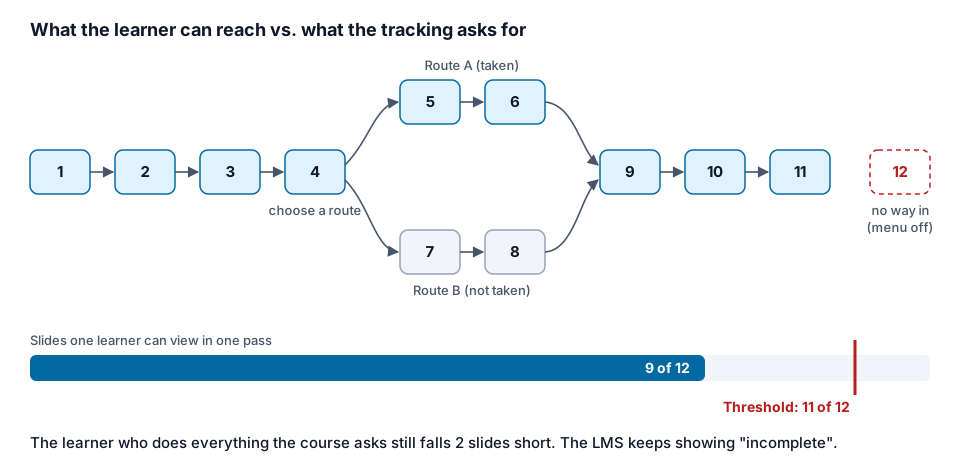 The threshold counts every slide; the learner walks one path. Here the most one learner sees in a single pass is 9 of 12, and the course asks for 11.
A slide has no way in. Every slide you count needs a route that a learner can take to reach it. That means a Next button, a jump trigger, an auto-advance, or the menu. Think of a slide you built for a later version, an appendix, or a scene you disconnected while you rearranged the course. If it still counts toward the total, it raises the bar for nothing. It becomes a slide nobody can view, inside a rule that needs it.
The menu is off, or locked. The player menu is often the hidden route that rescues an otherwise unreachable slide. With the menu on and navigation free, a learner can click straight to any slide listed in it. Turn the menu off, or hide a slide from it, and that route disappears. Articulate also describes Restricted and Locked menus (Restrict or Lock Navigation). A restricted menu only lets learners view the current slide and slides they've already seen. A locked menu keeps them strictly to the order you designed. Both are reasonable choices. Both also mean that "they can always use the menu" is no longer true. So the threshold has to fit the path the triggers actually create.
A view is a visit, not an engagement. A community answer on E-Learning Heroes says a slide counts as visited once it is accessed. The learner doesn't need to open its layers or click anything on it (tracking slide completion). That one causes the opposite bug. The course reports completion too early: a learner who clicked Next through every slide meets the rule without reading a word. If what you really mean is "they finished," a slide count is a weak stand-in for it.
The broken thresholds that are easiest to spot are the absolute ones. A threshold of 0 reports complete the moment the course opens. A threshold higher than the number of slides can never be met. Both are easy to set by accident when you copy a project from another course and delete half of it.
Quiz result: the result slide that never submits
When you track by quiz, the result slide does the reporting. Per More Quizzing and Tracking Options, Storyline reports one quiz to the LMS/LRS. It is the one whose result slide executes its "submit results" trigger first. This breaks in a few ways:
- The learner never reaches the result slide. A jump trigger skips it, a Retry loop has no exit, or the final question's feedback layer has no Continue. The quiz is "done" in the learner's eyes but never submitted.
- The wrong result slide submits first. You have a pre-check and a final assessment, and both submit. The pre-check runs first and gets reported. Everything the learner does afterwards is ignored.
- A slides-viewed rule wins the race. You combined "quiz" with "slides viewed." A learner meets the slide count before they finish the quiz. The LMS then gets completion based on the slide count, and the score you cared about may never be used to decide the status.
Completion trigger: the trigger nobody reaches
The Complete course trigger is the most flexible rule. Articulate says it sends either Completed or Passed, depending on the reporting status you chose when you published (course completion trigger). The same article adds a detail that surprises people. If your LMS accepts only one status update per course, the first completion trigger the learner meets is recorded, and the others are ignored.
The failures are what you'd expect from a trigger:
- It sits on a slide no learner reaches, like the end of a branch, a layer that never opens, or a slide on the route not taken.
- Its condition can never be true, because it checks a variable that nothing sets, or compares it to a value it never holds.
- It fires too early. It's on the title slide's timeline from an old test, so every learner is "complete" on slide 1.
- It fires and then the window closes before the LMS hears it. More on that below.
SCORM 1.2 vs SCORM 2004 vs xAPI: the same "done," three different messages
Storyline publishes to cmi5, xAPI (Tin Can), SCORM 2004, SCORM 1.2 and AICC (Publishing for LMS/LRS). The completion you set up in Storyline reaches the LMS through whichever one you pick. They don't carry it the same way.
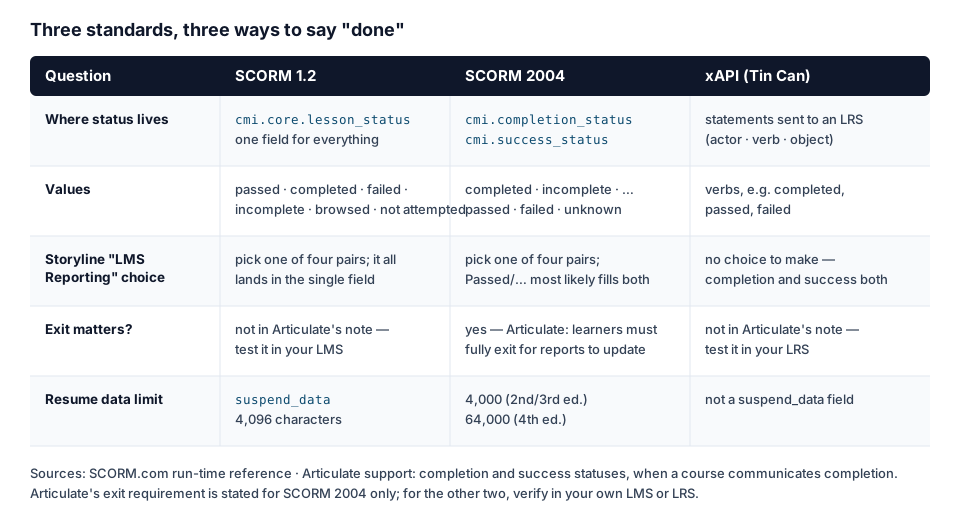 Three standards, three shapes of the same message. Values from the SCORM.com run-time reference; Storyline behaviour from Articulate support.
SCORM 1.2 has one field for status, cmi.core.lesson_status. Its values are passed, completed, failed, incomplete, browsed and not attempted (SCORM.com run-time reference). One field has to say both "did they finish" and "did they pass." So the LMS Reporting option you pick in Storyline matters a lot. Pick Completed/Incomplete, and an LMS that waits for "passed" will wait forever. Pick Passed/Failed, and you may see "failed" where you expected "incomplete."
SCORM 2004 splits it in two. cmi.completion_status holds completed, incomplete, not attempted, unknown. cmi.success_status holds passed, failed, unknown. Articulate lists four reporting options: Passed/Incomplete, Passed/Failed, Completed/Incomplete, Completed/Failed. It recommends the two Passed options because they are most likely to record both completion and success statuses (completion and success statuses). SCORM 2004 has one more catch that sends people to the forums. Per Articulate, due to SCORM 2004 requirements, learners must fully exit the course for completion data to show in LMS reports (when a course communicates completion). A learner who closes the browser tab may not show up as complete, even though the course did everything right.
xAPI doesn't use a status field. It sends statements in an actor–verb–object form ("Dana completed Fire Safety") to a Learning Record Store (xAPI statements 101). In Storyline you don't pick a reporting option for xAPI. Articulate notes that the LMS can track both completion and success without trial and error, and calls xAPI a top-tier option if your LMS supports it (completion and success statuses). The usual xAPI failure isn't the status itself. Either the platform isn't set up to accept the statements, or the LMS turns "completed" into its own course status with rules of its own.
The SCORM run-time reference lists one more difference worth knowing. It isn't a completion bug, but it's often mistaken for one: the size of suspend_data, where resume data lives. It is 4,096 characters in SCORM 1.2, 4,000 in SCORM 2004 2nd and 3rd editions, and 64,000 in the 4th edition. When a long course "forgets" where the learner was, people often call it a completion problem.
Review 360 and Web publishing are not an LMS
This is the most common false alarm I see. Someone publishes to Review 360, shares the link, works through the whole course, and asks why nobody got credit. Or the course is published to Web, hosted on a server, and linked from an intranet page.
Neither one has an LMS to report to. Articulate's web publishing article is clear: web publishing is for when you don't need to track progress. On E-Learning Heroes, the answer to "can I track reviewers in Review 360" is that there isn't a way, and that Review 360 isn't meant for distribution (Review 360 tracking).
This matters in two ways:
- When you test. A course that "completes" in Review 360 tells you nothing about the LMS, and neither does one that doesn't. Review 360 is where you check content. You can't check reporting there.
- When you receive a course. If a vendor hands you a Web output or a Review link, there is nothing to upload to an LMS yet. A SCORM package normally comes with an
imsmanifest.xmlat its root. If you don't see one, ask for an LMS publish.
The completion setting itself is still worth checking at the Review stage. A threshold the learner can't reach is broken no matter where the course ends up. It just won't hurt anyone until the course reaches the LMS.
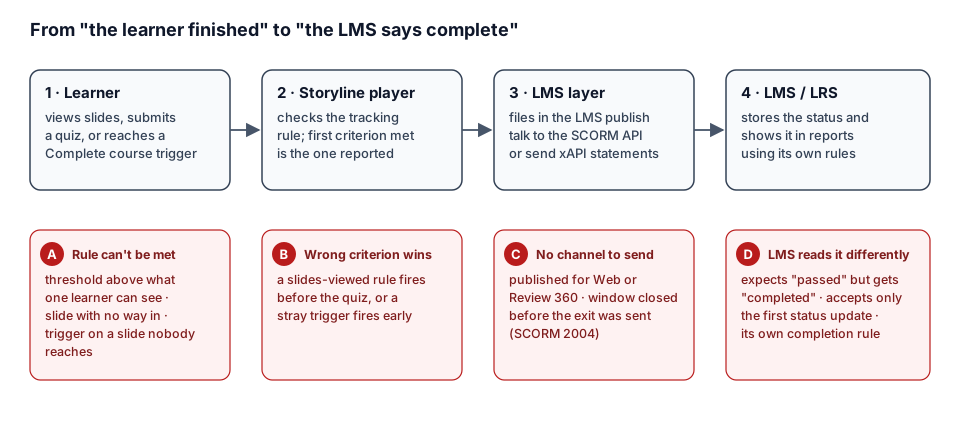 Completion travels through four layers. Each break point looks the same in the LMS report, which is why you test them one at a time.
How to fix a Storyline course not reporting completion: test in order
Test completion in the same order the data travels: the rule, then the package, then the LMS. Skipping ahead is how you lose a day arguing with the LMS vendor over a threshold you could have read in ten seconds.
Step 1: Prove the rule can be met
Before uploading anything, open the tracking settings and answer three questions.
- Slides viewed: what is the threshold, and what is the most slides one learner can see if they follow the course? Count the path, not the slide list. Every fork costs you the slides on the route not taken. Every slide with no way in costs you one slide. If the menu is off, count only what the triggers allow.
- Quiz: which result slide submits first? Can a learner who fails reach it? Can a learner who passes reach it?
- Trigger: which slides hold a Complete course trigger? Can a learner reach at least one of them? Is its condition one that a real learner meets?
Then walk the course as a learner would, in a fresh browser. Use Next and the buttons the course gives you. Don't use the menu if your learners won't have it. If you have to "cheat" to finish, so will they.
Step 2: Run the package in SCORM Cloud
SCORM Cloud is Rustici Software's test LMS. Articulate's community team recommends it for one reason: it splits "my course is broken" from "my LMS is broken." The workflow from How to Troubleshoot Your LMS with SCORM Cloud is:
- Publish for LMS and click Zip in the Publish Successful window.
- In SCORM Cloud, Add Content and import the SCORM, AICC, xAPI or cmi5 package.
- Launch it the way a learner would, for example through an invitation. The article warns that launching from the course home page doesn't mimic a real learner, and those results won't show in reports.
- Finish the course the way you expect a learner to, and exit the way they will.
- Check the registration: completion, success and score.
The rule from the same article is simple. If it tracks correctly in SCORM Cloud but not in your LMS, open a case with the LMS provider. If it doesn't track correctly in SCORM Cloud, the problem is in the course or the package.
Step 3: Turn on LMS debug mode
When SCORM Cloud or your LMS shows the wrong status and you can't see why, have the package log its own conversation. Articulate's How to Enable LMS Debug Mode gives two procedures:
- SCORM, AICC and cmi5: in the published output's
lmsfolder, openscormdriver.jsorConfiguration.js. ChangeSHOW_DEBUG_ON_LAUNCH = false;totrue, re-zip, and upload. A debug window opens next to the course when it launches. - xAPI: in
index_lms.html(orstory.html, depending on how you published), addlaunchDebug: true,directly belowHAS_SLIDE: true,.
Read the log for the moment completion should happen. Does a status call go out at all? With which value? Is it followed by a commit and a clean finish, or does the log simply stop? A log that stops right after the status call usually points to the exit, not the rule. Copy the log into a document for the LMS administrator if it comes to that.
Step 4: Check the exit
The exit is a frequent culprit in SCORM 2004. Many authors add an Exit course button for exactly that reason, and then it doesn't work. Articulate's Exit Course Trigger Doesn't Work explains why: modern browsers stop windows from closing themselves. The trigger works when the player launches in a new window. Courses tested from a local drive behave differently from courses on a server. If it still fails inside the LMS, change EXIT_BEHAVIOR in scormdriver.js from "SCORM_RECOMMENDED" to "ALWAYS_CLOSE" (or "ALWAYS_CLOSE_TOP").
Order matters, too. The completion has to be sent before the window closes. If your last slide fires Complete course and Exit course on the same click, test that the status still arrives.
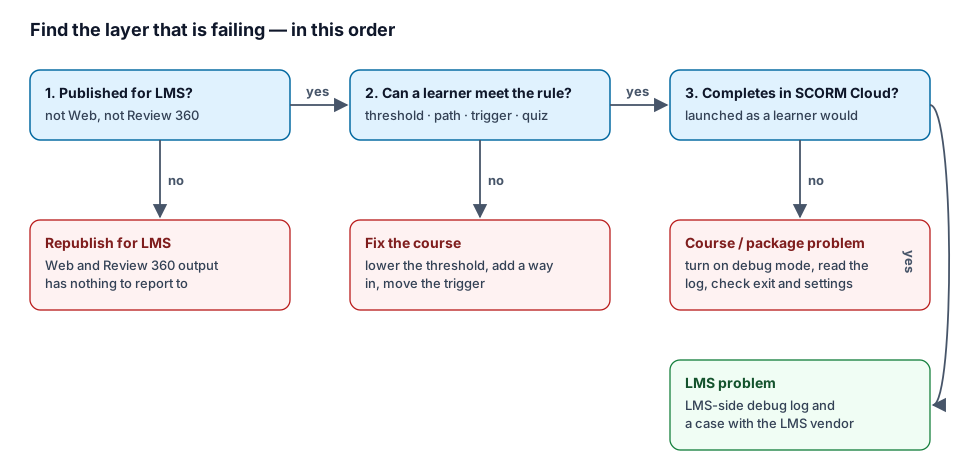 Work from left to right. Every "no" stops the search: it is the layer to fix.
Where Story Checker fits
Step 1 is the one people skip, because it's tedious. You have to count every fork and every route, and check every slide for a way in. It's also the one a tool can do without guessing. Story Checker reads a published Storyline course, and the .story file if you have it, and checks the completion setting against the course itself.
- From the published package alone, it flags a slides-viewed threshold that is 0 (the course reports complete on open) or higher than the number of slides (it can never complete). It does this whether the course came from your own Storyline or from a vendor.
- With the
.storyfile, it builds the course's navigation: Next and jump triggers, scene jumps, auto-advance, the player menu (free or restricted), and "previous." From that it works out the most slides one learner can actually view. It flags a threshold above that number. It names the slides that have no way in and the fork where a learner takes one route and misses the other. When tracking is by trigger only, it flags a Complete course trigger that no learner can reach. - It knows where the course is going. In an LMS package, an unreachable threshold is a critical finding. In a Web output it is reported as lower priority, because nothing will be tracked there yet.
- Each finding says how to fix it in Storyline's own terms. For example: in Publish → LMS/LRS → Reporting and Tracking → Tracking, lower the threshold to the number a learner can see, or switch to a Complete course trigger on the final slide. If you received the course from a vendor, the report tells you to send it back instead. The scan runs on a server in the EU (Frankfurt). During the scan the course plays in an isolated browser where every attempt it makes to reach the internet is blocked, and the report ends with an evidence line showing what was tried and blocked. The course files are deleted once the scan succeeds.
What it won't do is pretend to be your LMS. It doesn't replace SCORM Cloud or a debug log, and it leaves quiz-only tracking as "not decided" rather than guessing whether learners will pass. Use it for Step 1, then do Steps 2 to 4 as usual. For the rest of a pre-delivery pass, see the Storyline QA checklist and the most common Storyline bugs.
Completion checklist (copy this)
Before publishing
- Tracking rule chosen on purpose: slides viewed, quiz, trigger, or a combination. If you combine them, you know which one will be met first.
- Slides viewed: the threshold is greater than 0 and no more than the most slides one learner can see on a normal path, not the slide total.
- Every counted slide has a way in: Next, a jump trigger, auto-advance, or the menu.
- Menu setting (off / free / restricted / locked) matches how you counted the path.
- Optional, remediation and branch slides are either excluded from the count or accounted for.
- Quiz: the result slide that should report is the first one any learner submits, and both passing and failing learners can reach it.
- Complete course trigger: on a slide every learner reaches, with a condition a real learner meets, not on a slide's start timeline left over from testing.
Publishing
- Published for LMS, not Web or Review 360.
- Standard matches what the LMS expects (SCORM 1.2, SCORM 2004, xAPI, cmi5, AICC).
- For SCORM, the LMS Reporting option matches what the LMS reads as "done." When in doubt, use Articulate's recommendation: Passed/Incomplete or Passed/Failed.
- The package zip has
imsmanifest.xmlat its root (SCORM).
Testing
- Walked the course as a learner, in a fresh browser, without shortcuts.
- Imported to SCORM Cloud and launched like a learner (not from the course home page).
- Completion, success and score are correct in the registration.
- Exited the way learners will. SCORM 2004 needs a full exit for reports to update.
- If anything is off: debug mode on, log read at the moment of completion.
- Tested once more in the real LMS, with a real learner account.
FAQ
Why does my Storyline course show "incomplete" in the LMS even though I finished it?
Usually the tracking rule wasn't met in the way you think. Most often it's a slides-viewed threshold above what one path through the course allows, a result slide that never submitted, or a completion trigger on a slide you didn't pass through. In SCORM 2004 it can also be the exit: Articulate says learners must fully exit for completion to show in LMS reports.
Why does my Storyline course report "complete" too early?
Two common causes. A slides-viewed threshold that is low, or 0, is met before the learner reaches the end. Or, with several tracking options, Storyline reports whichever one the learner meets first. A slide count met before the quiz is submitted will be the one reported.
Should I use SCORM 1.2, SCORM 2004 or xAPI?
Use what your LMS supports best and has tested with Storyline. SCORM 1.2 has a single status field, so your reporting option has to match what the LMS reads. SCORM 2004 separates completion from success. With xAPI you don't pick a reporting option, and Articulate recommends it when the LMS supports it.
Does Review 360 track completion?
No. Review 360 is for reviewing and sharing, not for tracking learners, and Web-published courses have no tracking either. To test reporting, publish for LMS and use SCORM Cloud or your LMS.
How do I see what the course is sending to the LMS?
Turn on LMS debug mode. For SCORM, AICC and cmi5, set SHOW_DEBUG_ON_LAUNCH = true; in scormdriver.js or Configuration.js. For xAPI, add launchDebug: true, below HAS_SLIDE: true, in index_lms.html or story.html. Re-zip and launch. A log window shows each call to the LMS.
It works in SCORM Cloud but not in my LMS. Now what?
Then the package does its job, and the difference is on the LMS side: its settings, its completion rules, or how it handles status updates. Articulate's community guidance is to open a case with your LMS provider and include the debug log.
The short version
"Not reporting completion" sounds like an LMS problem, and sometimes it is. More often, the course asked for something no learner could give it. That could be a threshold counted on slides instead of on paths, a trigger on the route not taken, or a quiz that never submits. Check the rule first, the package second and the LMS last. Write down what you checked, so the next time someone asks "why is everyone incomplete?", you can answer in minutes instead of days.
If you'd rather not count paths by hand, Story Checker checks the completion rule against your course's actual navigation before the course ever reaches an LMS. Try Story Checker on your next course.
Further reading
- Storyline Course Works in Preview but Not in the LMS? Here's Why
- Storyline Quiz Not Scoring Correctly? Results Slides, Question Banks and Pass Marks
- Why Learners Get Stuck in Storyline: Timelines, Cue Points and Slides That Won't Advance
Story Checker is an independent tool and is not affiliated with or endorsed by Articulate Global, LLC.