12 Common Articulate Storyline Bugs That Pass Preview
18 min read
The most common Articulate Storyline bugs are not the ones that crash a course. They are the quiet ones: a layer that opens with nothing in it, a button that lights up on hover and does nothing, a "Continue" button that appears one item too early, a video that pauses for a question and never plays again. Every one of them can pass Preview, because Preview follows the author's path, and the author already knows where to click.
This is a field guide to twelve of those bugs. For each one you get what the learner experiences, why it happens inside Storyline, how to catch it by hand, and how to stop building it in the first place. At the end there is a summary table you can paste into your own review checklist, and a short FAQ.
One idea runs through all of it, and it matters more than any single bug: a skilled designer could have built almost anything on this list on purpose. A greyed-out button may be broken, or it may be a game item the learner already used. Good QA does not compare a course to a fixed rulebook. It compares the course to itself.
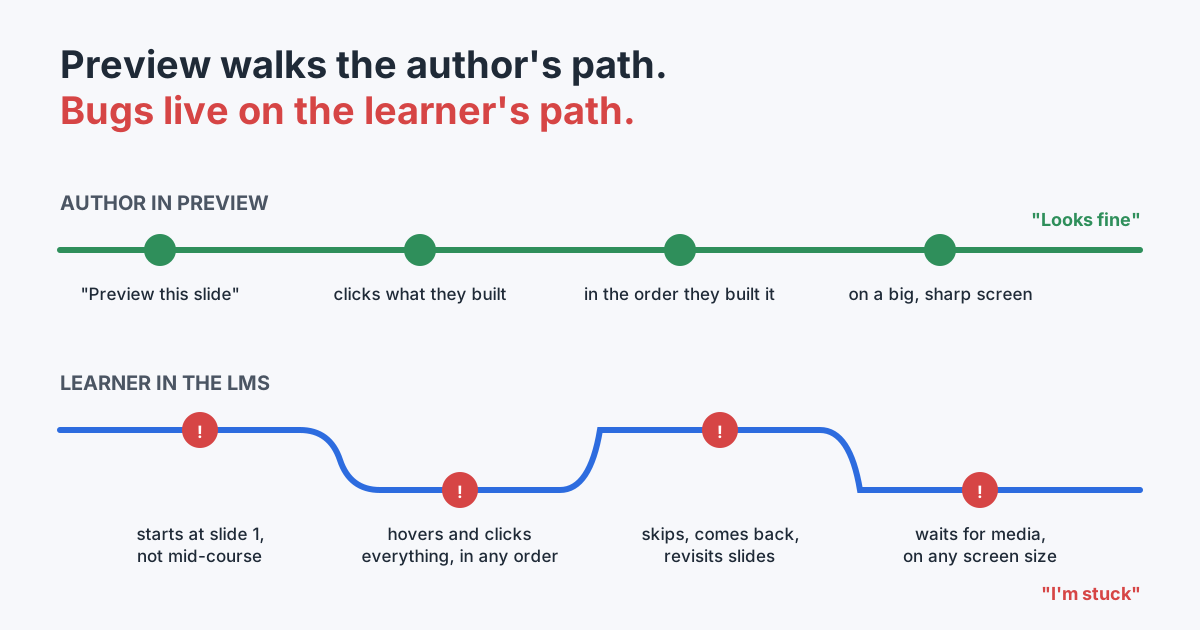 Preview walks the author's path. The bugs in this post live on the learner's path.
Why common Articulate Storyline bugs survive Preview
I have built more than 140 Storyline courses, and I still ship bugs that I tested. They don't survive because nobody looked. They survive because of how we look.
When you build a slide, you preview that slide. You click the three tabs you just wired, in the order you wired them, and each one does something. You move on. What you did not do is start the course from slide 1, arrive at that slide the way a learner does, hover over the decorative card that happens to have a Hover state, click the third tab first, leave and come back, or wait for the video to reach the cue point you set up last week.
Articulate itself recommends testing the published output in the environment where learners will actually use it, not only in Preview. That advice is right, but it is not enough on its own: a published course clicked through the author's way is still the author's path.
The twelve bugs below share one property. The course does something. No error message, no broken slide, no red flag in the Triggers panel. It just doesn't do the right thing for someone who isn't you.
1. A layer opens and nothing happens in it
What the learner sees. They click a button, a hotspot or an answer. The screen doesn't change. They click again. Still nothing. Most learners assume the click didn't register; some assume the course is broken and close it.
Why it happens. A Show layer trigger fires correctly, but the layer it opens is empty: no object, no audio, no trigger, no timeline action. This is almost always the result of an edit. You restructured a slide, deleted a text box or an image from a feedback layer, or cut content to paste it elsewhere, and the layer stayed behind with its trigger still pointing at it. Because the trigger is valid, nothing in the Triggers panel looks wrong. Articulate's layers documentation describes layers as the way to show extra content at a point on the timeline or in response to a learner's action. An empty layer does neither.
How to catch it by hand. Open the Slide Layers panel for every interactive slide and click through each layer in the editor. An empty layer is obvious once you look at it; the problem is that nobody looks at layers they didn't just edit. In Preview, click every interactive element on the slide and watch for "no visible change," not just "no error."
How to prevent it. When you delete content from a layer, ask whether the layer still has a job. If it doesn't, delete the layer and the trigger together. If it does, rename it so its purpose is clear ("Feedback — correct", not "Layer 4").
2. A trigger opens a layer that no longer exists, or a layer no trigger opens
What the learner sees. In the first case, the same as bug 1: a click that changes nothing. In the second case, nothing at all. The learner simply never sees a piece of content, and nobody notices it is missing.
Why it happens. Both are two halves of the same edit. You rename, duplicate or delete layers while a slide evolves, and the connections between triggers and layers drift. A trigger can be left asking for a layer that is gone. Or a layer can be left with nothing pointing at it, including the layer that holds the only way off the slide. That second case is the dangerous one: if the player's Next button is turned off on that slide and the only jump forward sits on a layer no trigger shows, the learner is stuck.
How to catch it by hand. For each slide, list its layers and, for each layer, find the trigger that shows it. Any layer you can't trace back to a trigger is either a leftover or a bug. Pay special attention to layers that contain a jump to another slide or reveal a Continue button.
How to prevent it. Name layers by purpose and keep one convention for the whole course. Before you delete a layer, search the triggers for its name. Before you delete a trigger, ask which layer will now be unreachable.
3. A button covered by an invisible object
What the learner sees. A normal-looking button that doesn't respond, or responds only if you click one exact corner.
Why it happens. Storyline stacks objects in a fixed order, and a click goes to whatever is on top at that point. A shape at 100% transparency, a text box with a large invisible bounding area, an image with transparent padding, or a layer object that sits higher in the stack can all take the click instead of the button underneath. A close cousin is the outline icon with no fill: only the stroke itself takes a click, so clicking "on" the icon clicks through it. Another relative is a click trigger placed on the slide itself, which can catch clicks that were meant for an object.
How to catch it by hand. Don't click a button once in the middle. Click it at its center and near each corner, the way a hurried learner does. Use the Timeline panel to see what sits above the button, and toggle visibility of objects above it to find the one that steals the click.
How to prevent it. Keep "click shields" (transparent shapes that block interaction on purpose) on their own clearly named layer, and make them appear only when they should. Give icons used as buttons a transparent-fill shape behind them, and put the trigger on that shape.
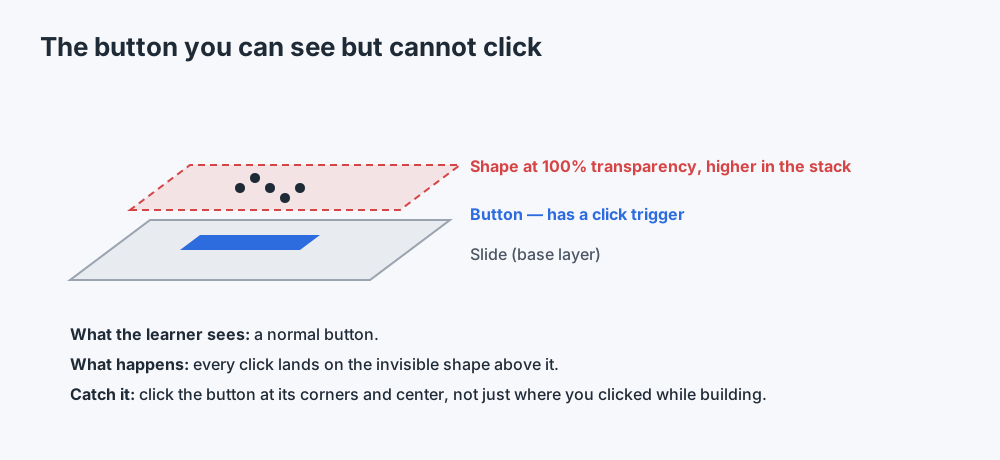 A covered button looks perfect. Only clicking it in several places reveals that something else takes the click.
4. Hover with no effect: it lights up and nothing happens
What the learner sees. An object that changes when they point at it (it glows, darkens or changes color) and then does nothing when clicked. Hover is a promise. The learner reads it as "this is clickable" and is left wondering what they missed.
Why it happens. Articulate's own description of the built-in states presents the Hover state as a way to tell learners an object is clickable. So when an object has a Hover state but no trigger that does anything beyond changing its own look, the promise is broken. Common causes: a button converted to another object type that lost its click trigger, a trigger deleted along with the layer it used to open, or a card copied from an interactive slide onto a static one.
One trap if you look for this yourself: Storyline buttons are often groups, and every part inside the group (the icon, the label) can have its own Hover state while the trigger sits on the group. Judge the unit the learner points at, not each part inside it. And a hover that shows a tooltip or a text bubble does do something, even though there is no click trigger. That is a tooltip, not a bug.
How to catch it by hand. In Preview, hover over everything on the slide, including things you think are decorative. For each object that reacts to hover, click it. If nothing happens, open its triggers.
How to prevent it. Only give Hover states to objects that do something. If you reuse a card design on a static slide, delete its Hover state when you paste it.
5. A copied trigger that still points at the old target
What the learner sees. They click the third tab and get the second tab's content. Or they click Close on a popup and the popup stays open, while something else on the slide disappears.
Why it happens. Copy and paste is how every Storyline developer builds a row of tabs, a set of hotspots or a stack of popups. Copy a button and you copy its triggers, with their targets. If you forget to re-point even one of them, the copy opens the original's layer. A popular variant: a Close button on layer "Popup 3" that hides layer "Popup 2," because it was copied from there. The click works, so it passes a quick check; it just closes the wrong thing.
There is a sneakier version too. If you build an object's states by pasting a picture that carries its own trigger, that trigger travels inside the state. It doesn't show in the object's Triggers panel, but it fires.
How to catch it by hand. For every set of look-alike objects, open each one's triggers and read the target out loud. Watch for two objects pointing to the same layer while another layer is opened by nothing. That pattern ("n of m identical objects open the same layer, and one layer has no opener") is the fingerprint of a copy that was never updated.
How to prevent it. Use "This layer" in Hide layer triggers on popups instead of naming the layer, so a copied Close button always closes its own layer. Rename each copy and its target immediately after pasting, before you copy the next one.
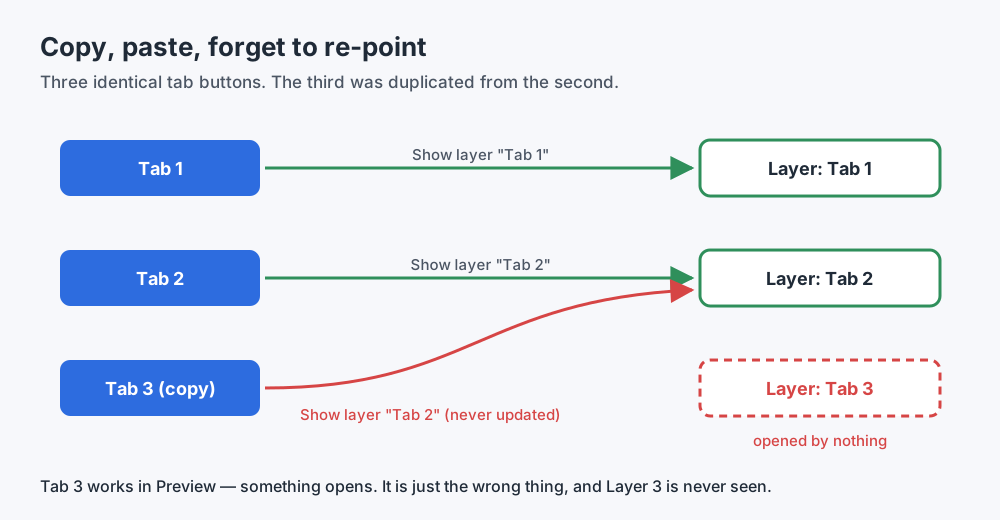 The copy works in Preview. Something opens. It is just the wrong thing, and one layer is never seen.
6. A state cut off from its object
What the learner sees. They hover, click or come back to an item, and its look doesn't change. Or it changes to something blank. The Visited check mark never appears on one card out of six.
Why it happens. States are the part of Storyline most often edited outside the normal flow: copied between objects, pasted from other projects, rebuilt by hand, or produced by tools that edit the file directly. Sometimes a single state ends up detached from its object while the object's other states are fine. Inside the editor it can look normal at a glance.
How to catch it by hand. For any set of identical objects, put each one through every state in Preview: hover, click, leave the slide and return. The one that behaves differently from its siblings is the one to inspect. In the States panel, compare the broken state with the same state on a sibling that works.
How to prevent it. When you need the same states on many objects, build one object completely, test it, then duplicate it, rather than pasting states into existing objects one by one.
7. A "visit everything" gate that never opens, or opens too early
What the learner sees. Either a Continue button that never appears, even after they have clicked every item, or a Continue button that appears after three of four items, so the fourth is skipped.
Why it happens. The classic gate is a trigger like Change state of Continue to Normal when the state of A, B, C and D is Visited. Storyline shows the Visited state automatically after an object is clicked if the object has one (built-in states), so the gate looks self-maintaining. It isn't. Add a fifth item later and forget to add it to the condition, and the gate opens early. List an item that was later deleted, or one that has no Visited state at all, and the gate never opens.
Revisiting adds another layer. Storyline remembers states when a learner comes back to a slide unless you change what happens on revisit (slide properties). A gate that works on the first visit can behave differently on the second.
How to catch it by hand. Start the course from the beginning, not with Preview This Slide. Click the items in a different order than you built them, and stop one short each time to see whether the gate opens. Then leave the slide and come back.
How to prevent it. When you add or remove an item, update the gate in the same edit. Better: use a variable counter or a condition per item, so the gate's logic is visible in one place. Keep the player's Next button on, or provide a second way forward, wherever being stuck would be worse than skipping.
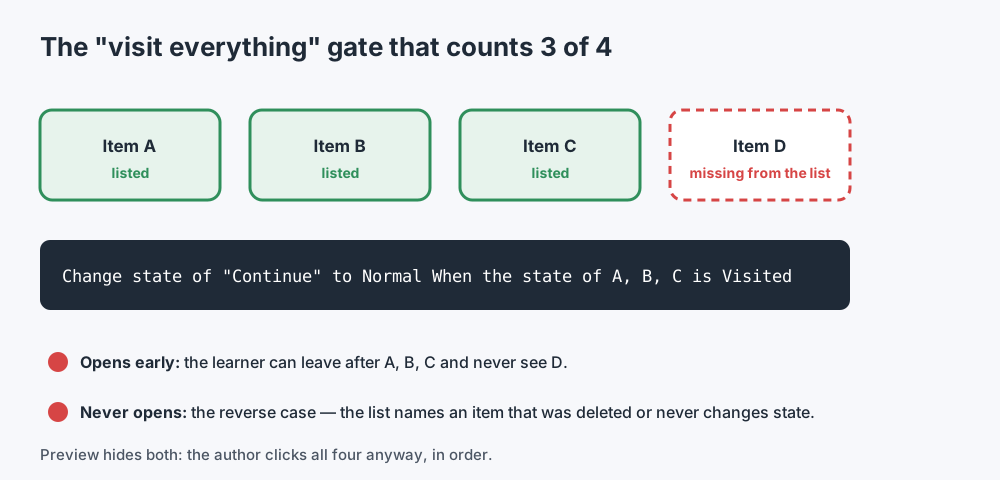 Preview hides both failures, because the author always clicks all four items, in order.
8. Media that pauses and never resumes
What the learner sees. A video stops in the middle to ask a question. They answer. The feedback layer closes. The video stays frozen, and the Next button is off because the slide was supposed to finish on its own.
Why it happens. Pausing media at a cue point to show a question is a standard technique, and Articulate's community team has a three-step guide for it. The pattern has two halves: pause at the cue point, and play again after the learner responds. If the second half is missing (on the Continue button, on closing the feedback layer, on the right layer) the learner is left facing a still frame.
How to catch it by hand. Watch every interactive video to the end, from the slide's start, without scrubbing. After each pause, take the learner's path back into the video, including the wrong-answer path.
How to prevent it. Write the pause and the resume as a pair, and check that every route out of the question layer (correct, incorrect, close) carries a Play media trigger or resumes the timeline.
9. A cue point past the end of the timeline
What the learner sees. Nothing. That is the problem. A question, button or layer that was meant to appear at a cue point simply never does.
Why it happens. Cue points are bookmarks on the timeline that triggers can wait for (Storyline cue points). Shorten the slide, replace the narration with a shorter take, or trim a video, and a cue point can end up after the point where the timeline ends. A trigger that waits for it will never fire. Articulate documents how triggers behave when cue points are moved or deleted, which is worth reading before you re-time a slide.
How to catch it by hand. After any change to audio or video length, open the timeline and check that every cue point still sits inside it. Then preview the slide to the very end.
How to prevent it. Re-time slides last, after narration is final. If you replace an audio file, re-check that slide's cue points in the same session.
10. A picture drawn bigger than its pixels
What the learner sees. A blurry image, sometimes only in one place. Screenshots and images with text suffer most, because soft text is easy to spot.
Why it happens. Articulate's own guidance is direct: scaling media up or down can make it blurry, text especially, so start with media already sized for the slide and don't stretch it in the course (best practices for high-quality images and videos). In practice, an image gets enlarged when you crop a small region of a screenshot and stretch it to fill a panel, when a placeholder image is swapped for a smaller file, or when a picture sits on a layer you rarely open. It looks acceptable at editor zoom and on the small Preview window, and soft at full screen.
A useful nuance: not every enlarged image looks bad. A flat, single-color shape can be stretched a lot without anyone noticing. Line art, text and photos can't.
How to catch it by hand. Preview at the largest size your learners will use, with the player scaled up, and look at every image with text or fine lines. In the editor, check Size and Position: a scale well above 100% on a detailed image is a warning sign.
How to prevent it. Capture screenshots at or above the size they will be shown, and crop in an image editor rather than enlarging a crop on the slide.
11. A condition that can never be true
What the learner sees. Whatever the condition was guarding never happens: the game never declares a winner, the score feedback never shows, the Next button never unlocks. There is no error. The learner just waits.
Why it happens. Storyline conditions combine with And or Or. A trigger that requires one variable to equal two different values at the same time (Answer = A And Answer = B) can never be satisfied; it almost always meant Or. A related slip is one condition in a group that tests a different property than all its siblings, usually a typo or a copy that wasn't updated. Drag-and-drop interactions are the reverse trap: a long Or list on the drop target is completely normal there, so not every complicated condition is a bug.
How to catch it by hand. Read every condition on triggers that control progress. Read them aloud, because "and" and "or" sound different from how they look. For each, ask: is there any learner action that makes this true?
How to prevent it. Keep gating logic in as few triggers as possible, and name your variables so the meaning of each comparison is obvious.
12. One button that doesn't match its siblings
What the learner sees. Five answer buttons turn blue when selected; the sixth doesn't. Twenty buttons glow on hover; one doesn't. Small on its own, but it makes the learner unsure whether that button works, or whether their answer was registered.
Why it happens. A state was missed when the button was built, or it was replaced from a different template, or someone fixed one button and not its siblings.
Here is where the core principle matters most. "This button has no Hover state" is not a bug. Plenty of good courses have no Hover states at all; that is a design decision. "This button has no Hover state while 120 of the 121 buttons in this course do" is something worth looking at. The bug isn't the missing state. The bug is the deviation.
How to catch it by hand. For each group of look-alike objects (answer buttons, tabs, menu cards) test one fully, then check that every sibling does the same thing in every state.
How to prevent it. Build from one finished, tested object. When you fix one sibling, fix them all.
The principle: could a designer build this on purpose?
Every item above has a twin that is not a bug.
A game board is the clearest example. In one learning game I built, the learner picks a category, gets feedback, and the category they have finished turns grey and loses its trigger, so they can't pick it again. Seen from the outside, that is a slide full of buttons that look like buttons and do nothing. A rule like "every button must respond to a click" flags every one of them. All of them are correct.
When we looked for what actually separates a deliberately disabled item from a broken one, the course data was no help: in our measurements, the intended and the broken buttons were configured almost identically. What differed was what the learner experiences, such as whether the pointer changed over the item and whether it looked like the other live items. Storyline's own Disabled state exists precisely so an object can stay visible without responding, so a visible, unresponsive object is not a bug by itself.
The same is true for fonts, colors, the form of address, and hover effects. One course uses a single typeface; another legitimately uses one for Hebrew and another for Latin text. One course talks to the learner formally; another is casual. There is no correct answer in the abstract. There is only what this course does nearly everywhere, and the few places where it does something else.
That leads to a short rule for any QA pass:
- A small, closed list of things is always wrong: broken, missing, unreachable, or impossible to finish. Fix those without discussion.
- Everything else is measured against the course itself. Find what repeats, then look at the exceptions. Word your finding as "deviates from the rest of this course," never as "wrong." The author decides.
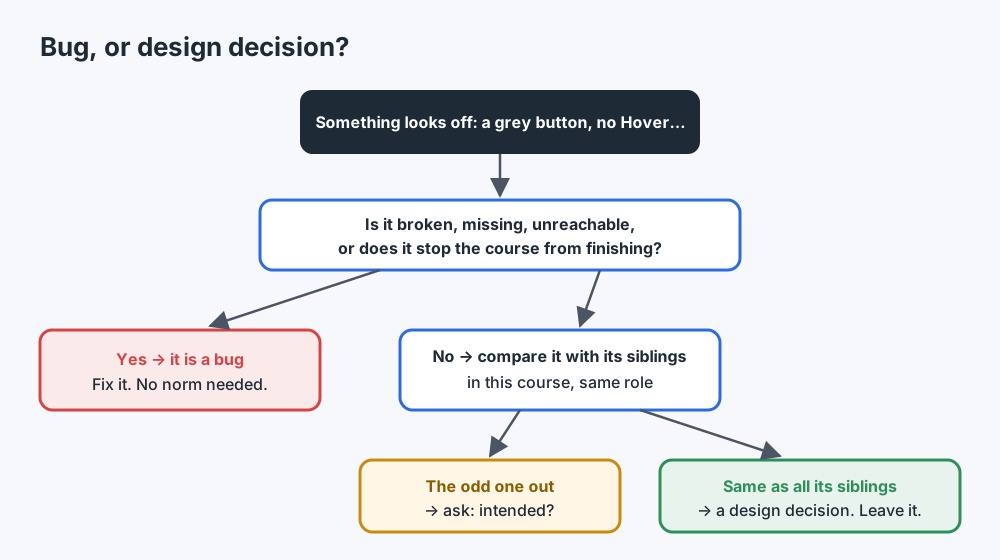 Most "bugs" are deviations. Compare with the course's own norm before you call something wrong.
This also tells you what a review checklist should not contain. "Every button must have a Hover state" will produce a page of false alarms on a course that deliberately has none, and the reviewer will learn to ignore the list. A checklist that says "every button behaves like its siblings" will catch the one that doesn't.
Where an automated pass helps
You can catch every bug in this post by hand. The issue is time: a 40-slide course with layers, states and a quiz has thousands of combinations, and a manual pass usually follows the same path the author took.
That is the gap I built Story Checker for. It scans a published Storyline course, uploaded as a ZIP (a Web or LMS publish), and, if you have it, the .story file; for the full results, upload both. It clicks through the course like a learner, from the first slide, to find where a learner gets stuck. It learns the course's own norms (fonts, colors, states) and reports what deviates instead of enforcing a fixed style guide. Each finding is located down to the exact word or object, with a red frame on the slide's screenshot and the slide numbered as in Storyline, and says what the learner experiences and how to fix it in Storyline's own terms. The scan runs on a server in the EU (Frankfurt). During the scan the course plays in an isolated browser where every attempt it makes to reach the internet is blocked, and the report ends with an evidence line showing what was tried and blocked. The course files are deleted once the scan succeeds. It is deterministic, not AI-based: the same course produces the same report.
Two honest limits. Some checks in this post (copied triggers, gates, detached states, layers no trigger opens) read the .story file; with only the published course, the report lists them as "not checked" rather than pretending they passed. And Story Checker is not an accessibility checker: Storyline 360 has a built-in Accessibility Checker, and you should use it.
If you receive courses from a vendor without the source file, see how to QA a vendor's e-learning course. If your course finishes but the LMS never records it, that is a different family of bugs: see Storyline SCORM completion not reporting.
Summary table: 12 Storyline bugs at a glance
| # | Bug | What the learner experiences | Catch it by hand | Prevent it |
|---|---|---|---|---|
| 1 | Empty layer opened by a trigger | Clicks, nothing changes | Open every layer in the editor | Delete layer and trigger together |
| 2 | Trigger to a missing layer / layer no trigger opens | Nothing opens / content never seen, or stuck | Trace each layer to the trigger that shows it | Name layers by purpose; search before deleting |
| 3 | Button covered by an invisible object | Button doesn't respond | Click at center and corners; check the stack | Name click shields; fill behind outline icons |
| 4 | Hover with no effect | Looks clickable, does nothing | Hover everything, click what reacts | Hover states only on objects that act |
| 5 | Copied trigger with a stale target | Wrong content opens; popup won't close | Read each look-alike's trigger target | Use "This layer"; rename right after pasting |
| 6 | State detached from its object | Look doesn't change on hover/visit | Put siblings through every state | Build one object, then duplicate |
| 7 | Visited gate that never opens / opens early | Stuck, or skips an item | Start from slide 1; click out of order | Update the gate in the same edit |
| 8 | Media paused, never resumed | Frozen video, no way on | Watch to the end, every answer path | Write pause and resume as a pair |
| 9 | Cue point past the end of the timeline | Something never appears | Check cue points after re-timing | Re-time after narration is final |
| 10 | Image drawn larger than its pixels | Blurry picture or text | Preview at full size | Capture at display size or larger |
| 11 | Condition that can never be true | Waits forever | Read conditions aloud: And or Or? | Keep gating logic in few triggers |
| 12 | One sibling deviates (state, glow, color) | One item behaves differently | Test one, compare all siblings | Fix all siblings, not one |
For the full pre-delivery list, see the Storyline QA checklist.
FAQ
Why does my Storyline course work in Preview but not for learners?
Preview usually tests one slide, the way you built it. Learners start at slide 1, click in any order, revisit slides and wait for media. Bugs such as empty layers, early-opening gates and media that never resumes only appear on that path. Test from the start of the course and on the published output.
Why is my Storyline trigger not working?
The most common causes are a trigger pointing at a layer or object that was renamed, deleted or copied from elsewhere; an object above the button that takes the click; or a condition that can never be true. Check the trigger's target, the stacking order and the condition's And/Or.
Is a disabled or greyed-out button in Storyline a bug?
Not necessarily. The built-in Disabled state is meant to keep an object visible while it ignores clicks, for example a game item the learner already used. Compare it with its siblings: if it is the only one disabled for no visible reason, look closer.
Why does my Storyline layer not show?
Either no trigger shows it, the trigger points at a different layer (often after copy and paste), or the trigger's condition is never met. If the layer opens but looks the same as before, it may be empty.
Why are my images blurry in Storyline?
Usually because the image is displayed larger than its actual pixel size, often after cropping a small part of a screenshot. Articulate recommends adding media already sized for the slide rather than stretching it.
Does Storyline have a built-in QA or accessibility checker?
Storyline 360 includes an Accessibility Checker for accessibility issues. It is not designed to find functional bugs like the ones in this post, so you still need a functional QA pass.
Conclusion
The bugs that reach learners are rarely dramatic. They are small promises the course makes and doesn't keep: a hover that invites a click, a gate that says "visit everything," a video that says "answer and we'll continue." You catch them by taking the learner's path instead of your own, and by asking of every odd thing: could a designer have built this on purpose? If the answer is yes, compare it with the rest of the course before you call it a bug.
If you want a second pair of eyes that walks the learner's path for you, try Story Checker on your next course.
Further reading
- Storyline Triggers Not Working? A Step-by-Step Debugging Guide
- Storyline Next Button Won't Enable? Fixing Visited-State Gates
- Why Learners Get Stuck in Storyline: Timelines, Cue Points and Slides That Won't Advance
- Storyline Quiz Not Scoring Correctly? Results Slides, Question Banks and Pass Marks
Story Checker is an independent tool and is not affiliated with or endorsed by Articulate Global, LLC.