Why Learners Get Stuck in Storyline: Timelines, Cue Points and Slides That Won't Advance
19 min read
Storyline slide not advancing? The cause is almost never a broken Next button. It is usually a timeline that never reaches its end, a cue point the timeline never reaches, a video paused for a question and never played again, or a layer that opens and offers no way out. Each of these looks fine in the editor and often fine in Preview, because the author knows which button to press and in what order.
This post walks through the ten places I see learners get stuck most often in Articulate Storyline 360 courses, explains the Storyline behavior behind each one with a link to Articulate's own documentation, and ends with a test method, a copy-ready checklist and a short FAQ. The method is simple and a little boring on purpose: take the course as a learner, from the first slide to the last, without the menu.
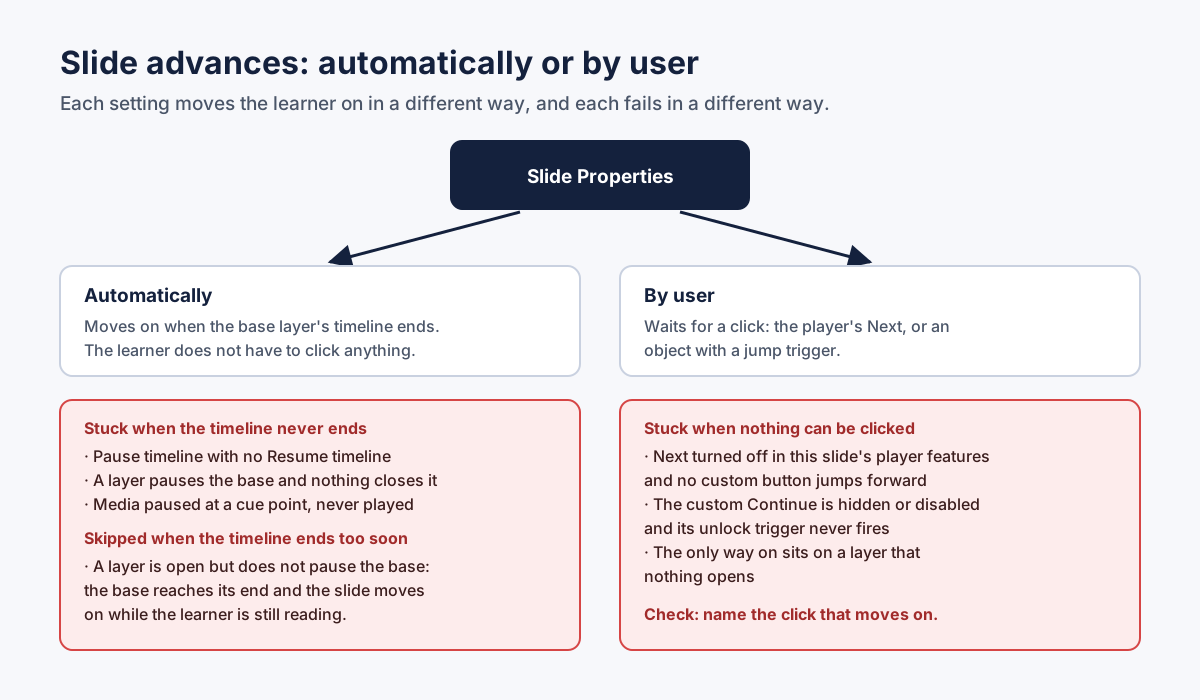 Two settings, two ways to move on, and two different ways to get stuck.
Storyline slide not advancing? Ask what is supposed to move the learner on
Every slide in a Storyline course answers that question somehow, and when a slide is not advancing, the fastest diagnosis is to answer it out loud. There are only a few possible answers:
- The timeline. The slide is set to advance automatically, so it moves on when its timeline ends.
- The player's Next button. The slide is set to advance by user, and Next is shown and enabled on this slide.
- An object with a jump trigger. A Continue button, a "Got it" on a feedback layer, a hotspot, the last item in a sequence.
- A result. A Submit on a question slide, a drag-and-drop that is completed, a variable that reaches a value and fires a jump.
If you can't name the answer for a slide, that slide is a candidate for a stuck learner. If you can name it, the next question is what could stop it from happening. The rest of this post is a list of those "what could stop it" cases, grouped by the Storyline feature that causes them.
I have built more than 140 Storyline courses. In my experience, a stuck learner is rarely the result of one wrong setting. It is two settings that are each reasonable, combined on one slide, plus one edit made weeks later.
1. The timeline ends and there is no Next
This is the classic dead end. The slide's narration finishes, the animations settle, and the learner is left looking at a static screen with nothing to press.
Storyline lets you choose, per slide, whether the slide advances Automatically or By user (Adjusting Slide Properties). The same article explains that each slide has its own player features: by default, content slides show Prev and Next, and question slides show Submit. Both settings are per slide, and both are easy to change in bulk from Story View. That is exactly how dead ends are born.
Common versions:
- "By user" with Next turned off. You hid the player's Next on a slide because it has a custom Continue button. Later the Continue button was deleted, or moved to a layer, or its jump trigger was removed while you were rebuilding the slide. The slide now waits for a click that nothing on it can provide.
- A custom Continue that never unlocks. Continue starts Hidden or Disabled and a trigger is supposed to reveal it, usually when the timeline ends or when all items are visited. If that trigger never fires, the learner never sees a way on. Gates of this kind are covered in depth in Storyline Next button not enabling.
- A template slide with the wrong player features. You duplicated a menu slide (which deliberately has no Next) to build a content slide, and kept its player settings.
How to check by hand. For every slide, read the Slide Properties: advance setting and player features. If Next is off, find the object on the slide or on one of its layers that jumps forward, and confirm it is visible and enabled at the moment the learner needs it, not just at some point.
2. "Slide advances automatically" versus "by user"
"Automatically" means the slide moves on by itself when the base layer's timeline ends. "By user" means it waits for the learner. This sounds simple, and community threads on E-Learning Heroes show it is a frequent source of confusion: developers report slides that keep advancing on their own even after they built a Next trigger, and the answer is usually that the slide was still set to advance automatically (Slides are auto advancing without requiring the Next button).
Each setting has its own failure mode.
"Automatically" fails when the timeline never ends. A slide set to advance automatically depends completely on its base timeline reaching the end. Anything that pauses that timeline and never resumes it leaves the learner stuck, often with Next hidden because, by design, the slide was never supposed to need it. Pause timeline triggers with no matching Resume timeline, a video paused at a cue point, and a layer that pauses the base layer and never closes are the usual suspects; each has its own section below.
"Automatically" also fails the other way: it moves on too soon. If a layer opens but does not pause the base layer, the base timeline keeps running underneath. When it reaches its end, the slide moves on, taking the learner away from a layer they were still reading or a question they were still answering. In Preview you rarely see this, because you click quickly. A real learner who reads slowly, or answers wrong and reads the feedback, sees the slide jump away from them.
"By user" fails when nothing can be clicked. That is section 1. The setting itself is never the bug; the bug is that the click it waits for is unavailable.
A rule of thumb that has saved me a lot of grief: if a slide has any layer that the learner must interact with, decide explicitly whether the base layer should keep running while that layer is open, and set the layer properties to match. Don't leave it to defaults and hope.
3. "When the timeline ends" on a layer versus on the base layer
Every layer in Storyline has its own timeline that starts when the layer appears (How the Timeline Works). That means "when the timeline ends" is not one event on a slide. It is one event per layer, and the trigger names which one it listens to.
Two bugs follow from that.
The trigger listens to the wrong timeline. A "Jump to next slide when the timeline ends" trigger was meant for the base layer but was created while a layer was selected, or copied to a layer. Now it fires when the layer's (often short) timeline ends. The learner opens a tip, and six seconds later the course moves to the next slide, skipping whatever the base layer still had to show. The reverse also happens: a Continue button meant to appear when the feedback layer finishes listens to the base layer's timeline, which ended long ago and will not end again.
The base layer's timeline is paused and nothing resumes it. That is the job of the next property.
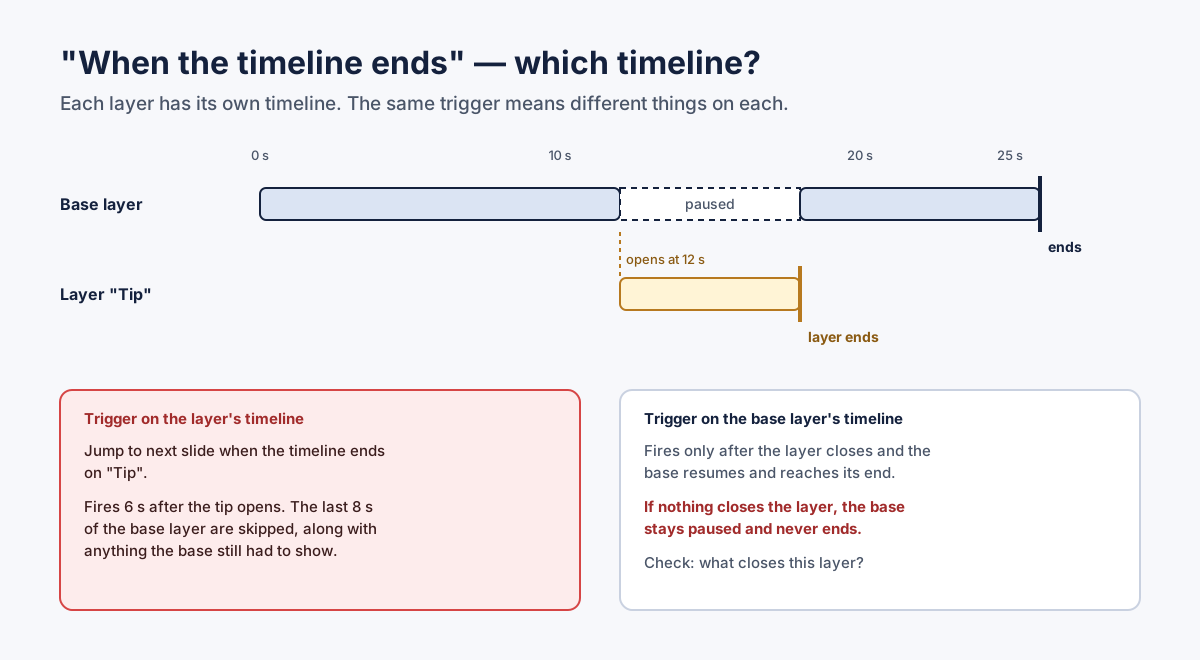 The same trigger, attached to two different timelines, does two different things.
How to check by hand. Open the Triggers panel with each layer selected in turn, and read every trigger whose event is "timeline ends" or "timeline reaches." For each one, say which timeline it listens to and whether that timeline can actually reach its end on the learner's path.
4. "Pause timeline of base layer"
This layer property does exactly what it says. Articulate's documentation states that it pauses the base layer, including animations and audio, while the current layer is visible, and that the base layer's timeline resumes where it left off when the current layer is closed (Working with Layers).
Read the last part again: when the current layer is closed. The resume is tied to the layer closing. So the property is safe on a layer that always closes, and dangerous on a layer that might not.
Where it goes wrong:
- A layer whose only exit was deleted. The layer pauses the base, the Close button was removed in a redesign, and the base layer, with the slide's auto-advance or its Continue button, stays paused forever.
- A layer that opens a second layer. If the second layer hides the first (see "Hide other slide layers" in the same article), the first layer did close, so the base resumes behind the second one. That can be right, or it can make the slide auto-advance while the learner is still inside the second layer.
- A layer with the property turned off, on a slide that advances automatically. That is the "moves on too soon" case from section 2.
Articulate's own community guidance on pausing video at cue points also recommends this property for keeping cue points in sync while a layer is shown (Use Cue Points to Pause a Video in Three Easy Steps). It is a good property. It just needs a guaranteed way to close the layer.
5. "Prevent the user from clicking on the other layers"
In current versions of Storyline 360, this layer property prevents the learner from interacting with objects on other layers, like buttons or drag items, while the current layer is visible (Working with Layers). In older versions and in many community threads it appears as "Prevent the user from clicking on the base layer" (Slide Layer Properties, E-Learning Heroes). It is the right setting for a feedback popup: you don't want the learner changing their answer or clicking Submit again behind the feedback.
It also means that, while the layer is open, every way forward on the base layer is unavailable, including a custom Continue button. So on a slide where the player's Next is turned off, the layer itself must contain the way out: a Close that really closes it, or a button that moves on.
Combine this property with "Pause timeline of base layer," and you have a perfectly normal modal popup. Remove its exit, and you have a trap.
6. A layer that opens and has no way out
This is the most common real-world version of sections 4 and 5 together, and it nearly always comes from copy and paste.
You build feedback layer 1 with a Close button: Hide layer "Feedback 1" when the user clicks. You duplicate the layer to make Feedback 2, 3 and 4. If the trigger names the layer instead of using "This layer," every copy now hides Feedback 1. On Feedback 3, clicking Close hides a layer that isn't even open. Nothing visible happens. Because the layer blocks clicks on the base layer and pauses its timeline, the learner can't reach Continue underneath, and the slide's own timeline is frozen.
Other ways a layer ends up with no exit:
- "Hide slide layer when timeline finishes" on a layer that holds the only button. The layer property hides the current layer when it has finished playing (Working with Layers). If the layer's timeline is three seconds long and the "Continue" button lives on it, the button disappears before a slow reader reaches it. In this case the learner is not trapped inside a layer; the way forward simply vanishes.
- An exit button that starts Hidden and is supposed to appear when the layer's narration ends, on a layer that has no narration anymore.
- A layer that opens, and is empty. The trigger is valid, the layer has nothing in it, and the click appears to do nothing. The learner keeps clicking. 12 common Storyline bugs that pass Preview covers this one.
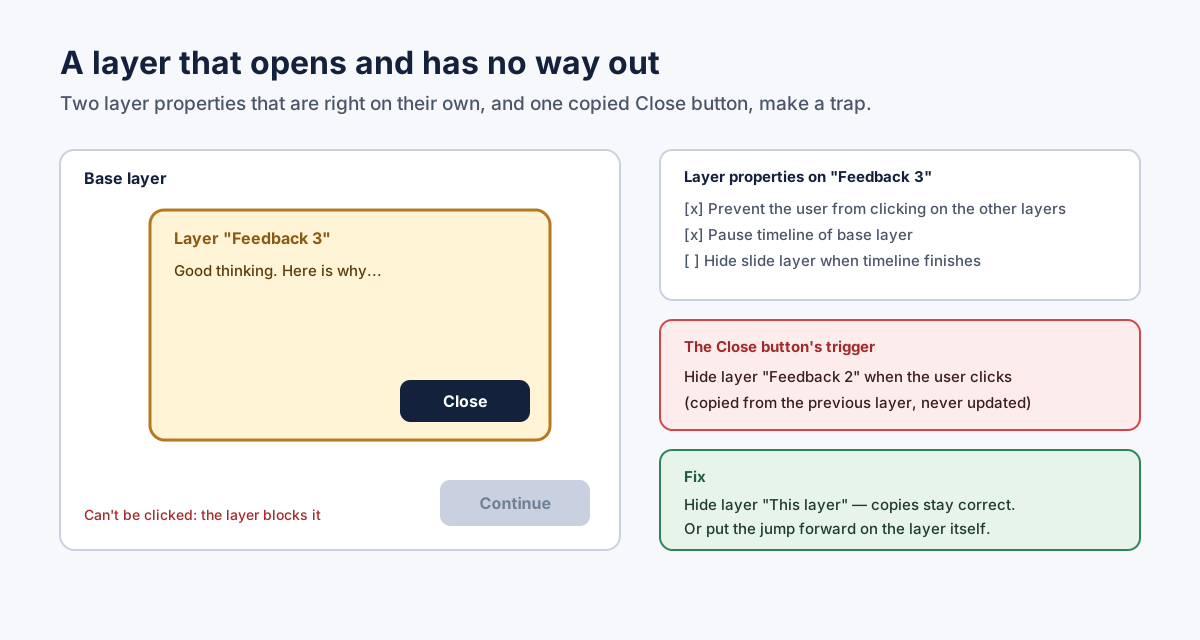 Two layer properties that are right on their own, plus one copied trigger, make a trap.
How to prevent it. Use Hide layer "This layer" for every Close button on a popup. A copied Close then always closes its own layer. For every layer that blocks clicks or pauses the base, name its exit before you publish.
7. A cue point outside the timeline
Cue points are markers on the timeline that let you line objects up precisely and that triggers can wait for: "when the timeline reaches Cue Point 3" (Working with the Timeline; Get to Know Storyline Cue Points). A trigger that waits for a point the timeline never reaches never fires.
How does a cue point end up past the end? Almost always by re-timing. You replace the narration with a shorter take, trim a video, or shorten the slide, and the timeline ends earlier than it used to. A cue point that was at 34 seconds is now beyond a 28-second timeline.
Articulate documents a detail that matters here. If you move a cue point, its trigger moves with it. If you delete a cue point, the trigger stays and keeps firing at the time where the cue point was (How Triggers Work When Moving or Deleting Cue Points). So deleting a cue point you no longer see does not remove the risk: the trigger is still waiting for that moment, and if the timeline gets shorter, that moment is gone.
What the learner sees depends on what the cue point was for. If it showed a question layer, the question never appears. If it revealed the Continue button, there is no Continue. If it paused the video, the video plays to the end without the interaction you designed, which is a quieter bug but still one.
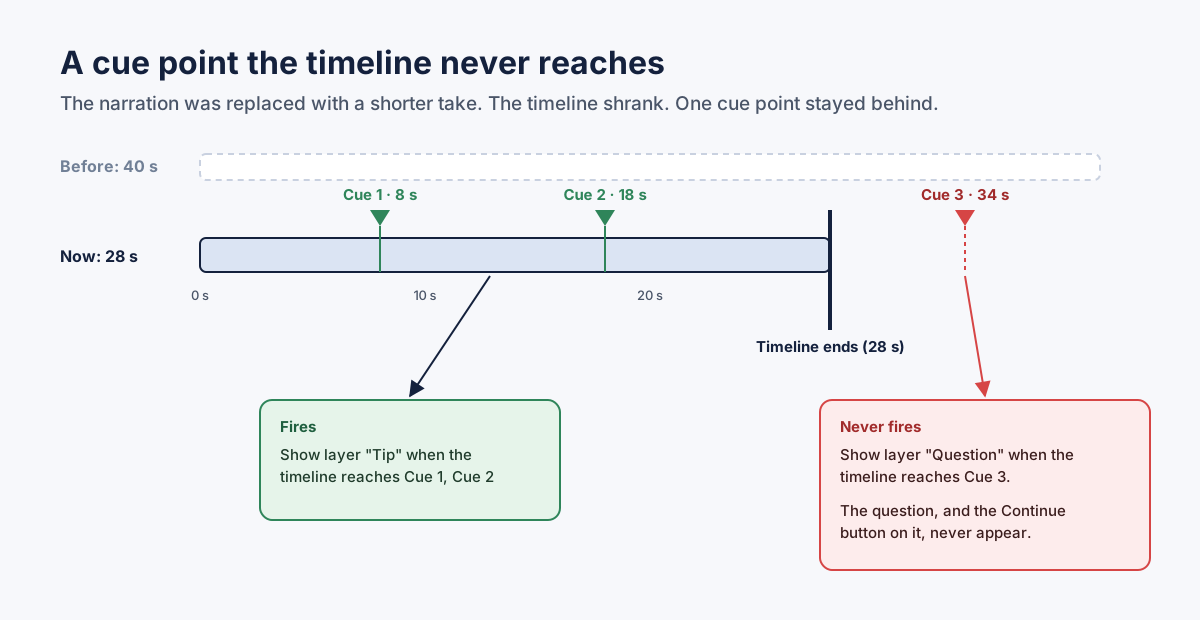 The cue point is still there. The timeline just doesn't reach it any more.
How to check by hand. After any change to audio or video length, open the timeline of every layer on that slide and look at the right edge. Every cue point, and every "timeline reaches" trigger, should sit inside it. Re-time slides only after narration is final.
8. Media that pauses and never resumes
Pausing a video at a cue point to ask a question is one of the most useful patterns in Storyline. Articulate's community team describes it in three steps: a cue point, a trigger that pauses the timeline or the media when the timeline reaches it, and a layer with the interaction (Use Cue Points to Pause a Video in Three Easy Steps).
The pattern has a second half that is easy to lose: something must play the video again. A Play media trigger when the feedback layer closes, or a resume on the layer's Continue button. If the pause came only from the layer's "Pause timeline of base layer" property, closing the layer resumes the base; a Pause media or Pause timeline trigger needs its own matching Play media or Resume timeline.
The second half usually goes missing on one path only. You wire the resume on the Correct feedback layer and test it. The Incorrect layer was duplicated earlier, before you added the resume. In Preview you answer correctly, because you know the answer, and the video plays on. A learner who answers wrong sits in front of a frozen frame. If the slide advances automatically when the video ends, Next is off too.
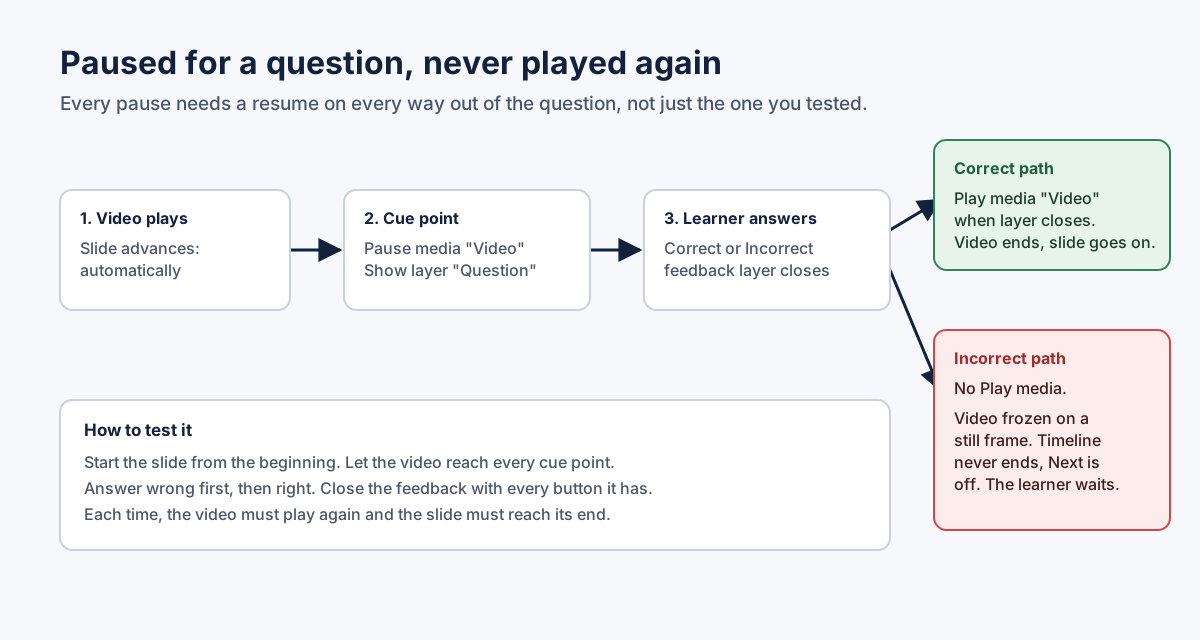 Every pause needs a resume on every way out of the question.
How to check by hand. Watch every interactive video from the start of the slide, without scrubbing. Answer wrong first, then right. Close each feedback layer with each button it has. Every time, the video must play again and the slide must reach its end.
A related but different case: a pause and a resume that fight. If two triggers react to the same moment, one pausing and one playing, the order of triggers on that event decides who wins. The Storyline triggers debugging guide explains trigger order.
9. A condition that can never be true
Many ways forward are guarded by a condition. Show Continue if all four tabs are Visited. Jump to the next slide if Score is greater than or equal to 80. Change the door to Open if Code equals 4512. When the condition can never be true, the way forward never opens, and there is no error message anywhere.
The classic version is And where you meant Or. A trigger that requires Answer = "A" And Answer = "B" asks one variable to hold two values at the same time. It reads naturally in English ("A and B are both acceptable"), which is exactly why it gets written. Read every progress-guarding condition aloud, and for each one ask: is there a learner action that makes this true?
Other versions:
- A condition on an object that no longer exists, or on a state the object doesn't have. A gate waiting for "Item 5 is Visited" when Item 5 was deleted, or never had a Visited state, waits forever.
- One comparison in a group that differs from its siblings. Four comparisons check the state of four items; the fifth, copied and not updated, checks Hover instead of Visited. The game can never be won.
- A variable reset on revisit. The condition can be met on the first visit, but a "when the timeline starts" trigger resets something on the second, and the timeline-end trigger that should restore it doesn't run again. Articulate documents why: the timeline-starts event fires every time the learner revisits a slide, even when the slide resumes its saved state (How the Timeline-Starts Trigger Event Works).
10. Sliders and code locks
Interactions where the learner sets a value, rather than clicks a button, deserve their own section because their conditions are compared to numbers and text the learner has to produce exactly.
Sliders. A slider controls a number variable, and its values come from four properties: Start, End, Initial and Step. Triggers can run when the slider moves or when the variable changes, and the variable can update while the learner drags or only when they release the thumb (Working with Sliders). Two things go wrong:
- A target value the slider can't land on. If the condition waits for a value that isn't one of the slider's stops (because Step was changed, or End was lowered), the gate never opens. Work out the list of stops from Start, End and Step, and confirm the value your condition waits for is on that list.
- A check that runs at the wrong moment. The slider's Update setting decides when its variable changes: while dragging, or on release. If your check is wired to one moment and the variable changes at the other, test that the gate still opens when the learner drags slowly and when they drag fast and let go.
Code locks and text entry. For a typed answer, Storyline updates the field's variable when the field loses focus, that is, when the learner clicks or tabs to another object (What "Object Loses Focus" Means). A check that runs before that moment can compare the old value. Beyond timing, compare the condition with what a learner can actually type: a code that expects digits in an order the keypad can't produce, a keypad digit button that sets the wrong digit because it was copied from its neighbor, a "Clear" that resets the variable but not the display. For keypads built from buttons, press every digit once and watch the variable in a debug text box.
The method: take the course as a learner, from the first slide
Every bug above shares one property: you won't see it if you jump to the slide. Preview This Slide starts the slide fresh, skips the path that led to it, and lets you click in the order you built it. The player's menu lets you skip the slide you're stuck on, so you never notice that a learner couldn't.
Here is the method I use, and it is deliberately unexciting:
- Use the published output, not Preview, ideally inside an LMS or a test LMS like SCORM Cloud, so the player, the resume behavior and the LMS connection are the real ones. (Storyline course not reporting completion explains why the LMS part matters.)
- Start at slide 1, and don't touch the menu. If your course uses free navigation, pretend it is locked. Storyline lets you set navigation to Restricted or Locked so learners can't jump ahead (How to Restrict or Lock Navigation); test as if that were on, even if it isn't, because some learners never open the menu.
- On every slide, wait. Let the timeline and narration end before you click anything. Many dead ends only appear after the timeline ends, and many "moves on too soon" bugs only appear if you're slow.
- Press only what a learner can see. The player's Next or Submit when they are shown and enabled, objects that look clickable, buttons on a layer that opened. If you have to know something only the author knows to move on, write it down.
- Take the wrong path first. Wrong answer, then right. Close the feedback with every button. Drag to the wrong target. Type the wrong code.
- Leave and come back. On slides with gates, go back one slide and return. Resume and reset behavior (Adjusting Slide Properties) changes what fires on the second visit.
- Write down every stop. For each place you got stuck: the slide number and title, what was on screen, what you pressed, and what you expected to move you on. That last part is what makes a finding fixable.
A full pass through a 40-slide course takes time, and the honest reason it is skipped is not laziness. It is that the author has already seen every slide many times, and the path between slides feels tested when it isn't.
For the wider pre-publish list (quizzes, completion, player, text, visuals) see the Storyline QA checklist.
Where Story Checker fits
I built Story Checker because I kept finding these bugs in my own courses after delivery. It is relevant here in two specific ways.
First, it walks the course as a learner. Starting from the first slide, it waits for each slide's timeline to end, then presses only what a learner can see and reach: the player's Next or Submit when they are shown and enabled, objects that a real pointer can click, and the buttons of a layer that opened. It answers questions, drags items, moves sliders through their stops and types into fields, using the course's own answer key when the course's conditions reveal it. It does not use the player's menu or the Back button. If it reaches a slide where nothing it can press moves on, while the slide's own wiring has a way forward that never appeared, it reports a dead end on that slide by its real number and title. If it can't get past something because it doesn't know the answer (a word to type that the course never states, for example), it says so, with what it tried, instead of calling it a bug. If it runs out of time, it says that too, and how far it got.
Second, it reads the course's logic for the cases in this post that you can detect without playing: a slide that pauses media and has nothing anywhere on it that plays it again, a "timeline reaches" trigger set later than the end of its timeline, and a condition that requires one variable to equal two different values at once. With the .story file, it also finds a layer that carries the way forward but that no trigger opens, a hidden object that is never revealed, and a Close button copied from another layer that closes the wrong one. Each finding says what the learner experiences and how to fix it in Storyline's own terms.
You upload the published course as a ZIP (a Web or LMS publish) and, if you have it, the .story file; for the full results, both. The scan runs on a server in the EU (Frankfurt). During the scan the course plays in an isolated browser where every attempt it makes to reach the internet is blocked, and the report ends with an evidence line showing what was tried and blocked. The course files are deleted once the scan succeeds. It is deterministic, not AI-based, so the same course gives the same report. It is not an accessibility checker; Storyline 360 has its own, and you should use it.
You can learn more at story-checker.com.
Copy-ready checklist: will the learner reach the end?
| # | Check | Pass when |
|---|---|---|
| 1 | For every slide, name what moves the learner on | Timeline, Next, an object's jump or a result, and it is available when needed |
| 2 | "By user" slides with Next turned off | An object on the slide or an opened layer jumps forward, visible and enabled |
| 3 | "Automatically" slides | Nothing can pause the base timeline without something that resumes it |
| 4 | Layers on auto-advancing slides | Each layer either pauses the base, or is fine if the slide moves on while it is open |
| 5 | Every "timeline ends" trigger | Listens to the timeline you meant (base or layer), and that timeline can end |
| 6 | Layers with "Pause timeline of base layer" | The layer always closes on every path |
| 7 | Layers with "Prevent the user from clicking on the other layers" | The layer has its own working exit |
| 8 | Close buttons on popups | Use Hide layer "This layer", not a named layer |
| 9 | Layers with "Hide slide layer when timeline finishes" | They don't hold the only way forward |
| 10 | Cue points and "timeline reaches" triggers | All sit inside the timeline after the last re-timing |
| 11 | Every media pause | Has a resume on every way out of the question, correct and incorrect |
| 12 | Every progress-guarding condition | Read aloud; And/Or correct; some learner action makes it true |
| 13 | Gates referring to objects or states | The objects exist and have those states |
| 14 | Sliders | The target value is one of the slider's stops; the check runs on the right event |
| 15 | Code locks and text entry | The code can be typed with the controls given; the check runs after the value updates |
| 16 | Revisits | Leaving and returning doesn't re-lock a slide the learner already unlocked |
| 17 | The full pass | Published output, slide 1 to the end, no menu, wrong answers first |
FAQ
Why is my Storyline slide not advancing?
Either the slide is set to advance by user and nothing the learner can click moves on (Next is off and the custom button is hidden, disabled or gone), or it is set to advance automatically and its base timeline never ends, usually because something paused it and nothing resumed it.
Why does my Storyline slide advance on its own?
It is set to advance automatically in Slide Properties, so it moves on when the base layer's timeline ends. If a layer is open and doesn't pause the base layer, the base keeps running and the slide can move on while the learner is still on the layer. A "jump to next slide" trigger on a layer's timeline can also fire early.
Why is my cue point trigger not firing?
The most common cause is a cue point that now sits after the end of the timeline, after narration or video was shortened. Also check which timeline the trigger listens to: each layer has its own. A deleted cue point leaves its trigger at the old time.
How do I pause a video at a cue point and resume it?
Add a cue point, pause the media or timeline when the timeline reaches it, and show a layer with the interaction. Then make sure every way out of that layer, correct and incorrect, plays the media or resumes the timeline. "Pause timeline of base layer" resumes the base when the layer closes.
What does "Pause timeline of base layer" do?
It pauses the base layer, including animation and audio, while the layer is visible, and resumes it where it left off when the layer closes. If nothing ever closes the layer, the base never resumes, and a slide that advances automatically never moves on.
How do I test that learners won't get stuck?
Use the published course, start from the first slide, and don't use the menu. Wait for each timeline to end, press only what a learner can see, take wrong answers first, and leave and return to slides with gates. Note every slide where you can't move on.
Conclusion
A slide that won't advance is a promise the course made and didn't keep: "wait and we'll continue," "answer and the video will play," "close this and you can go on." The Storyline features involved, timelines, cue points, layer properties and slide properties, all behave exactly as documented. The trouble is the combination, and the edit that came later. You find these bugs by taking the learner's path: slide 1, no menu, wrong answers first, waiting where a learner would wait.
If you want a second pass that walks that path for you, try Story Checker at story-checker.com.
Story Checker is an independent tool and is not affiliated with or endorsed by Articulate Global, LLC.