The Complete Articulate Storyline QA Checklist (Before You Publish)
18 min read
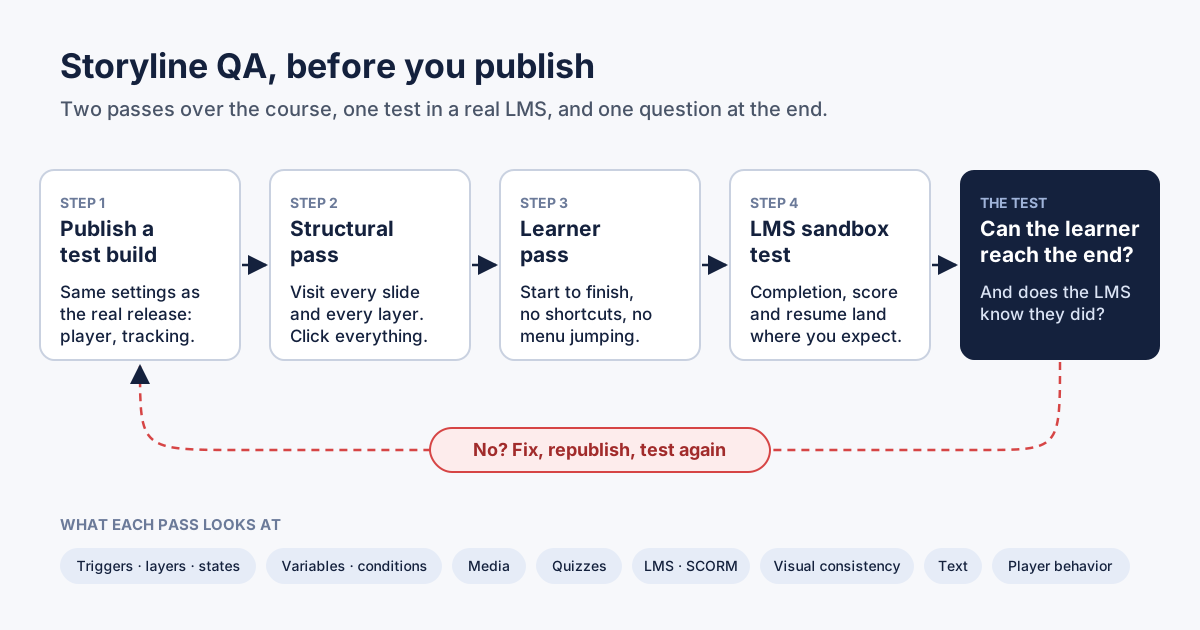 The workflow this checklist follows. Two passes over the course, one test in a real LMS, and a loop back whenever the answer to the last question is no.
This Storyline QA checklist covers everything I test in an Articulate Storyline course before it goes to an LMS: triggers, layers and states, variables and conditions, media, quizzes, SCORM reporting, visual consistency, text, and the player. For each area you get what to check, why it breaks, and how to test it by hand. There is a copy-ready checklist table near the end, and a short FAQ after it.
One test sits above all the others, and it is the one most reviews skip: can a learner, starting at slide one and doing nothing clever, reach the end of the course, and does the LMS find out that they did? The bugs that do real damage fail that test. Style slips rarely do.
Before you start: test the published course, not the project
Preview in Storyline is useful while you build, but it is not what your learner gets. The learner gets the published output, inside a player, inside an LMS, inside a browser. Player settings, tracking options, the "when revisiting" behavior of each slide and the way the LMS launches the course only exist in that version.
So the first rule of Storyline testing is simple: publish a test build with exactly the settings you will release with, and run every check below against that build. If you change the player or the tracking settings later, the test is void and you run it again.
Second rule: separate two kinds of review. A structural pass visits every slide and every layer and asks "does each part work?" A learner pass goes from the first slide to the last in order, the way a real person would, and asks "can I get through?" They find different bugs. A slide can be perfect on its own and still be unreachable.
1. Navigation, triggers, layers and states
This is where most Storyline bugs live, because this is where most of the logic lives.
What to check
- Every button, hotspot and clickable image does something when clicked. Not just a visual change. An actual action: a layer opens, a slide changes, a variable moves.
- Every trigger that shows a layer points to a layer that still exists and still has content in it.
- Every layer that opens can be closed, or leads somewhere.
- Objects that highlight on hover are actually clickable. If something lights up under the mouse, the learner will click it.
- Buttons that should look disabled are disabled for a reason, and something eventually enables them.
- Triggers on the same object and event run in the order you intended.
Why it breaks
Storyline makes it very easy to duplicate. You copy a slide, rename a layer, delete a layer that looked unused, and a trigger somewhere still points at the old name. You give a button a Hover state while designing, then never wire the click. A designer copies a group of five buttons and rewires four.
Trigger order is another quiet one. Articulate's documentation on working with triggers says that triggers on the same object with the same event fire in the order they appear in the panel, and that slide master triggers fire before slide and layer triggers. If a "jump to slide" sits above an "adjust variable" on the same click, think hard about whether the second trigger ever gets to matter. My habit: variable changes first, navigation last.
States deserve their own attention. Storyline's built-in states behave automatically: Hover shows on mouse-over, Visited after a click, Selected when the object is selected. A Disabled object stays visible but, in Articulate's words, "won't respond when hovered over, clicked, or dragged." That is exactly what you want for a locked button, and exactly what traps a learner when nothing ever changes the state back to Normal.
How to test it by hand
- On each slide, hover over everything. Write down every object that changes appearance.
- Click each one of those. Anything that changed on hover and did nothing on click is a bug, or at least a question for the author.
- Open every layer. Look for an empty layer, a layer with no close button, and a layer whose close button returns you to the wrong place.
- In the Triggers panel, scan for triggers that reference objects or layers with default names like "Rectangle 4." When three objects share a name, it is easy to wire the wrong one.
- For any locked button, find the trigger that unlocks it, then do exactly what that trigger needs, and confirm the button really opens.
2. Variables and conditions
What to check
- Every variable that a condition reads is actually set somewhere.
- Every variable that is set is read somewhere. A variable nobody reads is usually a sign of a trigger that was meant to check it and never got written.
- Conditions compare things that can actually be equal. A number compared to text, a True/False variable compared to a value it can never hold, or a counter that has to reach 6 when only 5 items increase it.
- Variables that count attempts, score or progress reset when the learner retries.
Why it breaks
Variables are invisible. On the slide, nothing tells you that the "Continue" button waits for Visited_All = True, and nothing tells you that the trigger which sets it was deleted along with an old layer. The gate looks normal. It just never opens.
Conditions are also where copied interactions go wrong. You clone a drag-and-drop activity from a course with six items into one with five, and the condition still waits for six correct drops. Storyline lets you add conditions on variables, on object states and on the player window, as described in the triggers documentation, and every one of those can point at something that no longer exists in the new context.
How to test it by hand
- Open the Variables window and list every variable.
- For each one, use "Show Usage" or search the Triggers panel, and confirm it is both set and read.
- For every conditional trigger that unlocks progress, write the condition in plain words ("Next turns on when all four tabs were visited") and then do exactly that, and nothing more, as a learner.
- Add a temporary text box that displays the key variables (
%VariableName%) while you test. Remove it before you publish. - Use "Try again" or retry buttons at least twice. The second attempt is where missing resets show up.
3. Media: audio, video and images
What to check
- Every image, video and audio file loads in the published build. Not in preview. In the build.
- Images are not stretched, squashed, or blurry because they were enlarged past their real resolution.
- Narration has controls the learner can use: pause, replay, volume, captions, as your project requires.
- Video that pauses at a cue point has something that plays it again.
- Cue points sit inside the timeline. A cue point after the end of the timeline never fires.
- Narration is not longer than the slide timeline, so it is not cut off.
Why it breaks
Media is where "it looked fine on my machine" lives. A video replaced late in the project has a different length, and the timeline was never adjusted. An image swapped for a smaller version gets stretched to fill the old frame. A trigger like "pause media when timeline reaches cue point 2" is perfectly reasonable, until the button that should resume the video is removed in the next round of edits.
Player settings matter too. If the bottom bar, the seekbar, the volume control and captions are all turned off, a learner who misses a sentence of narration has no way to hear it again. For captions specifically, W3C's WCAG explanation of prerecorded captions is a good reference for what good captions include beyond the spoken words.
How to test it by hand
- Play every slide with sound on, start to finish, and watch the timeline end. Does narration finish before the slide does?
- For every video, let it reach every cue point and confirm what happens next.
- Look at images at 100% browser zoom on a large screen. Blur and stretching are much more obvious there than in the Storyline editor.
- Open the browser's developer tools (F12), go to the Network tab, reload the course and filter for failed requests. Any red line is a file the learner will not see or hear.
- Check the player: can you pause narration, scrub back, change the volume, turn captions on?
4. Quizzes and knowledge checks
What to check
- Every question has a correct answer, and only one, unless it is meant to be multiple response.
- Matching and sequence questions have a correct pair or order for every item.
- Every answer, including every distractor, leads to feedback that makes sense.
- The Submit button exists and works on every question slide.
- The pass mark can actually be reached with the points available.
- The results slide tracks the questions you think it tracks.
- Answer buttons behave consistently: if most of them show a Selected state, the ones that do not are suspicious.
Why it breaks
Quizzes are usually built last and changed most often. A question gets copied and reworded and the correct answer is never moved. A question is deleted from the bank and the results slide now needs a score that the remaining questions cannot give. A custom quiz built from buttons and variables works for the first question and is cloned nineteen times with a typo in the eleventh.
How to test it by hand
- Take the quiz three times: once perfect, once with every answer wrong, and once mixed and right around the pass mark.
- On each run, confirm the score on the results slide matches what you expect by hand.
- For a perfect run, confirm the course reports "passed" or "complete" in your LMS test (see section 5).
- Click every distractor at least once. Read the feedback. Feedback written for answer B and shown for answer C is common after reordering.
- If retakes are allowed, retake and confirm the score and attempts reset.
5. LMS reporting and SCORM
This is the section where a bug does the most damage, because nobody sees it until real learners have taken the course and the completion report is empty.
What to check
- The tracking option is the one you intended: slides viewed, quiz result, a completion trigger, or a combination.
- A learner on the shortest real path through the course can meet the completion condition.
- A learner cannot meet the completion condition too early, before the content they are supposed to see.
- The publishing standard (SCORM 1.2, SCORM 2004, xAPI, cmi5 or AICC) matches what the LMS expects.
- Resume works: close the course halfway, reopen it, and land where you left off.
Why it breaks
Storyline lets you combine tracking options, and the rule is in Articulate's article on when a course communicates completion to an LMS: "Whichever option a learner completes first is the one that gets reported to your LMS/LRS." That is powerful, and also an easy way to report completion after the first few slides when you meant it to happen after the quiz.
"Slides viewed" is the classic trap. You can count all slides or only those with slide numbers, by number or by percentage, as described in Articulate's guide to publishing for LMS/LRS distribution. In a branched course, or one where some slides are only reachable from a menu the learner may skip, the number of slides a real learner visits can be lower than the threshold. Then the course looks complete to the learner and never tells the LMS.
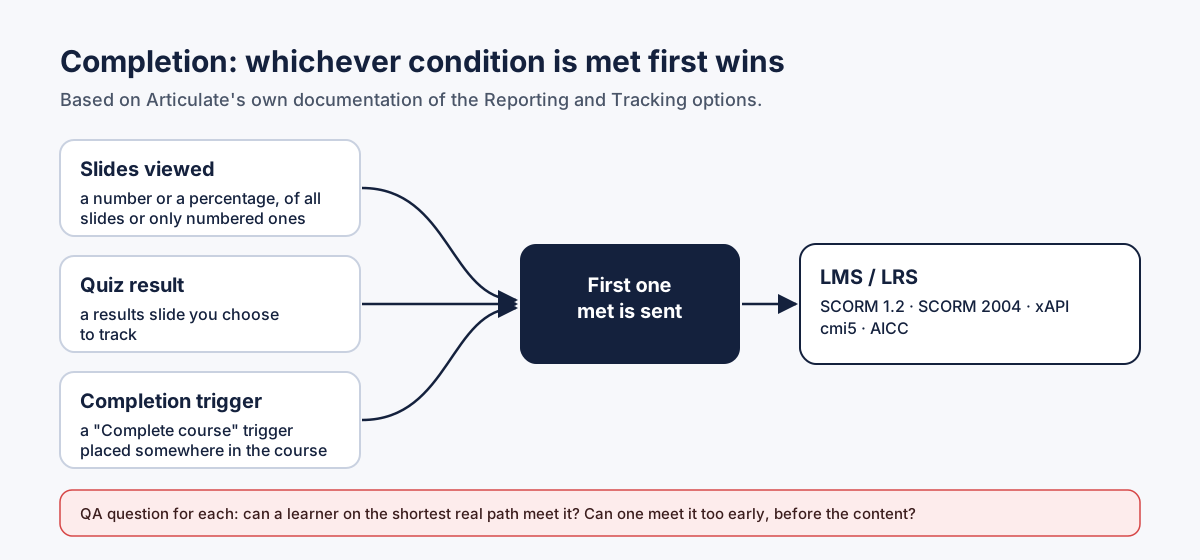 Three ways to complete, one status sent. The QA question is the same for each: can a real learner meet it, and can one meet it too early?
How to test it by hand
- Write down, in one sentence, when this course should be complete. Then check the Reporting and Tracking settings match that sentence.
- Find the shortest legitimate path through the course and count the slides on it. Compare that number to a "slides viewed" threshold.
- Upload the published package to a neutral test environment before the client's LMS. Rustici's SCORM Cloud is the usual choice: it has a free trial, a debug log, and it separates "the course is broken" from "this LMS is unusual." If you are new to the standard, Rustici's SCORM explained is a clear overview of what the course and the LMS actually exchange.
- Run the course as a learner there, finish it, and check the registration: completion, success, score.
- Close the course halfway, relaunch it, and confirm resume.
I go deeper into the reasons a course reports nothing in why a Storyline course is not reporting completion.
6. Visual consistency
What to check
- Fonts, sizes and colors are consistent for the same role across the course: all titles look like titles, all body text like body text.
- In a course with two scripts, such as Hebrew and English or Arabic and English, each script uses its own consistent font.
- Buttons in the same group share the same fill, size, position pattern and set of states.
- Objects stay inside the slide. Nothing important hangs off the edge.
- Slides that should share a layout actually share it: the navigation bar, the logo and the page counter are in the same place on every slide.
Why it breaks
There is no "correct" font or color in general. There is only what this course does everywhere else. A title in a different shade on slide 3, a body text box at 14px when the rest of the course uses 19px, one button out of six with a different fill. Each comes from pasting content from another file or from an older version of the template.
This is also why fixed style-guide checks produce noise. A talented designer can make any choice on purpose. The useful question is not "is this font allowed?" but "is this the only place in the course that uses it?"
How to test it by hand
- Put the slide thumbnails side by side (Story View, or a grid of screenshots) and look for the odd one out.
- Click into every title text box on a sample of slides and compare font, size and color in the Home tab.
- For button groups, check the states of every button, not just the first one. Missing Hover or Selected states on one button out of five are easy to miss.
- Switch between slides quickly in the published build. Things that jump a few pixels between slides that should be identical are very visible this way.
7. Text
What to check
- Spelling and punctuation in everything the learner sees, including layers, feedback, button labels and the course title in the player.
- The same term is spelled the same way everywhere.
- The way the course addresses the learner is consistent. In languages with grammatical gender, this includes the form of address.
- Text matches the approved script or storyboard. No missing paragraphs, nothing that came from the wrong slide, no placeholder text.
- Links in text are valid and open the right page.
Why it breaks
Text is reviewed in the storyboard, then rewritten in Storyline, then edited again after SME feedback, and only the first version was proofread. Feedback layers and quiz distractors are the least-read text in the whole course, so they keep the most mistakes. Links pasted from email often carry extra characters, such as angle brackets or a trailing parenthesis, that break them.
How to test it by hand
- Export the course text (Storyline's translation export works well for this) and run a spell check on it outside Storyline.
- Compare the exported text against the approved script, slide by slide, for anything missing or added.
- Click every link in the published build.
- Read every feedback layer at least once.
8. Player behavior
What to check
- The player's text direction matches the course language. A right-to-left course should not have its navigation arrows reversed.
- Menu, Resources, Glossary and Notes tabs are either filled in or turned off.
- Every file in Resources is actually in the package and opens.
- The course title in the player is the real title, not a working name like "Copy of" or "v3 final."
- Prev, Next and Submit appear on the slides where they should, according to each slide's settings.
- The course loads in a reasonable time, and the browser console shows no JavaScript errors.
Why it breaks
Player settings are set once, early, often from a template, and rarely revisited. Each slide also carries its own player features and its own "when revisiting" behavior. Articulate's article on adjusting slide properties covers both: "Resume saved state," "Reset to initial state" and "Automatically decide," and per-slide navigation buttons. The default, "Automatically decide," resumes slides with interactive objects and resets simple ones. That is sensible, and it also means a custom Next button that only turns on at the end of the timeline might never turn on during a second visit, because the timeline does not play from the start again.
How to test it by hand
- Open every player tab and every Resources link.
- Visit a gated slide, leave it, come back, and try to continue.
- Open the developer tools console while you click through. Errors there often come from JavaScript triggers that fail silently.
- Test the course in the browsers your audience uses, and at the screen sizes they use.
9. The test above all: can the learner reach the end?
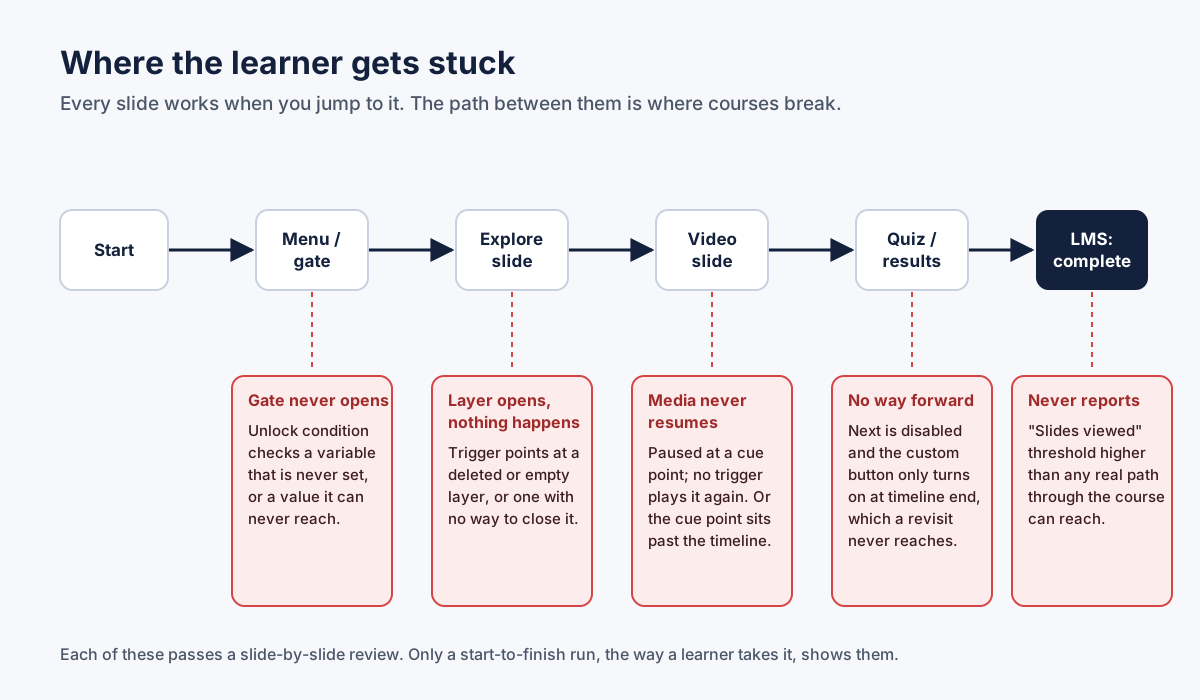 Five places a learner gets stuck. Each one passes a slide-by-slide review.
Everything above is a list of parts. This last test is about the whole.
Start the published course in a test LMS as a new learner. Do not use the menu to skip ahead. Do not use the seekbar. Do not click anything you would not expect a first-time learner to click. Do what the slide asks, and nothing else. Go all the way to the end.
You are looking for one of four outcomes, in this order of seriousness:
- The learner gets stuck. A gate never opens, a layer opens and nothing in it leads anywhere, a video stops and never starts again, Next stays off. This is a critical bug, no matter how good the rest of the course is.
- The course does not report completion. The learner reached the end, but the LMS still says "incomplete." From the learner's and the client's side, this is also a failed course.
- The learner gets through, but something is visibly broken. A button that does nothing, a broken image, reversed player arrows.
- Something deviates from the course's own pattern. A different font, color or form of address. Worth fixing, and worth asking about first.
Then do it once more on a different path, if the course has branches: the shortest one, and the one a curious learner would take. The author is the worst possible tester for this, because the author always knows where to click. Hand the run to someone who has never seen the course, if you can.
Your copy-ready Storyline QA checklist
| # | Area | Check | Pass when |
|---|---|---|---|
| 1 | Triggers | Every hover-responsive object has a click action | Nothing highlights and then does nothing |
| 2 | Triggers | Every "show layer" trigger points to an existing layer with content | No empty or missing layers |
| 3 | Triggers | Triggers on the same event are in the intended order | Variable changes run before navigation |
| 4 | Layers | Every layer can be closed or leads on | No dead-end layers |
| 5 | States | Every disabled object is enabled by some trigger | No permanently locked buttons |
| 6 | States | Buttons in a group share the same set of states | No missing Hover or Selected in a group |
| 7 | Variables | Every variable read in a condition is set somewhere | No orphan variables |
| 8 | Conditions | Every gate condition can be met by a learner | You met it by doing only what was asked |
| 9 | Variables | Retry resets score, attempts and progress | Second attempt behaves like the first |
| 10 | Media | Every image, video and audio file loads in the published build | No failed requests in the Network tab |
| 11 | Media | Images are sharp and not stretched | Checked at 100% zoom on a large screen |
| 12 | Media | Media paused at a cue point can be resumed | Nothing stops for good |
| 13 | Media | Narration fits the timeline and has usable controls | Pause, replay, volume, captions as required |
| 14 | Quiz | Each question has the right number of correct answers | Perfect run scores 100% |
| 15 | Quiz | Every distractor shows the right feedback | Every answer clicked at least once |
| 16 | Quiz | Pass mark is reachable; results slide tracks the right questions | Mixed run lands where you calculated |
| 17 | LMS | Tracking option matches the intended completion rule | One sentence, matching settings |
| 18 | LMS | Shortest real path can meet the completion condition | Completion appears in the test LMS |
| 19 | LMS | Completion cannot be met too early | Not complete after the intro |
| 20 | LMS | Resume works after closing halfway | Relaunch lands on the right slide |
| 21 | Visual | Titles, body text and buttons match the course's own pattern | No odd one out in the thumbnails |
| 22 | Visual | Each script uses its own consistent font | No stray font in one language |
| 23 | Visual | Nothing sits off the slide | All objects within the slide bounds |
| 24 | Text | Spelling, punctuation and form of address are consistent | Spell-checked export, feedback read |
| 25 | Text | Text matches the approved script | Nothing missing, added or misplaced |
| 26 | Text | Every link opens the right page | All links clicked |
| 27 | Player | Text direction matches the course language | Arrows point the right way |
| 28 | Player | Resources files exist and open; unused tabs are off | Every tab opened |
| 29 | Player | Revisiting a gated slide still lets you continue | Second visit tested |
| 30 | Whole course | A new learner can go from slide one to completion | Finished in the test LMS, status recorded |
Where an automated scan helps
A careful manual run of this checklist is slow, and the slowest parts are the mechanical ones: hovering over every object, opening every layer, tracing every variable, comparing every title's color across slides. That is the work I built Story Checker to do.
Story Checker scans a published Storyline course, uploaded as a ZIP (a Web or LMS publish), and, if you have it, the .story file; for the full results, upload both. The scan runs on a server in the EU (Frankfurt). During the scan the course plays in an isolated browser where every attempt it makes to reach the internet is blocked, and the report ends with an evidence line showing what was tried and blocked. The course files are deleted once the scan succeeds. It visits every slide and opens its layers, and it also clicks through the course like a learner, start to finish, to find the places where a learner gets stuck. Instead of a fixed style guide, it learns the course's own norms for fonts, colors and states and points out what deviates, with the count ("1 of 24") so you can judge. Each finding is located down to the exact word or object, with a red frame on the screenshot and the slide numbered as in Storyline, and comes with a fix in Storyline's own terms. If something is deliberate, "Mark as intentional" remembers it for that course.
It also works on courses you received from a vendor without the source file, which is the situation I cover in how to QA a vendor's e-learning course. Its 48 checks are deterministic, not AI-based: the same course gives the same report. The free plan includes 5 scans a month, with no credit card.
What it is not: an accessibility checker. Storyline 360 already has a built-in accessibility checker that runs as you edit, and you should use it. Story Checker focuses on whether the course works, and whether the learner can finish it.
FAQ
How long does it take to QA a Storyline course?
It depends on length and interactivity, but plan for a full structural pass plus at least one complete learner pass and an LMS test. For an interactive course, the learner pass alone often takes longer than the runtime, because you also try the paths a curious learner would take.
Should I QA in Storyline preview or in the published course?
The published course. Preview does not include the LMS, the exact player settings or the real launch environment. Use preview while building, and the published build in a test LMS for QA.
Why does my Storyline course not report completion to the LMS?
The most common causes are a tracking option that does not match the intended rule, a "slides viewed" threshold higher than a real learner reaches, or a completion trigger on a slide the learner never visits. Test in a neutral environment such as SCORM Cloud to separate course problems from LMS problems. More in Storyline SCORM completion not reporting.
Does Storyline have a built-in QA or testing tool?
Storyline 360 has a built-in accessibility checker that scans the project as you edit. It checks accessibility issues, not whether triggers, gates or completion work. For those, you need a manual pass or a separate tool.
What are the most common Storyline bugs?
Buttons that highlight but do nothing, triggers pointing to deleted layers, gates whose conditions can never be met, media that pauses and never resumes, and completion that never reaches the LMS. See common Storyline bugs for the full list with examples.
Can I QA a Storyline course without the .story file?
Yes. Almost everything in this checklist can be tested on the published output, because that is what the learner experiences. The source file helps you find the cause faster, but the bug itself is visible in the published course.
Conclusion
A Storyline course rarely fails because of one ugly slide. It fails because a learner, somewhere in the middle, clicks the obvious button and nothing happens, or reaches the end and the LMS never hears about it. Test the published build, do both a structural pass and a learner pass, put the package through a neutral LMS, and always finish with the one question that matters: can the learner reach the end?
If you want the mechanical part done for you, run your next course through Story Checker before you publish, and keep this checklist for the judgment calls only you can make.
Further reading
- Storyline Triggers Not Working? A Step-by-Step Debugging Guide
- Storyline Next Button Won't Enable? Fixing Visited-State Gates
- Why Learners Get Stuck in Storyline: Timelines, Cue Points and Slides That Won't Advance
- Storyline Quiz Not Scoring Correctly? Results Slides, Question Banks and Pass Marks
- Storyline Course Works in Preview but Not in the LMS? Here's Why
- Building Right-to-Left (Hebrew & Arabic) Courses in Storyline: Problems and Fixes
- An E-Learning QA Process That Scales: Review Rounds, Severity and Sign-Off
Story Checker is an independent tool and is not affiliated with or endorsed by Articulate Global, LLC.