Storyline Triggers Not Working? A Step-by-Step Debugging Guide
16 min read
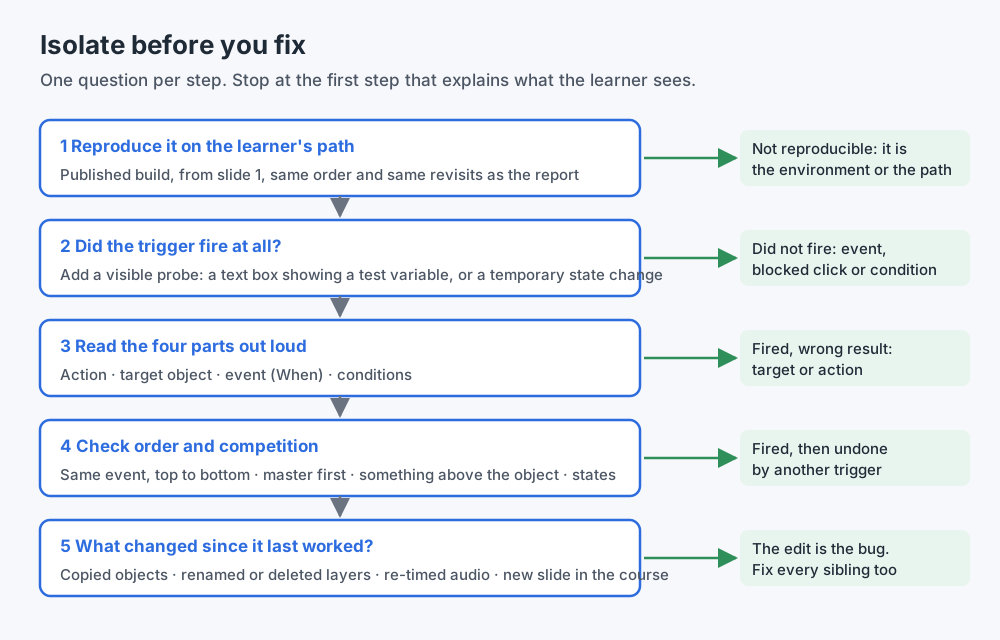 The method in this post. Each step asks one question, and most trigger bugs are explained before you reach step five.
When Storyline triggers are not working, the fastest fix is rarely to stare at the trigger you suspect. It is to find out which of a small number of things went wrong: the trigger never fired, it fired and did the wrong thing, or it fired and something else undid it. Those three cases have different causes, and once you know which one you are in, the fix usually takes a minute.
This guide is a debugging method, not a list of bugs. You get a five-step way to isolate the problem, the eight causes that come up again and again in the E-Learning Heroes community, a table of symptoms and likely causes you can keep next to you while you work, and a short FAQ. If you want the catalog of bugs that slip past review instead, I wrote that separately: 12 common Storyline bugs that pass Preview.
I have built more than 140 Storyline courses. Almost every "Storyline is broken" moment I have had turned out to be one of the patterns below. Storyline was doing exactly what the trigger said. The trigger just did not say what I meant.
First, what a trigger actually is
Articulate's own documentation describes a trigger as two answers: what action you want to happen, and when you want it to happen (Working with Triggers). In practice, every trigger has four parts you can check one by one:
- The action. Show layer, Hide layer, Change state, Jump to slide, Adjust variable, Play media, and so on.
- The target object. The layer, object, slide, media or variable the action works on.
- The event. The "when": user clicks, timeline starts, timeline ends, variable changes, user hovers over, media completes. Most events also have a source object, the thing the learner clicks or hovers.
- The conditions. The optional "if": a variable value, an object's state, or a window condition, joined by "and" or "or", with an optional "else".
Read a broken trigger as a sentence, out loud, part by part: "Show layer Feedback 3, when the user clicks Button 3, if Score is greater than or equal to 3." It sounds too simple to help. It helps because the eye skims the Triggers panel, and the ear does not. The part you stop reading halfway through is usually the broken one.
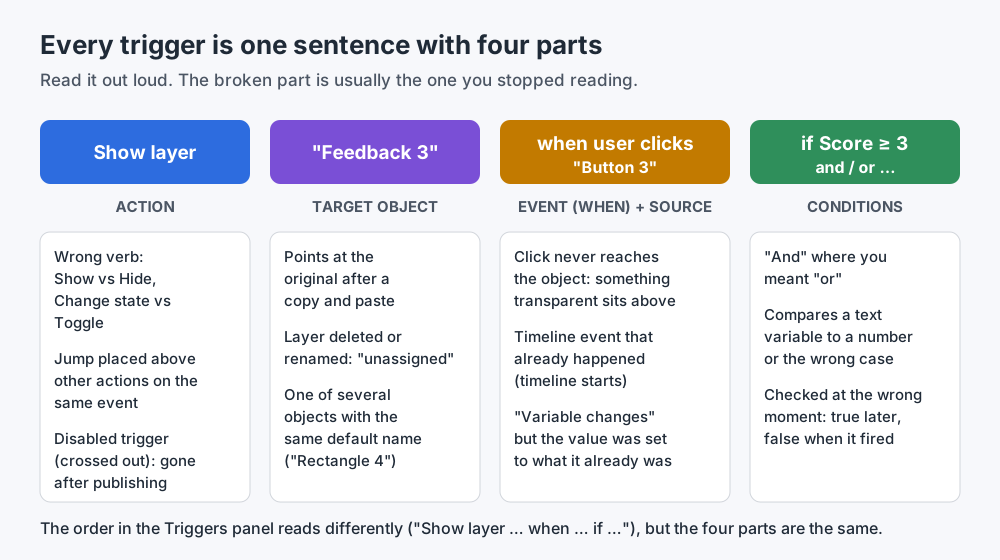 Each part has its own typical failure. Checking them separately is faster than rereading the whole trigger.
The method: isolate before you fix
Step 1: Reproduce it on the learner's path
Before you touch anything, make the bug happen on purpose. That means the published build, not Preview This Slide, started from the first slide, with the same clicks in the same order the learner or reviewer described, including any return visits to the slide.
This step matters more than any other, because a large share of trigger bugs depend on the path. A gate that checks whether four tabs were visited behaves differently if the learner clicks them in a different order. A trigger that runs when the timeline starts behaves differently on a second visit if the slide is set to resume its saved state. A variable set on slide 3 does not exist yet if you preview slide 7 on its own, because slide 3 never ran.
If you cannot reproduce it on the learner's path, you have learned something important: the trigger is probably fine, and the cause is the environment (the browser, the LMS, the device) or a path you have not tried yet. Ask for the exact path. "It doesn't work" is not a reproduction.
Step 2: Decide whether the trigger fired at all
This is the question that splits the problem in two, and Storyline does not answer it for you. A trigger that fired and did the wrong thing looks the same, from the outside, as a trigger that never fired.
So make it visible. Two quick probes that work in any course:
- A debug text box. Add a text box to the slide that shows the variable involved, by inserting a reference to it. Watch the value change, or not change, as you click.
- A temporary "I fired" action. Add one more action to the same event, at the top of the list: change the state of an obvious object, or show a small test layer. If that fires and your real action does not, the event works and the problem is in the action, the target or the order. If neither fires, the problem is the event, the conditions, or something stopping the click.
Remove the probes when you are done, or put them on a clearly named debug layer you delete before publishing. A forgotten debug box in a published course is its own kind of bug.
Step 3: Read the four parts out loud
Now go through the trigger part by part, with what you learned in step 2.
If it did not fire, look at the event and the conditions. Is the event one that can still happen at that moment? "When the timeline starts" has already happened by the time the learner clicks anything. "When the timeline ends" never happens on a slide whose timeline is paused, or on a layer that the learner closes early. "When the user clicks" never reaches the object if something transparent sits above it. Then read the conditions: "and" where you meant "or" is the classic, and a condition that compares the right variable to the wrong value (a number typed into a text variable, "true" typed as text) is close behind.
If it fired and did the wrong thing, look at the action and the target. Is it Show where you meant Hide? Is the target the layer you meant, or the layer of the object you copied this button from? Does the target name exist only once on the slide, or are there three objects called "Rectangle 4" and the trigger picked one?
Step 4: Check order and competing triggers
If the trigger fired and did the right thing, and the learner still sees the wrong result, something else is undoing it. Storyline is explicit about order: when several triggers on the same object share the same event, they run in the order they appear in the Triggers panel, top to bottom, and slide master triggers run before slide and layer triggers (The Order in Which Triggers Are Executed). Look for a second trigger on the same event that hides what the first one showed, a master trigger that resets a state the slide relies on, or a layer property such as "Hide other slide layers" closing the layer you just opened.
Step 5: Ask what changed since it last worked
Triggers rarely break on their own. They break because of an edit somewhere else: a button duplicated from another slide, a layer renamed or deleted, narration replaced with a shorter take, a new item added to a set the gate counts. If the trigger used to work, the fastest question is "what did I change near here?" And when you find the cause, check every sibling. A copied trigger that was never updated in one tab was probably never updated in the next one either.
The eight causes people ask about most
These are the questions that come up again and again on E-Learning Heroes when Storyline triggers are not working. Each one maps to a step in the method.
1. Trigger order: same event, top to bottom
This is the most common cause I see, and the one people find hardest to believe, because every trigger looks correct on its own.
Imagine a Continue button with three triggers, all on "when the user clicks": jump to the next slide, set a variable to True, change a tab's state to Visited. If the jump is listed first, the slide is left before the other two actions get to matter, and the variable the next slide depends on is never set. Nothing in the panel looks wrong. Each trigger is valid. The order is the bug.
The rule of thumb is simple: anything that leaves the slide goes last. Jump to slide, jump to scene, next slide, exit course and submit-and-jump actions belong at the bottom of the list for their event. Set variables, change states and show layers above them.
The same rule explains "show, then hide" bugs. A Show layer and a Hide layer on the same event, in that order, show nothing, and an older trigger lower in the list can quietly undo a newer one higher up. Use the up and down arrows in the Triggers panel to reorder, and re-test.
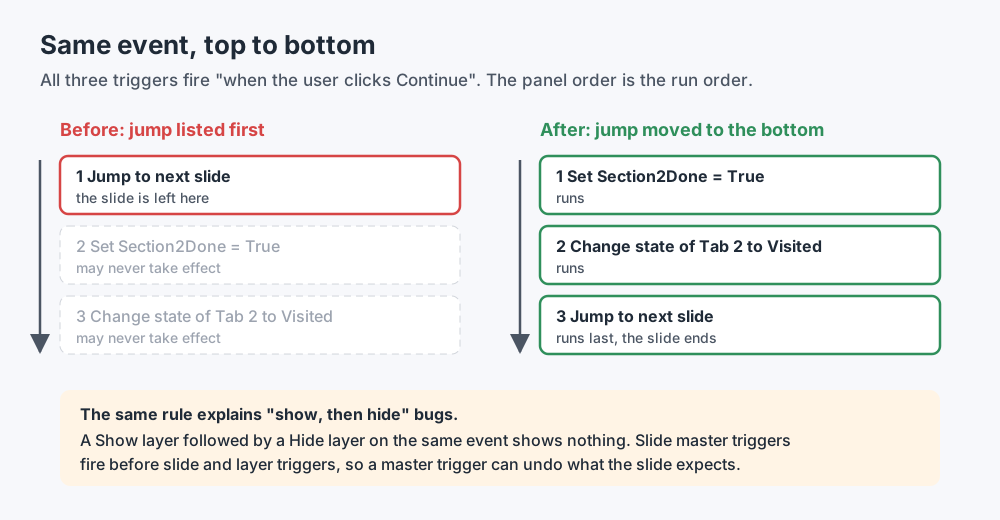 The panel order is the run order. Anything that leaves the slide goes last.
2. The four parts, one of them wrong
Most trigger questions in the community end with someone pointing at one part of the sentence: the wrong layer selected in the target, an event that fires on the wrong object, a condition joined with the wrong word. That is why step 3 asks you to read the parts separately. It is also why I name things. A trigger that says "Show layer Feedback correct when the user clicks Submit button" can be checked at a glance. "Show layer Layer 4 when the user clicks Rectangle 12" cannot, and if the slide has two objects with the same default name, the trigger may be attached to the one you did not mean.
3. A variable that changes on a layer, and a check on the base layer
This one deserves its own diagram, because it fools experienced developers. The slide has a Continue button that should unlock after the learner opens three layers. Each layer sets its own variable to True. On the base layer, a trigger says: when the timeline starts, if A, B and C are all True, change Continue to Normal.
It never unlocks. The base layer's timeline started once, at the beginning, when all three variables were False. The learner then opened the layers without ever leaving the slide, so the base layer's timeline never started again, and the check never ran a second time. Community answers on this exact pattern point out that when the learner only moves between layers, the slide's timeline does not restart (Variables and triggers, E-Learning Heroes).
The fix is to let the variable announce itself. Storyline's Triggers panel has a separate group for variable triggers, which fire when a variable changes (Working with Triggers). Put one trigger per variable on the base layer: change Continue to Normal when A changes, if A, B and C are all True. Repeat for B and C. Whichever layer the learner opens last, the check runs at that moment.
Two details to watch. A "variable changes" trigger reacts to a change. Setting a variable that is already True to True again is not a change, so the trigger stays silent. And community guidance consistently notes that this kind of trigger watches changes on the slide where it lives; for a value set on an earlier slide, check it with a condition when the timeline starts on the slide that needs it.
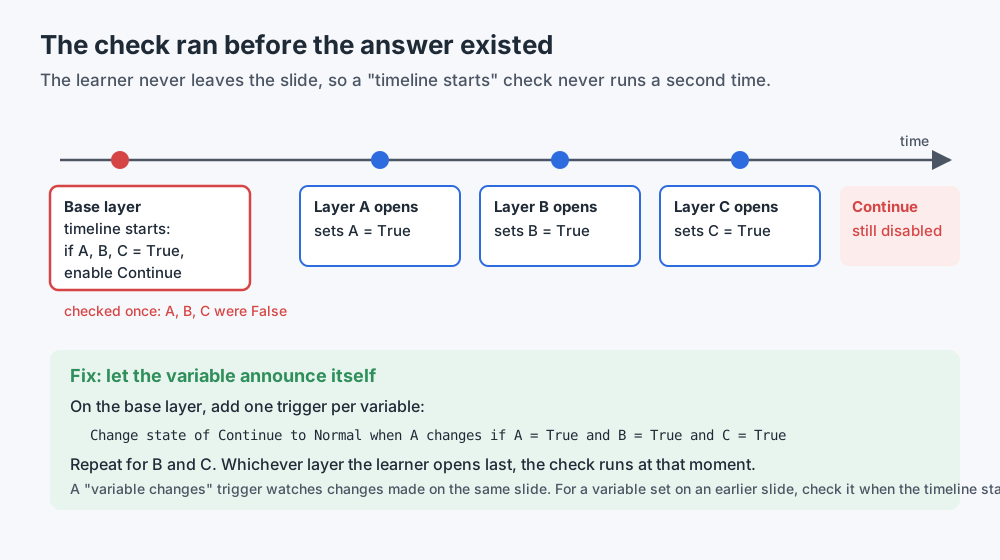 The check ran before the answer existed. A "variable changes" trigger runs the check when the answer arrives.
4. Hover triggers versus Hover states
Storyline has two different ways to react to the mouse, and mixing them up produces bugs that look random.
The Hover state is built in. You add a state called Hover to an object, and Storyline shows it automatically when the pointer is over the object. You do not need a trigger for it, and Articulate notes that if you also use the Hover state in a trigger, trigger conditions will not restrict its built-in behavior (Definition of Built-In States). In other words: if you were hoping a condition would stop the Hover state from appearing on a locked button, it will not. If a locked button should not react, give it the Disabled state.
The hover trigger ("when the user hovers over") is an event like any other. It can show a layer, change a state, or adjust a variable, and it has an option to restore the previous state when the pointer leaves. Community threads report this restore option not behaving as expected in some combinations, such as when the trigger changes an object to Disabled, so test it on the published build.
Three questions settle most hover problems. Is the object meant to look different on hover (use the state) or to do something on hover (use the trigger)? Does the object also need a click trigger, so that a learner on a touch screen, where there is no pointer to hover, can still reach the content? And does the hover lead anywhere? An object that lights up on hover and does nothing when clicked is a promise the course does not keep.
5. "Works in Preview, not when published"
Preview is very close to the published course, but not identical. Articulate lists what does not work in Preview: videos from websites such as YouTube and Vimeo, web objects, Engage interactions, the full-screen toggle, the email trigger, the print-slide trigger and printed results, and it warns that hyperlinks may not work as expected during preview (Previewing a Course). If your trigger uses one of those, Preview cannot tell you whether it works. Publish and test.
The reverse case, works in Preview and fails after publishing, almost always comes from the path or the environment rather than from the trigger itself:
- The path. Preview This Slide starts that slide fresh. Variables set on earlier slides are at their default values, and a jump to a slide outside the previewed range has nowhere to go. A trigger that depends on what happened earlier needs the whole course, from the start.
- Revisits. In the published course, learners leave and come back. What happens on a revisit depends on the slide's "When revisiting" setting, and a trigger that only works on a fresh visit will look broken on the second one.
- Disabled triggers. Articulate is explicit: disabled triggers, the ones that appear crossed out in the panel, won't work in the published output (Working with Triggers). Turning a trigger off to test something and forgetting to turn it back on is an easy mistake. In my own measurements of published courses, a disabled trigger is not there at all, so you will not find it by looking at the output. Look in the panel.
- The environment. JavaScript triggers, web objects, LMS reporting and resume depend on the browser and the LMS. Test in the environment your learners will use.
6. A copied trigger that still points at the old target
Copy a button and you copy its triggers, with their targets; duplicating an object copies its triggers too (Working with Triggers). Build a row of six tabs by duplicating the first one, forget to re-point one copy, and the fourth tab opens the third tab's layer. It passes a quick test, because something opens. It is just the wrong thing.
The debugging clue is a pattern, not a single trigger: two look-alike objects that open the same layer, and one layer that nothing opens. When you find one stale copy, check all of its siblings. And for Close buttons on pop-up layers, use "This layer" as the target of the Hide layer action rather than the layer's name, so a copied Close button always closes its own layer.
7. A layer that was deleted or renamed
When you delete a layer, the triggers that showed it lose their target. Storyline keeps a separate group in the Triggers panel for unassigned triggers, so you can spot incomplete ones quickly (Working with Triggers). Community members also report triggers turning unassigned after renaming a layer or pasting a trigger, with the fix being to click the red "unassigned" text and pick the right target (Trigger says "unassigned", E-Learning Heroes).
Two habits help. Scan the Unassigned group on every slide before you publish; it should be empty. And when a layer "does not play," check the layer itself before the trigger. In one long community thread on layers not playing, the causes included objects switched off in the layer's timeline and a layer setting that hid the base layer objects (Layers Not Playing, E-Learning Heroes). The layer properties to read are documented in Working with Layers: hide other slide layers, hide objects on the base layer, prevent the user from clicking on other layers, pause the base layer's timeline, and what happens when revisiting. Any of them can make a correct trigger look broken.
8. Disabled versus Hidden
These two words cause a surprising amount of confusion, partly because "disabled" means two different things in Storyline.
A disabled trigger is a trigger you switched off. It appears crossed out and does not work in the published course.
A Disabled state belongs to an object. Articulate defines a disabled object as visible to learners but not responding when hovered over, clicked or dragged (Definition of Built-In States). Unless Disabled is the object's initial state, you invoke it with a trigger (How the Built-In Disabled State Works). The Hidden state, by contrast, makes the object invisible.
So the question to ask is what the learner should see. A Continue button that should be visible but locked until the learner finishes: Disabled, and a trigger that changes it to Normal when the condition is met. A button that should not be on screen yet: Hidden, and a trigger that shows it. For buttons that lock and unlock, Storyline 360 also has a toggle option that switches between an object's current state and Hidden or Disabled in a single trigger (Toggle Hidden or Disabled State Trigger).
When a button "doesn't work," check its state before its trigger. A button stuck in Disabled with no trigger that ever releases it looks exactly like a broken click trigger. And a greyed-out button is not automatically a bug. In a learning game, a used item that turns grey and stops responding is often exactly what the designer intended. The question is whether something on the learner's path is supposed to release it.
When it is not the trigger at all
A few problems feel like trigger bugs and are not.
Something is covering the button. A click goes to whatever is on top at that point. A shape at full transparency, a text box with a large invisible frame, or an object on an open layer can take the click. Click the button at its center and near each corner. If it responds only in some places, look at what sits above it in the Timeline panel.
A layer is blocking clicks on purpose. If an open layer has "prevent the user from clicking on other layers" turned on, base-layer objects underneath will not respond while it is open. That is a feature, and it is often exactly what the designer wanted.
The editor itself is misbehaving. Occasionally the problem is not the course but the authoring app. In one E-Learning Heroes thread, adding a trigger made the screen lock up until the author pressed Escape, and the troubleshooting began with questions about the setup, not the trigger (Triggers not working, E-Learning Heroes). If the editor behaves erratically when you edit triggers, update Storyline and contact Articulate support rather than rebuilding your logic.
Symptoms and likely causes
Keep this table open while you debug. Find the symptom, check the likely causes in order, and use the step from the method that confirms each one.
| What the learner sees | Most likely causes | Confirm with |
|---|---|---|
| Click does nothing, no visual change | Object covered by something transparent; object in Disabled state; condition never true; trigger disabled in the panel | Step 2 probe; click at corners; check the state; read conditions |
| Click opens the wrong layer or content | Copied trigger still pointing at the original's target; two objects with the same default name | Step 3, read the target; compare siblings |
| Layer opens, then disappears immediately | A Hide action later on the same event; "Hide other slide layers"; master trigger | Step 4, read the order |
| Variable is set but the slide never reacts | Check runs on "timeline starts", before the variable changes; value set to what it already was | Step 2 debug text box; switch to "variable changes" |
| Continue button never unlocks | Gate condition lists an item that cannot be reached; uses "and" where "or" was meant; variable set on a layer | Step 3, read conditions aloud; check each item can be reached |
| Continue button unlocks too early | Gate condition does not list every item; an item was added later | Step 5, what changed; count the items |
| Next slide misses a value set on this slide | Jump listed above the Adjust variable action | Step 4, move the jump to the bottom |
| Hover lights up but nothing else happens | Hover state with no click or hover trigger; trigger deleted with its layer | Step 2 probe on click; check the triggers |
| Hover shows on a locked button | Hover state ignores trigger conditions | Use the Disabled state while locked |
| Works in Preview, fails when published | Disabled trigger; depends on earlier slides; revisit setting; web object, link or JavaScript | Step 1 on the published build from slide 1 |
| Works in the published course, not in the LMS | LMS or browser environment; resume behavior | Test in the target LMS; compare with a neutral test LMS |
| Trigger shows red "unassigned" | Target layer or object deleted or renamed; pasted trigger | Check the Unassigned group on every slide |
| Layer content does not play | Objects turned off on the layer timeline; base layer hidden or paused by layer properties | Read the layer properties and timeline |
Where an automated pass helps
Everything above can be done by hand, and for one slide it is quick. The difficulty is scale. A 40-slide course has hundreds of triggers, and the bugs that matter most, a stale copied target or a gate that never opens, are the ones nobody reopens because the slide "already works."
That is the work I built Story Checker for. It scans a published Storyline course, uploaded as a ZIP (a Web or LMS publish), and, if you have it, the .story file; for the full results, upload both. The scan runs on a server in the EU (Frankfurt). During the scan the course plays in an isolated browser where every attempt it makes to reach the internet is blocked, and the report ends with an evidence line showing what was tried and blocked. The course files are deleted once the scan succeeds. It clicks through the course like a learner, from the first slide, to find where a learner gets stuck. Among its checks are triggers that point at a layer that does not exist, layers that open with nothing in them, buttons that light up on hover and do nothing, conditions that can never be true, and clickable objects covered by something else. With the .story file it also finds copied triggers that still point at the original's target, layers no trigger ever opens, and gates that can never open or open too early. Each finding is located down to the exact word or object, with a red frame on the screenshot, and says what the learner experiences and how to fix it in Storyline's own terms. It is deterministic, not AI-based: the same course gives the same report.
What it does not do: replace step 1. If a bug only appears in your LMS, you still need to test there. And it is not an accessibility checker. Storyline 360 has a built-in one, and you should use it.
For the full pre-delivery routine, see the Storyline QA checklist. If your specific problem is a Next or Continue button that never unlocks, see Storyline Next button not enabling.
FAQ
Why are my Storyline triggers not working?
Usually one of three things: the trigger never fired (wrong event, a condition that is never true, or something covering the object), it fired with the wrong target (often after copy and paste), or another trigger undid it (order on the same event, or a master trigger). Add a visible probe to find out which.
In what order do Storyline triggers run?
Triggers on the same object and the same event run in the order they appear in the Triggers panel, top to bottom. Slide master triggers run before slide and layer triggers. Put anything that leaves the slide, such as Jump to slide, at the bottom of its event.
Why doesn't my "when variable changes" trigger fire?
The trigger reacts only to a change. Setting a variable to the value it already has does not fire it. It also watches changes on its own slide; for a value set on an earlier slide, check it with a condition when the timeline starts.
Why does my Storyline course work in Preview but not when published?
Check for triggers you disabled in the panel, which do not work in published output; triggers that depend on earlier slides you skipped in Preview; the slide's revisit setting; and features Preview does not support, such as web objects and some hyperlinks. Test the published build from slide 1.
What is the difference between the Disabled and Hidden states in Storyline?
A disabled object stays visible but does not respond to hover, clicks or dragging. A hidden object is invisible. Use Disabled for a button learners should see but not use yet, and Hidden for something that should not be on screen.
What does a red "unassigned" trigger mean?
Part of the trigger has no target, usually because a layer or object was deleted or renamed, or the trigger was pasted. Click the red text and choose the correct target, and check the Unassigned group on every slide before publishing.
Conclusion
Storyline triggers that are not working are almost never mysterious. They are a sentence with a missing word, or two correct sentences in the wrong order. Reproduce the bug on the learner's path, find out whether the trigger fired, read its four parts out loud, check what runs before and after it, and ask what changed. Most of the time, you will have the answer before step five.
If you would rather have a second pair of eyes walk the learner's path for you, try Story Checker on your next course.
Further reading
- Storyline Course Works in Preview but Not in the LMS? Here's Why
- Why Learners Get Stuck in Storyline: Timelines, Cue Points and Slides That Won't Advance
Story Checker is an independent tool and is not affiliated with or endorsed by Articulate Global, LLC.