Storyline Quiz Not Scoring Correctly? Results Slides, Question Banks and Pass Marks
19 min read
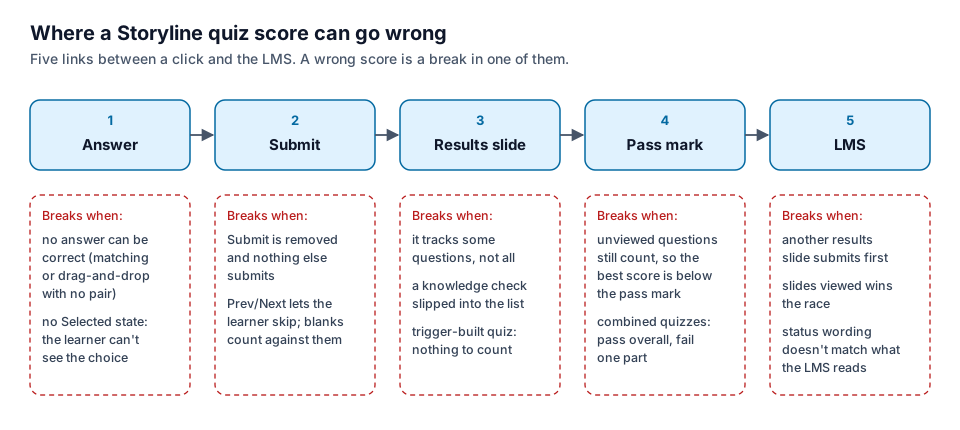 Every wrong quiz score is a break in one of these five links. This post walks them in order.
Short answer: when a Storyline quiz is not scoring correctly, the quiz engine is almost never miscounting. It is counting exactly what you told it to count, and that isn't what you meant. The usual causes: the results slide tracks a different set of questions than you think; a question bank with branching still scores the questions a learner never saw; a question has no answer that can ever be marked correct; Retry doesn't reset because of trigger order; or the LMS kept the score of a different results slide, the one that submitted first.
This guide goes through the nine places I check, in the order a score travels: from the learner's click, through Submit and the results slide, to the pass mark and the LMS. Each section says what goes wrong, why Storyline does it, and how to test it by hand. There is a copy-ready quiz QA checklist near the end and an FAQ after it.
I've built more than 140 Storyline courses, and the quiz is the part that changes most in the last week. A question gets added at the client's request, a bank gets duplicated for a pre-test, a branch is added for learners who get a question wrong. Each change is small and each one can move the score. If you want the general pre-publish pass, see the Storyline QA checklist. If the score is right but the LMS still says "incomplete," go to Storyline course not reporting completion.
1. The results slide doesn't count the questions you think
A results slide only knows about the questions you tell it to count. In the Quiz Settings of a graded results slide, the Calculate results for option chooses between counting Questions (individual question slides and question draws) or Result Slides (combining several quizzes into one), per Articulate's guide to adding result slides. Each question can also be tied to a results slide, or to none, from the Result Slide drop-down on the question's ribbon (assigning questions to result slides).
That flexibility is the source of most "wrong score" reports. Things I see again and again:
The list was set once and the quiz changed afterwards. The results slide was configured when the quiz had eight questions. Two more were added later, and nobody opened Quiz Settings again to check whether they're in the list. The learner answers ten questions; the slide scores eight. Don't assume a new question is included. Open the list and look.
A knowledge check slipped into the final score. Community threads on wrong results often trace back to a duplicated question bank or a copied quiz, after which the final results slide also counts the practice questions. The learner's practice mistakes now cost them points on the assessment. The fix is to untick those questions in the results slide's list, but first you have to notice them.
A question draw counts as one entry, not as its questions. When the quiz uses a question bank, the results slide lists the draw, and the draw decides which questions appear. Articulate notes that "if the quiz draws from a question bank, learners see a different subset of questions each time." If one bank question is worth 20 points and the rest are worth 10, two learners with the same number of right answers can get different scores, depending on what they drew. Several community threads about "random" scores end with the same advice: keep the points equal across a bank.
The quiz isn't a Storyline quiz at all. If the questions are built from ordinary buttons, layers and a number variable, they're not question slides, so there is nothing for the results slide to count. It will show 0%, or the score of whatever real questions exist elsewhere in the course. A trigger-built quiz needs a trigger-built score, and its own way of reaching the LMS. There's nothing wrong with building it that way. Just don't expect the built-in results slide to see it.
Pick Many is all-or-nothing. A multiple-response question is either correct or incorrect. Pick three of four right answers and you get zero points for that question, not 75%. A community thread on Pick Many scoring explains it: the interaction scores 0% or 100%, and partial credit needs your own variables. That isn't a bug, but it surprises reviewers who check the score by hand and count the right ticks.
How to test it by hand. Open every results slide's Quiz Settings and write down the list: which questions and draws, how many points each, which quiz type. Then take the quiz once with every answer right and check that the slide shows 100% and the points you calculated. If a perfect run doesn't produce a perfect score, the list is wrong.
2. A pass mark no learner can reach
This is the one that ends with an HR ticket. The quiz works, the score is "correct," and no one can pass.
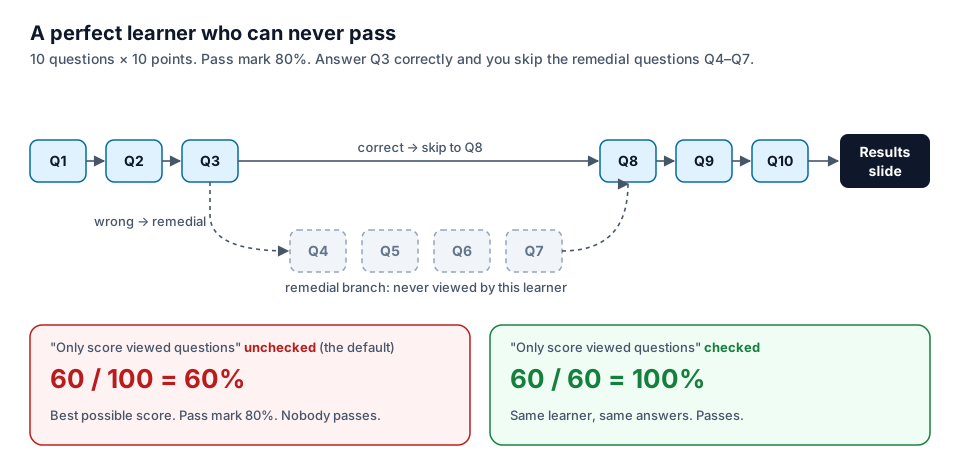 Same learner, same answers, one checkbox. With the default setting, the questions they skipped still count toward the total.
Branching with "Only score viewed questions" unchecked. You draw from a question bank and branch: a learner who answers correctly skips the remedial questions. Storyline has a checkbox in Quiz Settings called Only score viewed questions. Articulate's article on managing scoring for question banks with branching says new projects have it unchecked by default. When it is unchecked, the skipped questions still count toward the total. Since the September 2021 update, Storyline no longer turns this on for you. In the diagram above, the best possible score is 60%, and the pass mark is 80%. Your best learners fail, and your weakest learners, who see every remedial question, are the only ones with a chance.
Articulate documents this for question banks with branching. The same arithmetic is worth checking anywhere a tracked question can be skipped: a question on a slide that only some learners reach, or a question behind a menu item the learner never opens. Do the maths for the best possible run, not for the average one.
A question that can never be marked correct. If the results slide counts a question whose correct answer can't be given (see section 4), its points are lost to every learner. On its own that just lowers the ceiling. With a 100% pass mark, or a pass mark close to the top, it makes the quiz impossible to pass.
Combined results slides. When a final results slide combines several quizzes, Storyline accumulates their points. There's also a User must pass each quiz option. Articulate's article on requiring learners to pass each quiz explains why it was changed: under the old point-summing method, "learners could get a minimum passing score for each quiz and still fail the entire course." Storyline 360 now uses a QuizName.Passed variable for that option. If your course was built years ago, or you're not sure which rule you chose, test both a narrow pass and a narrow fail in each part.
How to test it by hand. For each graded results slide, write down: total points it can count, points a perfect learner can actually earn on each path, pass mark. If the second number divided by the first is below the pass mark on any path, no one on that path can pass.
3. Freeform, graded and survey questions
Storyline gives you two families of questions. Form-based questions are built in the question editor and come as graded (there's a right answer and points) or survey (opinions, no right answer). Freeform questions turn ordinary slide objects into a question: Drag and Drop, Pick One, Pick Many, Text Entry, Hotspot and Shortcut Key. Freeform questions can be graded or ungraded.
Scoring problems come from the edges between these types:
- A survey question tracked by a graded results slide. It has no correct answer, so it adds nothing to the score. If the results slide counts it in a way you didn't expect, the percentages won't match your hand count. Keep survey questions on a survey results slide.
- A freeform question whose "correct" was never set. You converted a slide to freeform, wired the objects, and moved on without marking which answer is correct in Form View. The slide behaves like a question, shows feedback layers, and scores zero for everyone.
- A "question" that only looks like one. Buttons with a Correct layer and an Incorrect layer, but no question underneath. It teaches fine and scores nothing (see section 1).
How to test it by hand. In Story View, look at every slide in the quiz scenes and confirm its type: graded question, survey question, freeform question, or plain slide. For every graded or freeform question, open Form View and check that the correct answer is marked.
4. Matching and drag-and-drop with no correct pair
A matching or drag-and-drop question is scored by its pairs: which item belongs on which target. In a freeform drag-and-drop, you set that in Form View by choosing a drop target for each drag item (drag-and-drop questions).
When there are no correct pairs at all, the question can never be correct. The learner matches every item perfectly and gets "Incorrect." They try again, match perfectly again, get "Incorrect" again, and after the last attempt they move on with zero points. They aren't stuck, which is why it survives review: the reviewer sees a feedback layer and a Continue button and moves on. But the learner experiences a broken question, and the LMS records the loss.
How it happens: drag items or targets are deleted and recreated while editing, so the old assignments point at nothing; a slide is converted to freeform after the objects were built; or a matching question is rebuilt from a copy and the pairs are never filled in. I've seen it in real, delivered courses.
There's an honest exception. Some authors don't use Storyline's grading on these slides at all. A custom Submit button checks each item's state with its own triggers and opens the Correct layer itself. In that case the learner does see "Correct," and the empty answer key matters only for the score that goes to the LMS. If your completion is tracked by slides viewed, that may be fine.
Two more drag-and-drop settings change what the learner sees, so check that they're on purpose. Delay item drop states until interaction is submitted hides the Drop Correct and Drop Incorrect states until the learner submits. Return item to start point if dropped outside a drop target decides whether a missed drop snaps back or stays where it fell.
How to test it by hand. Answer every matching and drag-and-drop question perfectly, once. If you get "Incorrect" for a perfect answer, open Form View and look at the pairs. Then drop at least one item on every wrong target, to see that the item doesn't jump somewhere unexpected and that the learner can still continue.
5. Submit, Try Again and Submit All
By default every question slide has a Submit button: the learner answers, submits, and sees feedback, one question at a time. A question that is never submitted is never scored. That is where custom navigation causes trouble.
- Submit removed, nothing added. You hid the player's Submit button to use your own, and your own button jumps to the next slide without a Submit interaction trigger. The learner answers, moves on, and the answer is never evaluated.
- Submit All at once. You can switch question slides from Submit to Prev/Next so learners submit everything on the results slide. Articulate's article on submitting answers all at once warns that with Prev and Next, "it's easy for learners to skip questions without answering them," and unanswered questions hurt the score. Their suggestion: ask learners to confirm they're ready before they reach the results slide.
- Try Again that never ends, or never starts. When you raise the number of attempts on a question, Storyline adds a Try Again layer and shows it after each wrong answer until the attempts run out, then shows Incorrect. If you've edited that layer and removed its button, or the button's trigger doesn't close the layer, the learner is stuck on the question. The Try Again layer only comes into play when attempts are set above one; with a single attempt, a carefully designed Try Again message is never seen.
How to test it by hand. On each question, answer wrong as many times as attempts allow and confirm you can always reach the next slide. On a quiz with Prev/Next, skip a question on purpose and see what the results slide does with it.
6. The results slide and the LMS are not the same score
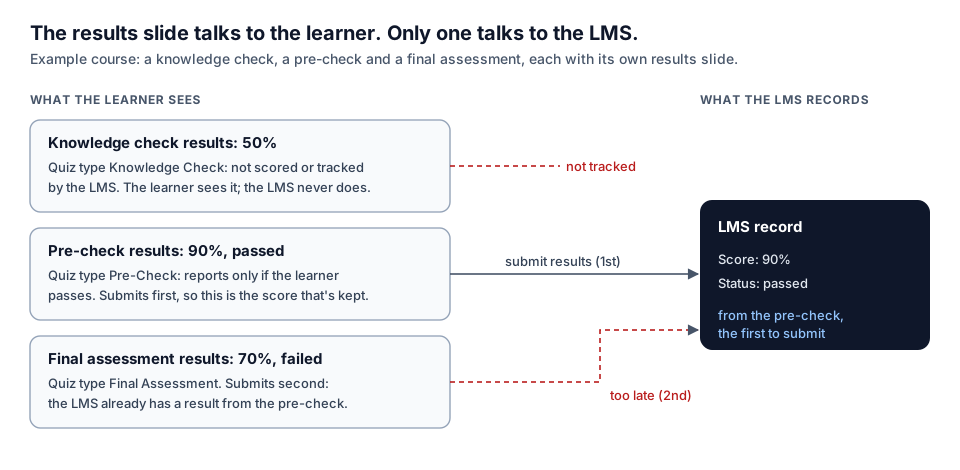 The learner sees three scores. The LMS keeps one, and it's not necessarily the last one.
The results slide shows the learner a score. What reaches the LMS depends on other settings, and the two can disagree.
Quiz type. Each graded results slide has a quiz type. According to Adding Result Slides, a Final Assessment is added to your LMS tracking options automatically, a Pre-Check reports only if the learner passes, and a Knowledge Check isn't scored or tracked by the LMS at all. A results slide set to Knowledge Check can show a perfect score that the LMS never hears about.
First one wins. Articulate's More Quizzing and Tracking Options is explicit: "The quiz result slide that executes its 'submit results' trigger first is the one that gets tracked and scored in your LMS/LRS." Storyline only generates those triggers on pre-checks and final assessments, and combined quizzes don't have them. So a pre-check that a learner passes early can be the result the LMS keeps, even after they fail the final.
Tracking rule. When you publish for LMS, you choose what counts as complete: slides viewed, a quiz result, or a completion trigger, and "whichever option a learner completes first is the one that gets reported" (Publishing for LMS/LRS). If slides viewed is met before the quiz is submitted, the quiz may never decide the status.
Status wording. For SCORM and AICC, you also pick how status is reported: Passed/Incomplete, Passed/Failed, Complete/Incomplete or Complete/Failed. SCORM 1.2 has one field for all of it, cmi.core.lesson_status; SCORM 2004 splits it into cmi.completion_status and cmi.success_status, with the score in cmi.score.scaled (SCORM run-time reference). An LMS that reads "completed" will not be satisfied by "passed," and the reverse.
How to test it by hand. Run the package in SCORM Cloud or your LMS sandbox. Take the quiz twice, once to pass and once to fail, and compare the LMS record with what the results slide showed. If they disagree, read the quiz type and tracking rule before you blame the LMS. The full method is in Storyline course not reporting completion.
7. The missing Selected state: the learner can't see what they chose
This one doesn't change the score. It changes whether the learner trusts the score.
When you build a Pick One question in Storyline, it "adds a Selected state to each answer choice and applies a glow effect," and applies that state when the learner chooses an item (Pick One questions). Articulate defines Selected as how an object looks when it's been chosen, "generally used to indicate that a learner has chosen the object" (built-in states).
So the gap appears when answers are built some other way: custom buttons with triggers, answers rebuilt from a copy of a plain button, or a redesign that replaced the answer objects and lost their states. The learner clicks an answer, and nothing on it changes. Did the click register? Which one did they pick? They click again, or click a different one, and submit something they didn't mean.
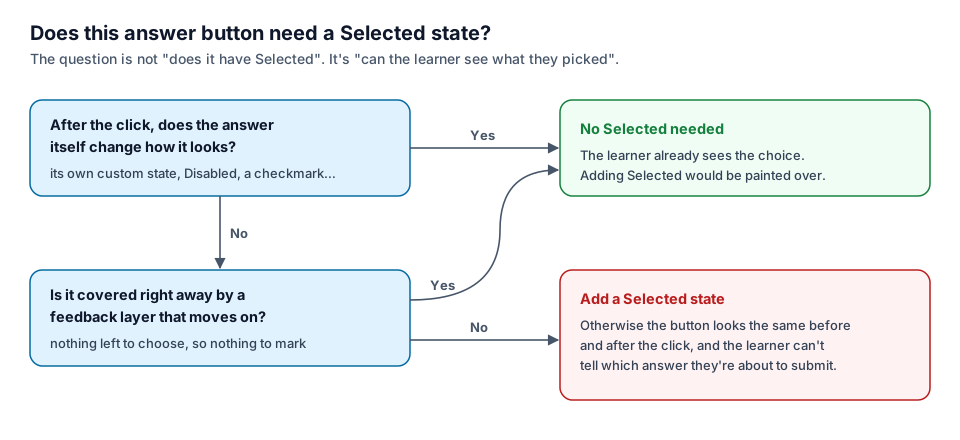 Not every answer button needs a Selected state. It needs some visible sign of the choice.
But don't add Selected everywhere. If clicking the answer already changes how the answer itself looks, for example it switches to its own custom state, to Disabled, or shows a checkmark, the learner can already see the choice. A Selected state would be painted over by that change anyway. The same goes for a question where the click opens a feedback layer at once that covers the answers and leads on: there's no moment in which the learner needs to see their pick. That's a design decision, not a bug.
A good test of whether it's a bug is the course itself. If most of the questions in the course mark the chosen answer and three don't, those three are probably the odd ones out. If none of them do and the feedback is immediate, it's probably the design.
How to test it by hand. On every question slide, click an answer and stop. Before you submit, can you tell which answer you picked, from across the room? Then click a different one: does the mark move?
8. Review Quiz
The Review button on a results slide lets learners go back through the quiz and "review submitted answers but not change them" (Adding Result Slides). It's useful and it has its own quirks:
- Player buttons appear. During review, Storyline shows its built-in Prev and Next buttons in the player, even if you've turned them off everywhere else, because learners need them to move through the quiz. An August 2023 update added an option to hide them if you provide your own navigation (Prev and Next buttons show during quiz review). If your course hides the player controls, review is the place to look for stray buttons.
- Review only incorrect. The Review results trigger has an option to Review only incorrect questions (review and retry only incorrect questions). With a perfect score there's nothing to review, and Articulate notes the buttons then do nothing. Hide or disable them in that case, or the learner clicks a button that doesn't respond.
- Custom feedback in review. Text you enter as post-quiz review feedback becomes a Review layer. If your questions use custom feedback built with triggers, check what the learner actually sees in review: the review state, or a feedback layer that offers to "Try again" on a question that can no longer be changed.
How to test it by hand. After a mixed run, click Review and step through every question to the end. Check that each question shows the learner's answer and the right one, that navigation looks like the rest of the course, and that you can get back out of review.
9. Reset Results and Retry
Retry is where "I can't pass on the second attempt" comes from.
The Retry button on a results slide runs two triggers: Reset results for the quiz, then Jump to the first question. Order matters. A common community answer to "answers are still selected and frozen on retry" is that the Jump trigger sits above the Reset trigger, so the learner leaves the slide before the reset runs (Retry Quiz - Frozen Answers). Swap them and it works.
Other causes of a retry that doesn't reset:
- Your own Retry button with no Reset results trigger. A custom "Try the quiz again" button that just jumps to question 1 leaves every answer as it was. The learner sees their previous answers, often locked.
- Revisit setting on the question slides. Community answers recommend leaving question and results slides on Automatically decide for "When revisiting," so taking, reviewing and retrying work as designed. A question forced to "Resume saved state" fights the reset.
- Reset only incorrect. The Reset results trigger can Reset only incorrect questions. That's a deliberate design, but check that it's what you want, and that the results slide adds up correctly on the second attempt.
- Your own variables. Reset results resets the quiz. It doesn't reset the number variables you used for custom scoring, a "questions answered" counter, or a gate that unlocks the results slide. If the second attempt starts with a counter already at 10, the logic built on it misbehaves.
How to test it by hand. Fail the quiz on purpose. Retry. Confirm every question is empty and answerable, every custom counter is back to its starting value, and that a passing second attempt shows "passed" on the results slide and in the LMS.
Storyline quiz QA checklist
Copy this into your review sheet. Each line is a test you can actually run.
| # | Check | How to test | Pass when |
|---|---|---|---|
| 1 | Results slide counts the right questions | Open Quiz Settings, list every question and draw | List matches the quiz; no knowledge checks in a final score |
| 2 | Points are what you think | Note points per question and per bank | Banks use equal points, or you've accepted the variation |
| 3 | Perfect run scores 100% | Answer everything right | Results slide shows 100% and the expected points |
| 4 | Pass mark is reachable on every path | Best possible score per branch ÷ total counted | Above the pass mark on every path; "Only score viewed questions" set on purpose |
| 5 | Every graded question has a correct answer | Form View on each graded and freeform question | A correct answer or correct pair is marked |
| 6 | Matching and drag-and-drop can be answered correctly | Answer each one perfectly | "Correct" for a perfect answer |
| 7 | Every answer is submitted | Answer and move on, on each question | Submit (or Submit All) evaluates every answer |
| 8 | Try Again always leads on | Answer wrong until attempts run out | The learner always reaches the next slide |
| 9 | The learner can see their choice | Click an answer, stop before Submit | The chosen answer looks different, or the design makes it unnecessary |
| 10 | Quiz type is right | Check each results slide's type | Final Assessment, Pre-Check or Knowledge Check, chosen on purpose |
| 11 | The right results slide reports first | Trace which reporting slide a learner submits first | It's the one you want in the LMS |
| 12 | LMS matches the results slide | Pass once, fail once, in SCORM Cloud or a sandbox | Score and status agree with what the learner saw |
| 13 | Review works to the end | Review after a mixed run | Every question shows; navigation is consistent; you can exit |
| 14 | Retry resets everything | Fail, retry, pass | Answers empty, counters reset, pass recorded |
Where Story Checker helps
Most of this list is judgment, and you should keep it. Only you know whether a pre-check should report, or whether a branch should cost points. Some of it is mechanical, and that's the part I built Story Checker to take off the list.
Story Checker scans a published Storyline course, uploaded as a ZIP (a Web or LMS publish), and, if you have it, the .story file; for the full results, upload both. The scan runs on a server in the EU (Frankfurt). During the scan the course plays in an isolated browser where every attempt it makes to reach the internet is blocked, and the report ends with an evidence line showing what was tried and blocked. The course files are deleted once the scan succeeds. For quizzes specifically:
- It reads the scoring data in the published course and flags a matching question with no correct pair, the one where a perfect answer is marked "Incorrect." If the author grades that question with their own triggers and the learner does see "Correct," it stays quiet and says so in the report.
- With the
.storyfile, it compares the answer buttons of every question with the rest of your course and flags a question whose answers have no Selected state when most of the course's answers do. It skips questions where the click changes the answer's own look, or hides the answers for good, and it reports the finding as "to verify," with the count, because it may be intended. - It drops every drag item on every target, looking for an item that doesn't come back, jumps, or leaves the learner with no way on.
- It clicks through the course like a learner, start to finish, to find where a learner gets stuck: a Try Again layer with no way out, a feedback layer that leads nowhere.
What it doesn't do: it doesn't work out whether your pass mark is reachable or audit which questions each results slide counts, and when completion is tracked by quiz result alone, it reports that as "not decided" instead of guessing who will pass. Rows 1–4 and 10–14 of the checklist are still yours. It's also not an accessibility checker; Storyline has one built in, and you should use it. Every finding comes with the fix in Storyline's own terms.
FAQ
Why is my Storyline results slide showing the wrong score?
Usually it's counting a different set of questions than you expect. Open the results slide's Quiz Settings and check the list: a question added later may be missing, a knowledge check may be included, or a question bank may give different points depending on what was drawn. Then check whether any question can't be answered correctly.
Why can't anyone pass my Storyline quiz?
The most common cause is a question bank with branching where "Only score viewed questions" is unchecked, which is the default. Skipped questions still count toward the total, so the best possible score falls below the pass mark. A question with no correct answer, combined with a high pass mark, has the same effect.
Does Storyline give partial credit for Pick Many questions?
No. A Pick Many question is scored as all correct or incorrect. Choosing some of the right answers earns no points for that question. Partial credit needs your own variables and a custom score.
Why is the score in the LMS different from the results slide?
Only one results slide reports, the first one whose "submit results" trigger runs. Knowledge Check results slides aren't tracked at all, and a Pre-Check reports only if the learner passes. Also check the tracking rule: if slides viewed is met first, it can decide the status before the quiz does.
Why are answers frozen when learners retry the quiz?
Usually the Retry button's Jump trigger runs before its Reset results trigger, so the learner leaves the slide before anything resets. Put Reset results first. A custom retry button needs its own Reset results trigger, and question slides should stay on "Automatically decide" for revisiting.
Do all answer buttons need a Selected state?
No. They need a visible sign of the learner's choice. Storyline adds Selected to Pick One answers for you. If clicking an answer already changes how that answer looks, or a feedback layer covers it right away, Selected adds nothing. Add it when the button looks the same before and after the click.
The short version
A Storyline quiz that isn't scoring correctly is almost always scoring exactly what it was set up to score. Check the chain in order: can every question be answered correctly, is every answer submitted, does the results slide count the right questions, can the best learner on every path reach the pass mark, and which results slide reaches the LMS first. Then fail the quiz on purpose and retry, because that's the path nobody tests until a learner does.
If you'd like the mechanical part checked for you before the course reaches an LMS: try Story Checker on your next course.
Story Checker is an independent tool and is not affiliated with or endorsed by Articulate Global, LLC.