Storyline Works in Preview but Not in LMS? Here's Why
21 min read
Storyline works in preview but not in LMS? The course itself has usually not changed. What changed is everything around it. Preview runs inside Storyline, on your own machine, with your fonts, your files and no server. The LMS adds a web server, an LMS frame, the learner's browser, the learner's device and a company network. Each of those layers can block something that Preview never had to deliver. The fastest way to find the cause is to add the layers back one at a time: published output on a real web server, then SCORM Cloud, then your LMS. The first layer that fails is the one that owns the bug.
I've built more than 140 Storyline courses, and "but it worked on my machine" is the sentence I hear most in the week after a launch. This guide walks through each thing that breaks between Preview and the LMS, what causes it, and what to check. Completion and tracking get their own guide, Storyline course not reporting completion, so I only touch on them here.
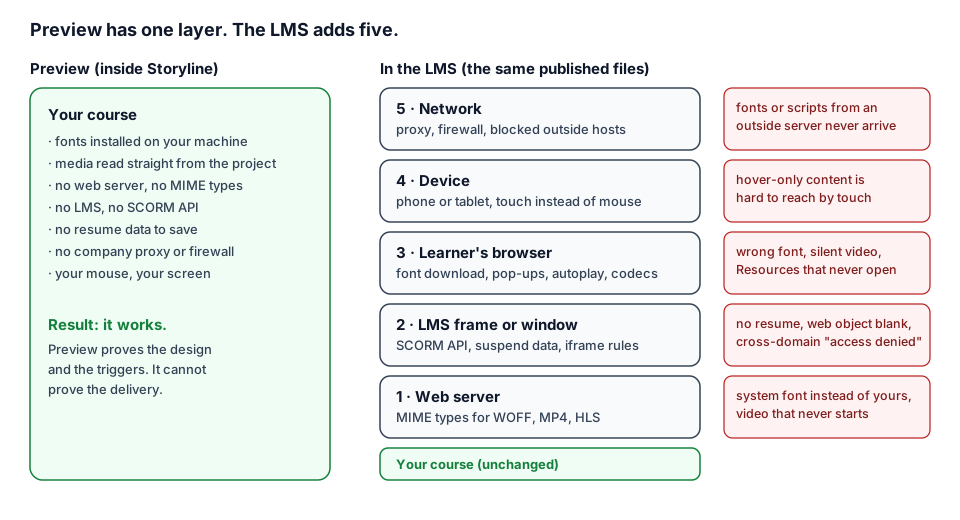 Preview proves the design and the triggers. It cannot prove the delivery. Every layer above the course in the LMS is a place where something can be blocked.
Why Storyline works in preview but not in LMS
Preview is a design tool. It plays your slides with the fonts installed on your computer and reads media straight from the project. It never asks a web server for a file, so it never meets a server that doesn't know what an .mp4 or a .woff is. It never runs inside an LMS window, so there is no SCORM API to find and no resume data to save. It never meets a company proxy, a pop-up blocker or a phone.
Opening the published story.html from your hard drive is not a fair test either. Articulate says it directly: if you view published content on your local computer, you'll encounter security restrictions from the computer, browser or network that can make features fail (videos don't play in published content). Their advice is to test in the environment you published for. For Web, that means a web server and an https address. For LMS, it means uploading to the LMS and logging in as a learner.
So there are really three different "it works" claims, and only one of them is about the LMS:
- It works in Preview. The design and the triggers are right.
- It works on a web server. The published files are complete and the server can deliver them.
- It works in the LMS, for a learner. The package, the LMS, the browser, the device and the network all cooperate.
Most "works in Preview but not in the LMS" bugs live between 1 and 3. The rest of this guide goes through them by symptom.
Fonts look wrong in the LMS
The symptom: the course opens in the LMS with a plain system font instead of yours, or with missing or swapped letters. In Preview everything looked right.
Storyline turns your fonts into web fonts when it publishes. Articulate explains that it uses WOFF files in published courses so the text looks the way you designed it (wrong fonts or missing letters). If the learner sees the wrong font, those WOFF files are not reaching the learner's browser, and the device substitutes a system font. There are three common reasons.
The font type isn't supported. Two font types look fine on your machine and don't survive publishing:
- Adobe Type 1 (PostScript) fonts. Per Articulate, they aren't supported in Storyline 360's HTML5 output and are replaced by default system fonts on learners' computers, tablets and phones (Type 1 fonts). The same article says they can also crash Storyline during preview or publishing. The fix is an OpenType or TrueType version of the same font, or a different font.
- Variable fonts. Articulate's variable fonts article says Storyline 360 doesn't support them, and that they are replaced by the machine's default system font. Many modern font families ship a variable file next to the static ones. Install the static weights and use those.
The server doesn't know what a WOFF file is. If the wrong font appears in every browser, Articulate points to the hosting server: ask the server admin to add a MIME type for WOFF files. A server that sends a file with the wrong type, or with none, leaves the browser guessing. MDN's guide to configuring server MIME types describes what follows as unexpected behavior. With fonts, that means a fallback font.
The browser isn't allowed to download fonts. Articulate lists font downloads as a requirement for viewing Storyline HTML5 courses, in both the font article and the learner system requirements. Some organizations turn the setting off with Group Policy, and browser plugins can block web fonts in Chrome and Firefox. In that case the fix sits with the network admins, not in the course. The font issue in LMS thread on E-Learning Heroes is a typical example. The course worked in one browser and not another for the same client, and the answer pointed to the browser's font download setting.
There is one more cause I see in courses that went through several hands: a font loaded from an outside server through custom code or a web object. MDN notes that web fonts are subject to the same-domain rule unless the font server allows them through CORS (@font-face). A company network that blocks that outside host blocks the font too.
What to check:
- Replace any Type 1 or variable font before you publish. Storyline's Replace Fonts tool swaps a font across the whole project.
- Open the published course on a web server in two browsers. If both show the wrong font, ask about the WOFF MIME type. If only one does, look at that browser's settings and plugins.
- If only learners inside one company see it, ask whether font downloads are blocked by policy.
Video doesn't play in the LMS
The symptom: a black or empty frame, a video that never starts, or a course that hangs on the slide with the video. Preview played it fine.
Articulate's videos don't play in published content article gives three causes. They are worth checking in this order.
- You're testing locally. Local security restrictions can stop features, video among them. Test on a web server or in the LMS.
- The file name. Don't use special characters, accents or spaces in video file names. Use only letters, numbers, underscores and hyphens.
- The server's MIME type. If MP4 videos still won't play after upload, Articulate says it's likely the server needs a MIME type added.
Adaptive streaming adds its own files. If you publish with adaptive video quality, Storyline creates an HTTP Live Streaming (HLS) folder for each MP4, with .m3u8 and .ts files that choose a quality based on the learner's connection (streaming video). The same article says streaming video plays only after you upload to a server or Review 360, not from a local computer. Those are two more file types the LMS server has to deliver. If one of them is missing or blocked, the video can fail on the LMS and still play everywhere else. The video fail in SCORM file to LMS thread shows how murky this gets. A course froze on its first slide in one LMS. The answer was to test the project file before blaming the video, and the poster ended up opening a support case.
The browser may refuse to start it. Browsers limit video that plays with sound before the learner has done anything. MDN's autoplay guide says autoplay is generally allowed only if the audio is muted, the user has interacted with the site, the site is allowlisted, or a permissions policy grants it to an iframe. Otherwise, the playback will likely be blocked. In Preview you have already clicked around in Storyline. In an LMS, a video with sound on the very first slide may be the first thing on the page. A "Start" button before the first video gives the browser the interaction it needs.
What to check:
- Rename video files to plain letters, numbers, hyphens and underscores, then republish.
- Test from a web server, not a local folder.
- If you publish with adaptive quality, make sure the LMS server serves
.m3u8and.tsfiles. If it can't, ask about the MIME types, or test with static video quality. - Put a click before any video that should play with sound on the first slide.
- Test in each browser your learners use, including Safari on iOS if learners use iPhones or iPads.
Resume and bookmarking don't work
The symptom: the learner closes the course and comes back at slide 1, or always comes back to the same slide no matter how far they got.
First, check the setting. Storyline's player has three resume options: prompt to resume, always resume, and never resume (changing the resume behavior). The same article adds a detail that explains many "bugs" during review: Storyline 360 courses always start over when you publish them to Review 360 or embed them in Rise 360. A course that doesn't resume in Review 360 tells you nothing about the LMS.
In an LMS, resume data travels in the SCORM field cmi.suspend_data, and the bookmark in cmi.core.lesson_location (SCORM 1.2) or cmi.location (SCORM 2004). The SCORM.com run-time reference lists the sizes:
- SCORM 1.2: suspend data 4,096 characters; bookmark 255.
- SCORM 2004 2nd and 3rd editions: suspend data 4,000; location 1,000.
- SCORM 2004 4th edition: suspend data 64,000.
I checked these against Articulate's own article on exceeding SCORM suspend data limits on the day I wrote this, and the two sources don't fully agree. Articulate lists the same 4,096 for SCORM 1.2 and 4,000 for 2004 2nd edition, but gives 64,000 for 2004 3rd edition, where SCORM.com gives 4,000. Both agree on 64,000 for the 4th edition. If you're choosing a standard because you need the room, 4th edition is the one both sources agree on. These numbers are also minimums the LMS must support. The spec calls them the "smallest permitted maximum", and an LMS may store more.
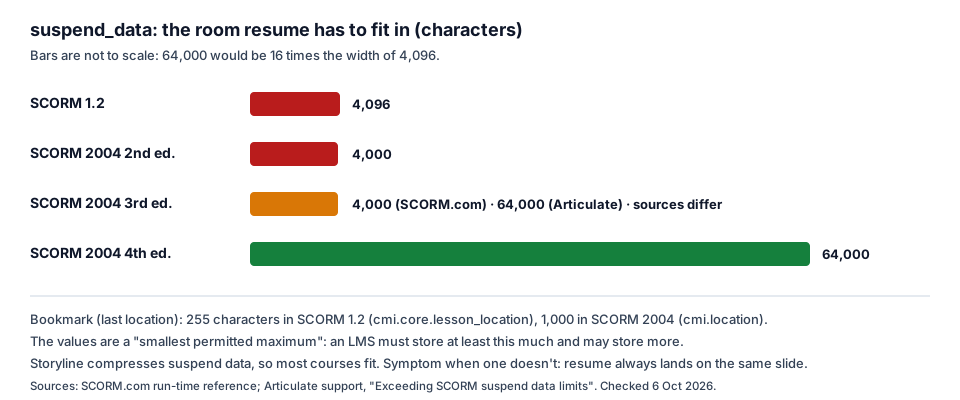 Resume has to fit in suspend_data. Storyline compresses it, so most courses fit, but a long course in SCORM 1.2 is where the room runs out first.
Articulate also says Storyline compresses suspend data, so it isn't likely you'll exceed the limits. The catch is that compression makes the string unreadable in a debug log. When a course does run out, the symptom Articulate describes is that resume stops working properly. The learner can't get back to where they stopped. The fixes it lists are to turn resume off, reduce the number of slides, or republish for SCORM 2004 3rd or 4th edition.
Two more things can look like a resume bug:
- The exit. In SCORM 2004, completion and progress data show in LMS reports only after the learner fully exits. That's covered in the completion guide.
- The course can't reach the LMS at all. If the course is hosted on a different domain from the LMS, it can't save anything. That's the cross-domain section below.
What to check:
- Resume setting is "prompt" or "always", not "never".
- Test resume in SCORM Cloud or the LMS. Review 360 and Rise always start over.
- Long course in SCORM 1.2? Test resume from late in the course, not after two slides.
- Use LMS debug mode to see whether suspend data is being sent and accepted (how to enable LMS debug mode).
Slow loading and heavy assets
The symptom: a blank screen or a spinner for many seconds when the course opens, or a long pause before a video slide. Preview opened instantly.
Preview reads files from your disk. A learner downloads them over the network, often through a company proxy, sometimes on a phone. File size suddenly matters. Articulate's video compression article puts the tradeoff plainly: higher-quality values for static video mean larger files, which could mean longer download times for learners with slow connections. Their answer for mixed audiences is adaptive bitrate streaming, which brings us back to the HLS files in the video section.
The usual heavy files are easy to find once you look at the published folder, not the project. Sort the folder by size. Large files are usually raw screen recordings, long videos published at a high static quality, uncompressed audio, or large images used at a small size. They also include files attached as Resources, because Storyline bundles a copy of every attached file into the published output.
What to check:
- Sort the published output by file size and question anything unusually large.
- Leave video compression on unless you have a reason. Articulate recommends using high-quality source videos and letting Storyline compress them.
- Consider adaptive quality for long videos, and confirm the LMS server can serve HLS.
- Time the first load on a web server, on a normal connection, not from your disk.
Links and Resources that don't open
The symptom: the learner clicks a document in the Resources tab, or a link on a slide, and nothing happens. Or a "file not found" page opens.
Attached files go into the package. Articulate's attaching resources article says that when you publish, Storyline bundles a copy of the file with the course content in the story_content folder. That bundling is what breaks in practice:
- The file never made it into the zip. Someone copied the published folder by hand, or a script uploaded only part of it.
- A slide links to the file by a path that doesn't match. A link typed by hand to
story_content/external_files/Guide.pdffails if the file isguide.pdfand the server is case-sensitive. - The link points to a web address with a typo, or to one that worked when the course was built and has moved since.
- The new window is blocked. Resources and many links open in a new window or tab. Browsers block windows that aren't opened in direct response to a click. MDN's
window.open()page says each new window needs its own user gesture, and the call returnsnullwhen a pop-up blocker stops it. A link fired by a timeline trigger, not a click, is the classic case.
What to check:
- Open the published zip and confirm every attached file is there.
- Click every Resource and every link in the LMS, in each browser your learners use.
- Make sure every link that opens a window is fired by a learner's click.
- If the course itself launches in a new window from the LMS, confirm the LMS's own pop-up behavior with a learner account.
Web objects and pop-ups: iframe rules
The symptom: a web object shows an empty box, a "refused to connect" message, or flickers. It worked in Preview.
A Storyline web object is an iframe: a web page inside your slide. Articulate's web object doesn't display article lists three causes:
- Local viewing. Upload to a web server or LMS before you judge it.
- Insecure hosting. Modern browsers handle mixed content differently, so web objects may flicker or disappear. Use an
https://address. - The site refuses to be framed. If the site sets
X-Frame-OptionstoSAMEORIGINorDENY, it can't appear in an iframe. The fix is to set the web object to open in a new browser window.
The modern version of that header is the frame-ancestors directive of Content Security Policy. MDN's frame-ancestors page adds a point that explains LMS-only failures. All ancestors in a frame hierarchy must match the directive, or the load is canceled. Inside an LMS your course is often already a frame, so the embedded page is now a frame inside a frame. A site that allows itself to be framed by your course's domain may still refuse when the top window belongs to the LMS.
The same nesting applies to the course itself. Some LMSs open courses in a pop-up window, some in an iframe, and some let the admin choose. If the LMS uses a pop-up and the learner's browser blocks it, the course "doesn't launch" at all, and nothing in the package can change that.
Cross-domain: when the course lives on a different server
The symptom: the course plays, looks perfect, and saves nothing. No completion, no score, no resume. Sometimes the debug log shows an "access denied" error, or the course says it can't find the LMS.
This happens when the course is hosted on one domain and the LMS on another. Examples include a CDN, a content server, a separate "player" host, or a subdomain the IT team set up. A SCORM course talks to the LMS through a JavaScript API that the LMS puts in its own window. The course's script has to reach up into that window and call it.
Browsers don't let that happen across origins. MDN's same-origin policy page defines two URLs as having the same origin when the protocol, port and host all match. When they don't, scripts get very limited access to each other's windows. Rustici Software's SCORM Driver notes spell out the consequence for SCORM: content served from one server will not be able to communicate with an LMS served from a different server. The workarounds they describe, such as DNS changes or a custom communication layer, belong to the LMS and the hosting team, not to the course.
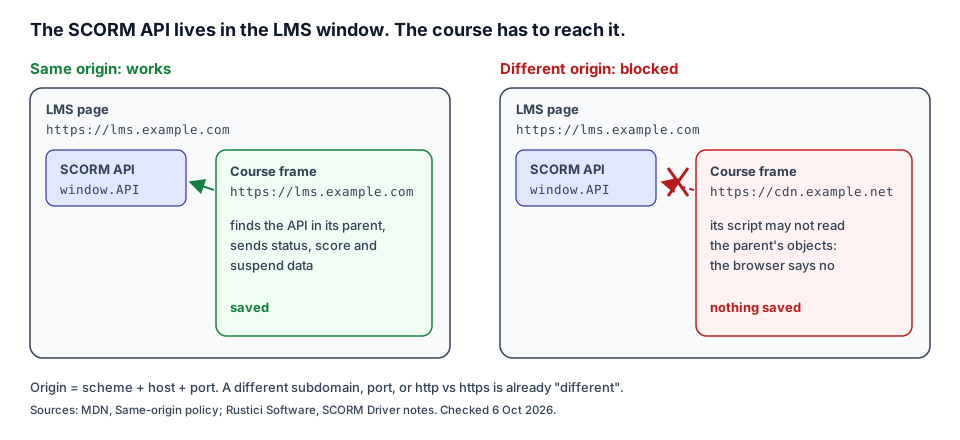 Same files, different host. A different subdomain, port, or http vs https already counts as a different origin.
CORS is not the fix here. MDN's CORS guide describes it as a way for a server to permit loading resources, such as fetch() requests and web fonts, from other origins. It doesn't give a script in one frame access to the objects in another. CORS does matter for a different part of this guide: fonts, data files or scripts the course loads from another host.
What to check:
- Ask where the course files are actually served from. Compare the protocol, host and port with the LMS address.
- Test the same zip in SCORM Cloud. If it tracks there and not in your LMS, the hosting setup is a prime suspect.
- Turn on debug mode and look for errors at launch, before any slide.
JavaScript triggers that work in Preview only
The symptom: a JavaScript trigger works in Preview and does nothing in the LMS. Or it throws an error that only shows up in the browser console.
Articulate's JavaScript best practices say you can preview simple JavaScript triggers, such as ones that get or set a Storyline variable. For complex triggers, you'll still want to publish your course to a web server or LMS to test them properly. The article also notes that Articulate doesn't provide direct support for JavaScript coding, so the debugging is yours. It recommends the built-in console for troubleshooting.
What changes in the LMS is everything your code touches. Here are the patterns I see most:
- Code that loads a library or data from another site. It's blocked by a company firewall, or by the CORS rules above.
- Code that reaches for
window.parentorwindow.top. In Preview the course is the top window. In the LMS it's inside someone else's page, possibly from another origin. - Code that opens a window or prints. It runs into pop-up rules when it isn't called from a click.
- Code that assumes a mouse, a screen size or a browser. It meets a phone.
The learner never sees the error. They see a button that does nothing. Open the browser console while you click through the published course, and treat any red line as a bug until you know otherwise.
Mobile: same course, different hands
The symptom: the course works on a laptop in the LMS and breaks on a phone or tablet.
Storyline publishes HTML5 output, and Articulate says the responsive player adapts to tablets and smartphones without extra work (publishing for mobile). The supported mobile browsers are Safari on iOS and iPadOS, and Chrome on iOS, iPadOS and Android 6 or later, all in their latest versions (system requirements). An LMS mobile app that opens courses in its own embedded browser isn't on that list, so test it separately.
The player adapts. Your interactions don't. Articulate defines the Hover state as how an object looks when learners move their mouse over it (built-in states). A phone has no mouse. If a key piece of content appears only on hover, or a "reveal" uses a hover trigger, a touch learner may never see it. Drag-and-drop, small hotspots and text entry are also worth testing on a real device. The autoplay rules above apply on phones too.
What to check:
- Open the course from the LMS on one iPhone or iPad and one Android device, if your learners use them.
- Find every interaction that depends on hover, and make sure a tap does the same job.
- If learners use the LMS's mobile app, test inside the app, not just in the phone's browser.
The method: isolate the layer before you fix anything
When a course breaks in the LMS, the instinct is to start changing things in Storyline. Resist it. Change one layer at a time, in the order the course travels:
- Published output on a real web server. Not Preview, and not a local folder. If it fails here, the problem is in the course or its files: fonts, file names, media, outside hosts, JavaScript. Fix it in Storyline and republish.
- SCORM Cloud. Rustici Software's free test LMS. Articulate's community team has a step-by-step guide, How to Troubleshoot Your LMS with SCORM Cloud. Publish for LMS and click Zip. Import the zip with Add Content. Then launch the course through an invitation, because launching from the course home page doesn't act like a real learner. Watch for display problems, check that the course suspends and resumes as you expect, and then read the reports.
- Your LMS, with a learner account, on the learners' browsers and devices, ideally from inside their network.
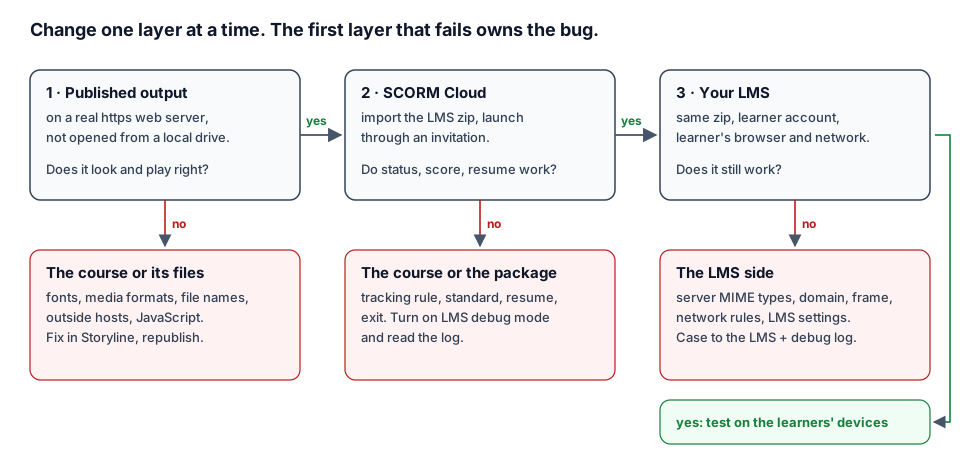 The first step that fails owns the bug. A course that works in SCORM Cloud and fails in your LMS is an LMS case, not a Storyline one.
The rule from that article is the most useful sentence in this whole topic. If it works in SCORM Cloud but not in your LMS, open a case with the LMS provider. If it doesn't work in SCORM Cloud either, the problem is in the course or the package. It saves days of arguing in the wrong direction.
When step 2 or 3 fails and you can't see why, turn on LMS debug mode. Articulate's instructions cover both kinds of package. For SCORM, AICC and cmi5, set SHOW_DEBUG_ON_LAUNCH = true;. For xAPI, add launchDebug: true, below HAS_SLIDE: true,. Then re-zip and upload. The log shows every call between the course and the LMS, and it's the document an LMS administrator will ask for.
If you received the course from a vendor and have no .story file, the same ladder still works. The vendor course QA guide covers what to ask for and how to write findings the vendor can act on.
Where Story Checker fits
Most of the causes above live outside the course, in the server, the LMS, the browser or the network, and no scan of the course can see those. Some of them live in the published files, and those can be checked before the course leaves your hands. Story Checker scans a published Storyline course, uploaded as a ZIP (a Web or LMS publish), and, if you have it, the .story file; for the full results, upload both. The scan runs on a server in the EU (Frankfurt), and the course files are deleted once it succeeds. Here is what it reports that bears on this guide:
- Outside requests. During the scan, the course plays in an isolated browser where every attempt to reach the internet is blocked, and every outside host it tries to reach is listed: a font, a script, a video or a tracking call. That's the dependency a company firewall would block later. The report ends with an evidence line showing what was tried and blocked.
- Load time. The first load is timed during the scan, and a course that takes longer than eight seconds to open is flagged.
- JavaScript errors. Console errors are collected slide by slide. The same error on every slide is reported once, with the slides it appeared on.
- Heavy files. Any file in the package over 50 MB is listed by name.
- Missing attachments and broken links. A Resource or link that points to a file not in the package is reported, and so is a malformed or wrapped web address.
- Media that doesn't load. An image, video or audio file that fails to load during the scan is reported on its slide.
- Web objects. Slides with embedded pages are listed as "to verify", because the scan doesn't go inside them.
What it won't do: it doesn't test your LMS server's MIME types, your company's font policy, cross-domain hosting, resume data size or real phones. It scans in one browser, so it doesn't replace testing in Safari or on a device. It also isn't an accessibility checker, since Storyline has one built in. Use it before step 1, then climb the ladder as usual. For the rest of a pre-delivery pass, see the Storyline QA checklist.
Diagnosis table: symptom, likely layer, first check
| Symptom in the LMS | Most likely layer | First thing to check |
|---|---|---|
| Wrong font in every browser | Web server | MIME type for WOFF files |
| Wrong font in one browser or one company | Browser / network | Font download setting, font-blocking plugins, Group Policy |
| Wrong font everywhere, even on a good server | Course | Type 1 or variable font in the project |
| Video black or never starts | Course / server | Local test? File name with spaces or accents? MP4 MIME type |
| Video fails only with adaptive quality | Web server | Server delivers .m3u8 and .ts from the HLS folders |
| First video silent or frozen until a click | Browser | Autoplay rules: add a click before video with sound |
| Always starts at slide 1 | Course settings / platform | Resume setting; Review 360 and Rise always start over |
| Resumes to the same slide every time | Package / LMS | Suspend data size; SCORM 1.2 in a long course |
| Long blank screen on launch | Course / network | Largest files in the published output; video quality |
| Resource does nothing on click | Browser | Pop-up blocker; window opened without a click |
| Resource opens "not found" | Package | File missing from the zip; path case mismatch |
| Web object empty or "refused to connect" | Outside site | X-Frame-Options / frame-ancestors; use https or a new window |
| Plays perfectly, saves nothing | Hosting | Course on a different domain from the LMS |
| JavaScript trigger works only in Preview | Course / browser | Console errors in the published course; outside hosts |
| Breaks only on phones | Device | Hover-only content, small targets, LMS mobile app |
| Works in SCORM Cloud, fails in LMS | LMS | Case to the LMS provider, with the debug log |
FAQ
Why does my Storyline course work in Preview but not in the LMS?
Because Preview runs inside Storyline on your machine, with your fonts and files and no server, LMS, browser policy or network in between. In the LMS, the same files are served by a web server, framed by the LMS, and opened in the learner's browser and device. Any of those layers can block a font, a video, a window or the connection to the LMS.
Why are my fonts different in the LMS than in Storyline?
Storyline publishes fonts as WOFF web fonts. If they don't reach the browser, a system font is used. The usual causes are a Type 1 or variable font, which Storyline doesn't support in output, a server without a MIME type for WOFF, or a browser or company policy that blocks font downloads.
Why does my Storyline video play in Preview but not in the LMS?
Check for local testing first. Then check file names with spaces, accents or special characters, and a missing MP4 MIME type on the server. With adaptive streaming, the server must also deliver the HLS .m3u8 and .ts files. A video with sound on the first slide can also be blocked by the browser until the learner clicks.
Why doesn't my Storyline course resume where the learner left off?
Check that resume is set to "prompt" or "always". Storyline courses always start over in Review 360 and in Rise 360, so test in SCORM Cloud or the LMS. In a long SCORM 1.2 course, resume data can outgrow suspend_data. Republishing to SCORM 2004 4th edition gives it far more room.
What is the suspend data limit in SCORM 1.2?
4,096 characters, per both SCORM.com and Articulate. SCORM 2004 4th edition allows 64,000. The sources differ on the 3rd edition: SCORM.com lists 4,000 and Articulate lists 64,000. Storyline compresses the data, so most courses fit.
How do I know if the problem is the course or the LMS?
Upload the same LMS zip to SCORM Cloud and launch it through an invitation, like a learner. If it works there and fails in your LMS, the problem is on the LMS side, so open a case and attach the debug log. If it fails in SCORM Cloud too, fix the course or package.
Conclusion
"It works in Preview" is true, and it's the start of testing, not the end. Preview proves your slides and triggers. The LMS tests the delivery: the server, the frame, the browser, the device and the network. Most of the bugs in this guide aren't in your triggers at all. They're in a font file type, a video name, a server setting, a window opened without a click, or a course hosted one domain too far away. Climb the ladder one layer at a time, and the first layer that fails tells you who has to fix it.
If you'd like to catch the course-side causes before you upload, such as outside hosts, missing files, heavy assets and console errors, Story Checker scans the published course and tells you how to fix each finding in Storyline's terms. Try Story Checker on your next course.
Story Checker is an independent tool and is not affiliated with or endorsed by Articulate Global, LLC.