Building Right-to-Left (Hebrew & Arabic) Courses in Storyline: Problems and Fixes
15 min read
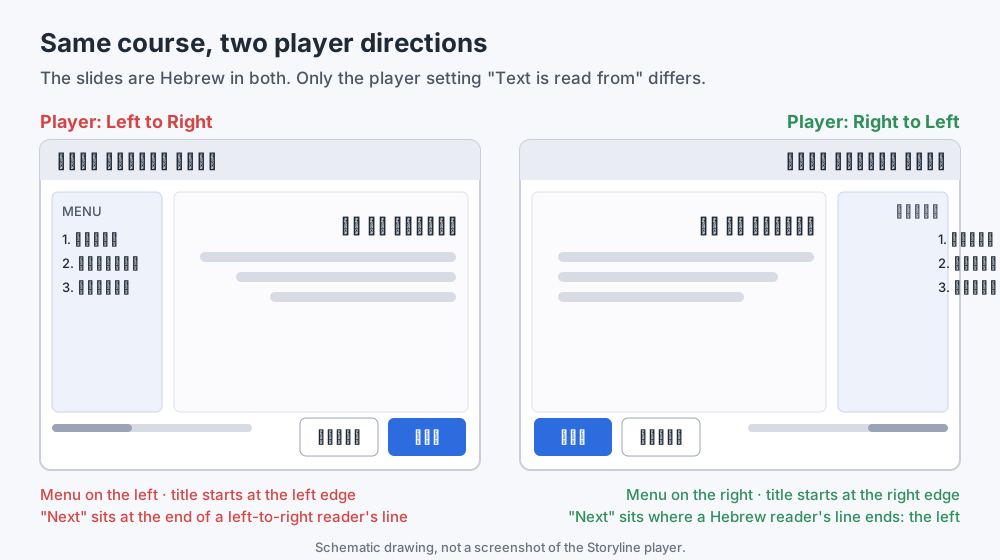 The same Hebrew course in two player directions. The slides are identical; only one player setting changed.
Storyline right-to-left support works, but it is not one switch. A Hebrew or Arabic course in Articulate Storyline 360 needs the player set to right-to-left, every paragraph on every slide set to right-to-left, and fonts that actually contain your script. Miss any one of those and you get the problems people keep asking about in the community: full stops that jump to the start of the sentence, bullets stranded on the left, a player whose menu and buttons read the wrong way, and translated text that comes back scrambled.
I build e-learning courses in Hebrew, and this post is the guide I would hand to a colleague starting their first right-to-left course, or receiving one from a translation vendor. It covers what Storyline supports today according to Articulate's own documentation, the problems that keep coming up and why they happen, how to fix each one, and an RTL QA checklist you can copy. There is a short FAQ at the end.
A note on dates. Much of what you find online about Hebrew and Arabic in Storyline was written for older versions. Where I cite a fix or a documentation page, I give its date, so you can compare it with the build you have installed. Everything in this post was checked against Articulate's public pages on October 6, 2026.
What Storyline supports today
Articulate's position is clear: Storyline supports all languages and scripts, including right-to-left scripts such as Arabic and Hebrew (article last updated January 24, 2024). The practical details live in a separate article, Enabling Right-to-Left Language Support, last updated January 16, 2026. It describes three separate settings, and the most important thing to understand about Storyline right-to-left work is that they are independent of each other:
- The player direction. Under Home → Player → Other, the Text is read from list sets the player to Right to Left. Articulate says player elements then switch positions to give learners a more intuitive experience. Before you do this, the article asks you to choose a player font that supports right-to-left text (it names Arial Unicode MS and Microsoft Sans Serif) and to select Hebrew or Arabic for the player's text labels, or customize the labels for a language that has no built-in set, such as Farsi or Urdu.
- The direction of the text on your slides. This is a per-paragraph setting, applied with the Right-to-Left Text Direction button on the Home tab while you edit text. One detail catches people out: according to the same article, that button only appears if you have a right-to-left keyboard input language installed on your computer.
- The sidebar position. Under Player → Features, the Sidebar list can be set to On Right.
The article also points to Articulate Localization for courses that combine several languages, including right-to-left ones, in a single multi-language course.
The Storyline 360 version history shows that this area is still being worked on. Two fixes are directly relevant:
- May 27, 2025 (build 3.100.34725.0): fixed an issue where player prompts, such as the "Invalid Answer" message, couldn't be localized or set to right-to-left orientation.
- July 22, 2025 (build 3.102.35072.0): fixed an issue where some fonts caused Hebrew and Arabic text to disappear or display incorrectly in both preview and published output.
If you are on a build older than mid-2025, update before you start debugging anything else. If you are on a newer build, keep in mind that a forum thread from a few years ago may describe a problem that no longer exists, or one that still does. The only way to know is to test your own published output.
The Storyline right-to-left setup, in order
Before getting into individual problems, here is the order that avoids most of them:
- Install a right-to-left keyboard (Hebrew or Arabic) in Windows, even if you will paste most of the text. Without it, you won't see the text direction button.
- Set the player first: player font, text labels language, Text is read from: Right to Left, sidebar on the right. Save it as a custom player so the next course starts from it.
- Set your slide masters and text placeholders to right-to-left before you build slides. Every text box you create from a right-to-left placeholder starts right. Every text box you create from scratch has to be fixed by hand.
- Decide your fonts per script (one for Hebrew or Arabic, one for Latin text if you need a different one) and put them in the theme.
- Only then add content, whether you type it, paste it or import a translation.
Most of the problems below come from doing these steps out of order: building in English first, flipping the player at the end, and discovering that hundreds of text boxes still read left to right.
Problem 1: the player still reads left to right
What the learner sees. The slides are in Hebrew or Arabic, but the menu sits on the left, the course title starts at the left edge, and the Next button sits where a left-to-right reader's line ends. Every slide feels slightly backwards, and because it's the player, it's on every slide of the course.
Why it happens. The player direction is a project setting that has nothing to do with the language of your slides. A course started from an English template, or from a colleague's player, keeps the left-to-right player until someone changes it. Translated courses are especially prone to this: the translation workflow replaces slide text, and the player stays as it was.
How to fix it. Home → Player → Other → Text is read from: Right to Left, as described in Articulate's article. Set the sidebar to On Right under Features, and choose Hebrew or Arabic text labels (or customize them). Then republish. This is a published-output setting, so check the published course, not only the editor.
How to catch it. Open the published course and look at three things on the first slide: which side the menu is on, which edge the course title starts from, and where Next sits relative to Previous. If any of them reads left to right while the content is Hebrew or Arabic, the player direction was not set.
Problem 2: modern player titles and the resume prompt display left to right
What the learner sees. The player is set to right-to-left, yet slide titles in the modern player are laid out left to right. The same can happen on the prompt that appears when a learner returns to a course and is asked whether to resume.
What the community reports. This was raised in the Arabic courses discussion on E-Learning Heroes: with every player setting on right-to-left and the recommended fonts, slide titles in the modern player still showed left to right, and so did the resume screen. The same author reported that switching to the classic player displayed the text correctly. I could not confirm which build that report applies to, so treat it as something to test, not as a fact about your version.
What to do. Articulate's version history lists a May 2025 fix for player prompts that couldn't be set to right-to-left orientation, so update first. Then test it directly: publish, open the course in the LMS or a test environment, visit a few slides, close it, and open it again so the resume prompt appears. Look at the slide titles in the menu and in the title bar. If they still read left to right on your build, the options people use are switching to the classic player for that course, or customizing the player text labels so the prompt's wording at least reads naturally. Report it to Articulate support with your build number; that is how fixes like the May 2025 one happen.
Problem 3: punctuation at the end of a sentence jumps to the wrong side
What the learner sees. A full stop or a question mark at the start of a Hebrew or Arabic sentence, on the right, instead of at its end on the left. Parentheses face the wrong way, or a sentence with an English term and a number in it comes out in a jumbled order.
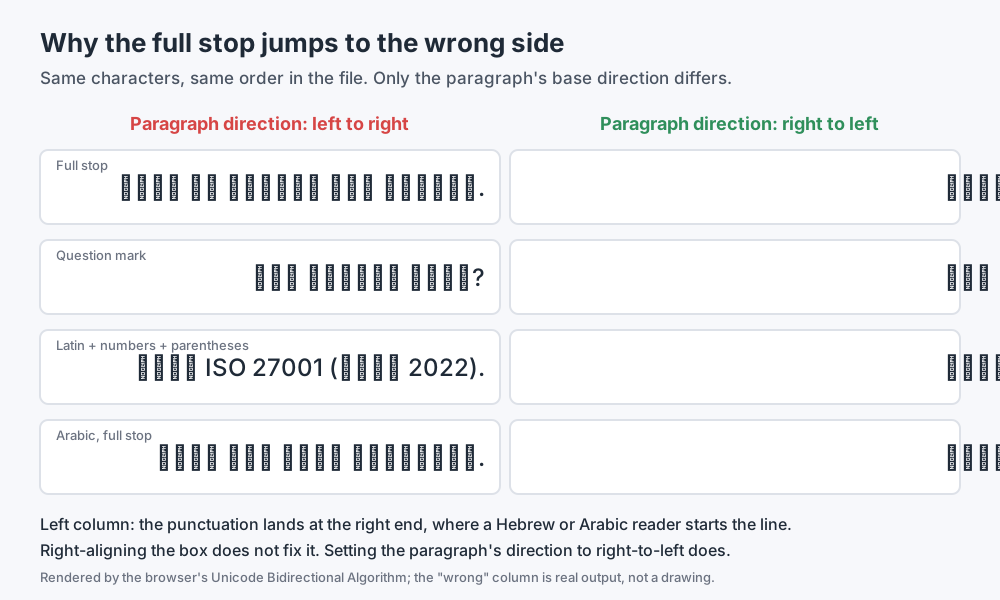 Same characters, same order in the file. Only the paragraph's base direction differs. The left column is what a browser really renders, not a drawing.
Why it happens. This isn't a Storyline bug as such; it is how bidirectional text works everywhere. Hebrew and Arabic letters have a strong right-to-left direction. Punctuation, spaces and many symbols are neutral: they have no direction of their own and take the direction of the paragraph around them. The W3C explains it in its Unicode Bidirectional Algorithm basics: a neutral character between runs of opposite direction is treated as if it had the paragraph's base direction. So a full stop at the end of a Hebrew sentence, in a paragraph whose base direction is left-to-right, is laid out as left-to-right text: after the Hebrew run, on its right. That is exactly where a Hebrew reader expects the sentence to start.
This is why right-aligning the text box doesn't help. Alignment only moves the line to the right edge. It does not change the paragraph's direction, and the direction is what decides where the neutral characters go.
There is a second source of the same symptom. A community member reported in the Hebrew punctuation thread that text looked correct on the design slide but punctuation shifted after publishing; Articulate's answer at the time was to update, because a fix for Hebrew text had shipped. If the editor and the published course disagree on your current build, that is worth reporting.
How to fix it.
- Select the text and apply the Right-to-Left Text Direction button. Do it per paragraph if a text box mixes languages.
- Fix the source, not the symptom. Don't move the full stop to the beginning of the sentence in the text so it looks right in a left-to-right paragraph. It will be wrong the moment someone fixes the direction, and it is wrong for screen readers now.
- For a stubborn case inside mixed text (a Hebrew sentence that ends with an English term, a phone number, or a code like "ISO 27001"), the standard Unicode remedy is an invisible right-to-left mark (U+200F) right after the punctuation, so the punctuation is anchored to the right-to-left text. The W3C describes this technique in WCAG technique H34. Use it sparingly: it is invisible, so the next person to edit the text won't know it's there.
How to catch it. In the published course, look at the last character of every sentence that ends with punctuation, and at every sentence that contains Latin letters, numbers, parentheses or quotes. Those mixed sentences are where the ordering goes wrong even when the paragraph direction is correct.
Problem 4: bullets and numbering sit on the left
What the learner sees. A right-aligned Hebrew or Arabic list with its bullets at the far left edge of the text box, separated from the text they belong to. Numbered lists do the same, with "1." and "2." stranded on the left.
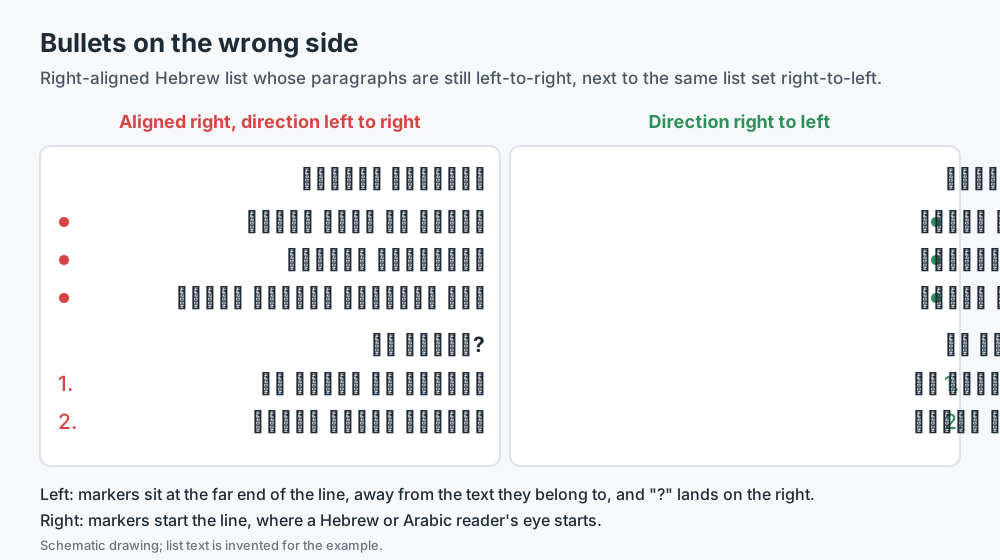 List markers follow the paragraph's direction, not its alignment.
Why it happens. It's the same cause as the punctuation problem. A bullet belongs to the start of the paragraph, and the start of a left-to-right paragraph is on the left, however the lines are aligned. A list that was built in English and translated, or a text box drawn from scratch rather than from a right-to-left placeholder, keeps its left-to-right paragraphs.
How to fix it. Select the list paragraphs and apply the Right-to-Left Text Direction button. Check the indentation afterwards: the hanging indent that kept wrapped lines aligned with the text in English now needs to work from the right. Set this once on the placeholders in your slide masters, so new lists start right-to-left.
How to catch it. Every list in the course, including lists on layers, in feedback layers and inside quiz feedback, which are easy to forget. A list that wraps onto a second line is the best test, because a wrong indent shows immediately.
Problem 5: editing Hebrew text in a text box behaves strangely
What you see as the author. You click in the middle of a Hebrew sentence to fix a word, and the cursor lands somewhere else. You type a character and it appears at the other end of the word. Selecting a phrase with the mouse selects something that doesn't match what you dragged across.
Why it happens. Part of it is universal to bidirectional editing: in a mixed sentence, one position in the stored text can correspond to two places on screen, and editors resolve that differently. Part of it was specific to older Storyline versions. In the Hebrew text editing thread, a user described exactly this behaviour, and Articulate's reply was that early builds of that version had issues with these characters and that a later update should resolve them. That thread concerns a version that is long out of date, but the advice behind it still applies: if editing feels erratic, the first step is to update.
How to work with it.
- Make sure the paragraph's direction is right-to-left before you edit. Many of the strange cursor jumps happen in paragraphs that are still left-to-right.
- Switch your keyboard to Hebrew or Arabic while editing right-to-left text. Arrow keys and selection behave more predictably when the input language matches the text.
- For large edits, edit in the translation document (see the next problem) rather than in dozens of text boxes, then import.
Problem 6: translated text comes in wrong
What you see. You export the course for translation, a translator returns Hebrew or Arabic, you import it, and some of the text doesn't land correctly: direction, line breaks or formatting are off, and text overflows boxes that were sized for English.
How the workflow works. Articulate's Translating Courses article (last updated September 10, 2026) describes it: File → Localization → export the original text as XLIFF (for translation services) or Word (for manual or machine translation), translate it, and import it into a copy of the original project. The same article lists what the export does not include: closed captions, trigger conditions, player text labels and variable names must be translated in Storyline itself. For a right-to-left course, that list is also a list of places to check by hand.
What the community reports. In the Arabic courses discussion, translators described difficulty getting Arabic text from the Word translation document into Storyline correctly, and fell back on copying it through Notepad first to strip formatting. That is slow, and it's a workaround, not a fix; on a current build, try the import first and check the result carefully before changing your process.
How to fix and check it.
- Import into a project whose player and masters are already right-to-left (see the setup order above). The import replaces text; it won't fix the direction of the boxes it lands in.
- After import, go through every slide, layer and state for paragraph direction, punctuation and lists, as in problems 3 and 4.
- Look for overflow. Translated text is rarely the same length as the source, and right-to-left text in a box sized for English can wrap differently or spill out of a button.
- Translate the things the export skips: captions, player labels, and any text built from variables.
Problem 7: fonts
Fonts cause three different right-to-left problems, and it helps to keep them apart.
The script isn't in the font. If a font has no Hebrew or Arabic glyphs, the text falls back to another font or doesn't show at all. Arabic also needs a font that supports its connected letter forms. Articulate's own advice for the player is a font that supports right-to-left text, and its July 2025 fix for fonts that made Hebrew and Arabic text disappear or display incorrectly in preview and published output shows that this was real, not theoretical. Check the published course on a computer that does not have your design fonts installed; that is how your learners will see it.
Two fonts are normal. A Hebrew or Arabic course often uses one typeface for its own script and another for English terms, product names or code. That isn't inconsistency; it's typography. Any review that counts "the course font" across all text will flag every English word as an error.
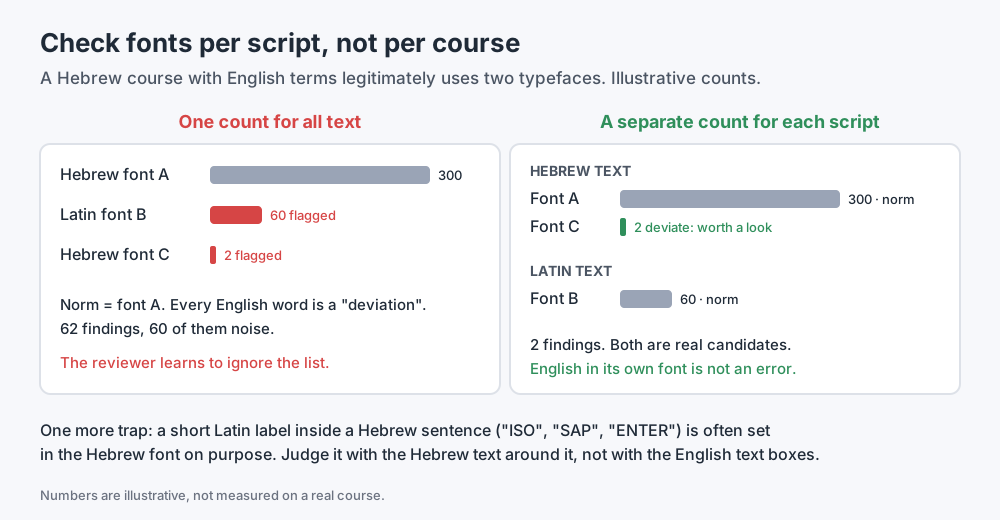 Count the font norm per script. Illustrative numbers.
A short Latin label is part of the Hebrew text. "ISO", "SAP" or "ENTER" in the middle of a Hebrew sentence is often set in the Hebrew font on purpose, so it matches the line around it. Judge it with the Hebrew text, not with the English text boxes.
The real font error is a deviation within the same script: a handful of Hebrew text boxes in a different typeface from the other few hundred, usually pasted from another course or another template. That is worth finding, and it is easy to miss by eye when the two Hebrew fonts look similar.
Things you should not mirror
Right-to-left doesn't mean flipping everything. A skilled designer keeps some things left to right on purpose:
- Screenshots of software that runs left to right. Mirroring a screenshot of an English interface makes it false.
- Numbers, code, URLs and email addresses. They read left to right inside right-to-left text, and that is correct.
- Media timelines. Many video players keep their seek bar running left to right in every language. Whether you follow that convention or reverse it, decide it once and apply it everywhere.
- Logos and brand marks.
What should follow the reading direction is anything that expresses order: navigation, progress through steps, timelines of a process, "previous" and "next", the side the learner starts reading from. When you review a right-to-left course, ask of each left-to-right element whether it is wrong or whether a designer could have kept it that way deliberately. If it's the second, it is not a bug.
RTL QA checklist for Storyline
Use this on the published course. The editor can look right while the output isn't.
| # | Check | How to test | Fix |
|---|---|---|---|
| 1 | Player direction matches the language | First slide: menu side, title edge, Next vs Previous | Player → Other → Text is read from: Right to Left |
| 2 | Sidebar on the right | Look at the menu position | Player → Features → Sidebar On Right |
| 3 | Player labels in the course language | Read every button, tooltip and prompt | Choose Hebrew/Arabic labels or customize |
| 4 | Slide titles and resume prompt read right to left | Visit, close, reopen; check titles and the resume prompt | Update Storyline; test the classic player; report with build number |
| 5 | Every paragraph is right-to-left | Text, layers, states, feedback, quiz | Right-to-Left Text Direction button; fix masters |
| 6 | End-of-sentence punctuation on the left | Last character of each sentence | Paragraph direction; U+200F as a last resort |
| 7 | Mixed sentences in the right order | Sentences with English, numbers, parentheses, quotes | Paragraph direction; rewrite the sentence if needed |
| 8 | Bullets and numbers on the right | Every list, including on layers | Paragraph direction; check the hanging indent |
| 9 | Script exists in the font | Published course on a machine without your fonts | Use a font with Hebrew/Arabic glyphs; update Storyline |
| 10 | Font consistent per script | Hebrew text vs Hebrew text, Latin vs Latin | Replace the odd font; don't "fix" English in its own font |
| 11 | Imported translation complete | Captions, player labels, variable text | Translate what the export skips |
| 12 | No overflow after translation | Buttons, callouts, quiz answers | Resize boxes or shorten text |
| 13 | Order-bearing visuals follow the reading direction | Steps, arrows, process diagrams | Mirror order; keep screenshots and code as they are |
| 14 | Learner can reach the end | Run the course from slide 1, like a learner | See the Storyline QA checklist |
For the bugs that have nothing to do with direction (layers, triggers, gates, media), see common Storyline bugs that pass Preview.
Where Story Checker helps, and where it doesn't yet
I built Story Checker for my own courses, and right-to-left problems are one of the reasons. Two of the checks above are automated today:
- Player direction against the course language. Story Checker reads the player direction from the published course and compares it with the text on the slides. When the course text is mostly Hebrew and the player reads left to right, it's reported at the top of the report, because it affects every learner on every slide. When there is too little text to judge the language, the check says "not decided" instead of reporting the course as clean.
- Fonts per script. It learns the course's own font norm separately for Hebrew text and for Latin text, and reports the text that deviates from its own script's norm. English in its own typeface isn't flagged, and short Latin labels inside Hebrew text are judged with the Hebrew text.
Two honest limits. First, today the language detection behind both checks counts Hebrew letters; an Arabic course is not yet recognized as right-to-left, so check its player direction by hand. Second, punctuation on the wrong side and bullets on the left are not automated yet; use the checklist above.
Story Checker scans a published Storyline course, uploaded as a ZIP (a Web or LMS publish), and, if you have it, the .story file; for the full results, upload both. The scan runs on a server in the EU (Frankfurt). During the scan the course plays in an isolated browser where every attempt it makes to reach the internet is blocked, and the report ends with an evidence line showing what was tried and blocked. The course files are deleted once the scan succeeds. It clicks through the course like a learner to find where a learner gets stuck, locates each finding down to the exact word or object with a red frame on the screenshot, and explains it in Storyline's own terms. The report can be produced in Hebrew. It is deterministic, not AI-based: the same course produces the same report. It is not an accessibility checker; Storyline 360 has a built-in one, and you should use it.
FAQ
Does Storyline support Hebrew and Arabic?
Yes. Articulate states that Storyline supports all languages and scripts, including right-to-left scripts such as Hebrew and Arabic. You need to set the player to right-to-left, set slide text to right-to-left per paragraph, and use fonts that contain the script.
How do I make the Storyline player right-to-left?
Go to Home → Player → Other and set Text is read from to Right to Left. Articulate also recommends a player font that supports right-to-left text, and Hebrew or Arabic player text labels. Move the sidebar to the right under Features.
Why don't I see the right-to-left text direction button in Storyline?
According to Articulate, the button only appears if a right-to-left keyboard input language is installed on your computer. Add a Hebrew or Arabic keyboard in Windows and reopen Storyline.
Why does the full stop appear at the start of my Hebrew sentence?
The paragraph's direction is still left-to-right. Punctuation takes the direction of its paragraph, so it lands after the Hebrew text on the right. Right-aligning doesn't fix it; setting the paragraph to right-to-left does.
Why are my bullets on the left in a Hebrew or Arabic list?
For the same reason: list markers follow the paragraph direction, not the alignment. Apply right-to-left direction to the list paragraphs, and set it on your master placeholders so new lists start correctly.
Can I translate an English Storyline course into Arabic or Hebrew?
Yes. Export the text through File → Localization as XLIFF or Word, translate it, and import it into a copy of the project. Set the player and masters to right-to-left first, then check direction, punctuation, lists and overflow on every slide, and translate captions and player labels separately.
Conclusion
A right-to-left course in Storyline fails in small, visible ways: a full stop on the wrong side, a bullet on the wrong edge, a menu that reads backwards. Each one is easy to fix once you know that direction, not alignment, is the setting that matters, and that the player and the slides are set separately. Set up in the right order, check the published course rather than the editor, and judge fonts per script.
If you build or receive Hebrew courses and want the player direction and font checks done for you, try Story Checker at story-checker.com.
Story Checker is an independent tool and is not affiliated with or endorsed by Articulate Global, LLC.