Storyline Next Button Not Enabling? Fix Visited Gates
17 min read
Storyline Next button not enabling after the learner has clicked every tab? The gate is almost never "broken" in the sense of an error. It is doing exactly what its trigger says, and the trigger says something slightly different from what you meant. The usual suspects: the condition lists three of four items, the change it listens for happens on a layer or another slide, the learner came back and the slide reset, or the trigger unlocks a custom button while the player's Next stays locked.
This post walks through the seven ways the "visit everything, then continue" pattern fails, shows a build recipe that survives all of them, and ends with a test checklist and a short FAQ. Every claim about how Storyline behaves links to Articulate's own documentation or to the E-Learning Heroes community where the behavior is reported.
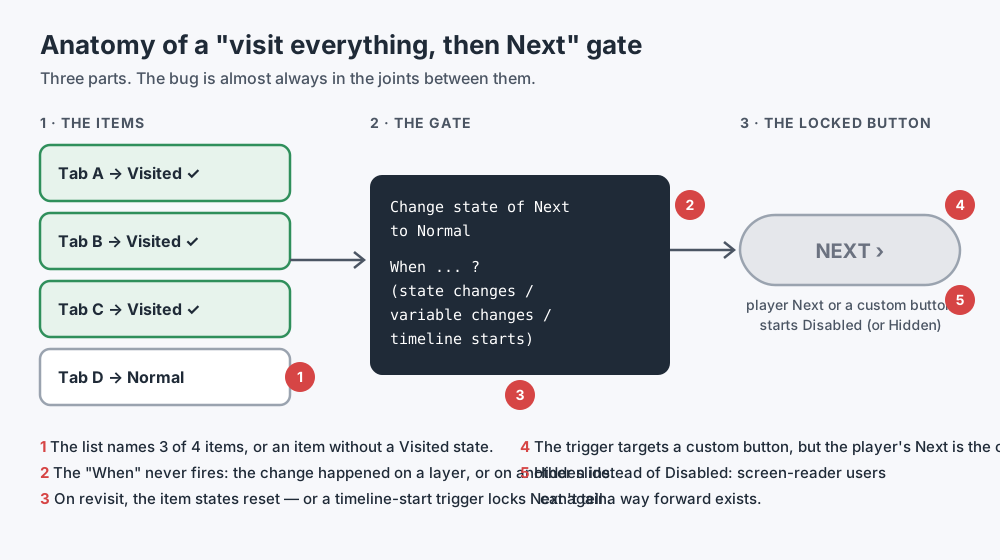 Every visited-state gate has three parts. The bugs live in the joints between them.
The pattern: what a visited-state gate actually is
I have built more than 140 Storyline courses, and a large share of them contain this slide: four or six items, each opening a layer, and a Next button that stays off until the learner has opened all of them. It is the most common way to say "please don't skip this" in Storyline, and it is also the slide most likely to strand a learner.
The gate has three parts.
The items. Tabs, cards, hotspots or icons, each with a Visited state. Articulate's built-in states article describes Visited as how an object looks after learners click it, and adds the detail that makes the pattern feel effortless: if the Visited state exists, it displays automatically after a click, with no trigger needed. That automation is convenient, and it also hides the first trap. If an item has no Visited state, nothing ever changes it to Visited, and a condition that waits for it waits forever.
The gate. A trigger that changes the locked button to Normal "when" something happens, "if" a condition is true. The "when" matters as much as the "if," and it is the part authors check least.
The locked button. Either the player's own Next button, or a custom button you drew on the slide. They behave differently, they are controlled from different places, and mixing them up is one of the most common reasons a Next button never turns on.
Two words before we start. First, none of this is a reason to avoid gates. They are a legitimate design choice, and a skilled designer may lock a slide on purpose for good reasons. Second, the goal here is not a "correct" gate. It is a gate that does what you intended for every learner, including the one who clicks in a strange order, leaves halfway and comes back tomorrow.
Storyline Next button not enabling: seven failure modes
1. The condition counts 3 of 4
This is the simplest failure, and the most common. The gate trigger says Change state of Next to Normal when the state of Tab A, Tab B and Tab C is Visited. There are four tabs. Someone added Tab D in a later revision and didn't touch the trigger.
The result depends on which direction the mismatch goes:
- The list is shorter than the slide. The gate opens early. A learner can click A, B and C, see Next light up, and leave without ever opening D. Nobody gets stuck, so nobody reports it, but the slide no longer does its job.
- The list is longer than the slide. The list still names an item that was deleted, renamed and replaced, or never had a Visited state. The gate can never open. The learner opens every tab they can see and is stuck.
The trap is that Preview hides both. When you test your own slide, you click all four tabs because you know there are four. The early-opening gate looks fine because you never stopped at three, and the never-opening gate usually shows up only after the deletion that broke it, which you made in a hurry after you had tested.
How to catch it. Open the gate trigger and compare its list, name by name, with the items on the slide and on every layer. Then preview the slide and stop one item short, each time leaving a different item out. If Next lights up before the last item, the list is short.
2. The Visited states don't survive the return to the slide
A learner opens two tabs, goes back to the previous slide to re-read something, and returns. What happens to the two tabs they already opened depends on a single setting that many authors never look at: Slide Properties → When revisiting.
Articulate's slide properties article lists three options:
- Resume saved state — the slide always remembers its previous state.
- Reset to initial state — in Articulate's words, the slide "will restart from the beginning of its timeline, and interactive objects will return to their initial states."
- Automatically decide — the default. Slides without interactivity reset; slides with interactive elements such as buttons resume.
So if the slide is set to Reset, the two tabs the learner opened are back to Normal. A gate that reads object states now needs all four tabs again. That may be what you want. If it isn't, the learner experiences it as "I already did this and it's making me do it again," and some will assume the course is broken.
A note on a claim you may see elsewhere, including in older forum threads and notes: that "Reset to initial state" only replays the timeline and does not return objects to their starting states. Articulate's current documentation says the opposite, quoted above: interactive objects return to their initial states. Build on the documented behavior, and if your version of Storyline behaves differently, test it on the slide in question rather than relying on memory.
How to catch it. For every gated slide, note the revisit setting. Open two items, leave the slide, come back, and look at the items before you click anything else. Then decide whether what you see is what you meant.
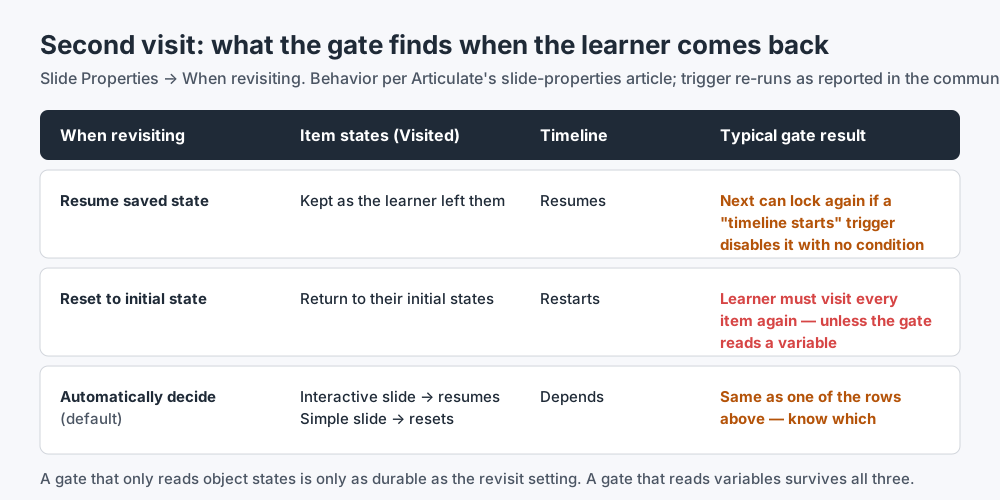 A gate that reads only object states is as durable as the revisit setting. A gate that reads variables survives all three.
3. The variable changes on a layer, not on the base layer
Many authors move from states to variables, which is a good instinct. Each layer sets a True/False variable when it opens (Set Seen_A to True when the timeline starts on this layer), and the base layer has a trigger that unlocks Next when Seen_A changes, if all four variables are True.
On paper that is solid. In practice, it is the setup behind one of the most-read community threads on this topic: an author whose Next button state change didn't work for about 10% of learners. The replies in that thread point at the "when variable changes" event: community members report that a trigger which waits for a variable to change may never fire unless the change happens where the trigger can hear it, and that a base-layer trigger listening for a change made on a layer is exactly the risky case.
I want to be careful here. This behavior is reported and reproduced by experienced community members, but Articulate's variables article doesn't spell out the scope of the "when variable changes" event, and other threads report the reverse surprise, triggers on hidden layers that still fire. The practical conclusion doesn't depend on which explanation is right: don't build a gate whose only unlock path is a change event on one layer heard by a trigger on another. Set the variable where the click happens, on the base layer, and add a second unlock path that doesn't depend on hearing a change at all (see the recipe below).
The "10% of learners" detail is also worth noting. A gate that fails for some learners and not others is a strong hint that the failure depends on the path: the order of clicks, a revisit, a resume from the LMS, or a layer that was still open when something changed. Your Preview, on your path, will pass.
How to catch it. In the Triggers panel, list every trigger whose event is "when variable changes" and note which layer it sits on. Then find where that variable is actually set. If the two are on different layers, that gate depends on undocumented behavior.
4. The player's Next button versus your custom Next button
There are two Next buttons in the world of Storyline, and a gate that controls one does nothing to the other.
The player's Next button lives in the player frame. Whether it shows at all is set per slide in Slide Properties, where you mark the navigation buttons you want on each slide (slide properties). You can change its state with a trigger: in the trigger wizard, choose Change state of, then pick the Next button from the player controls. Articulate's toggle state article shows the same object list including player navigation buttons.
A custom Next button is a shape on the slide (or on a slide master) with a Jump to next slide trigger. It has its own states, including Disabled, and it obeys only the triggers that name it.
Three common mix-ups:
- The gate unlocks the custom button, but the player's Next is also showing and was locked by restricted navigation. The learner sees two Next buttons, one lit and one grey, or clicks the grey one and gets nothing.
- The gate unlocks the player's Next, but Slide Properties hide it on this slide. You enabled a button that isn't there.
- Restricted navigation is doing more than you think. Articulate's restrict or lock navigation article explains that restricted or locked navigation can disable the Previous and Next buttons, and that you can override it per slide with a trigger that changes their state to Normal. In a community sanity-check thread, participants describe the default under restricted navigation as Next disabling on the first visit, enabling at the end of the timeline and staying enabled on revisit, and they note that once you add your own change-state trigger for Next, you are effectively managing it yourself. If your slide's timeline is short, restricted navigation may unlock Next long before the learner has visited anything, unless your own trigger takes over.
How to catch it. For each gated slide, write one sentence: "The learner leaves this slide by clicking ___." Then check that the gate trigger targets that exact button, that the button is visible on this slide, and that nothing else (restricted navigation, a master-slide trigger) unlocks or locks it on its own schedule. Articulate notes in its trigger order article that master slide triggers run before content slide triggers, so a lock on the master can fight with an unlock on the slide.
5. The gate opens too early
An early gate doesn't strand anyone, so it rarely gets reported, but it defeats the purpose of the slide. Besides the short list from case 1, three builds open a gate early:
- The unlock is tied to the timeline, not to the items. Change state of Next to Normal when the timeline ends opens the gate after 10 seconds whether or not anything was clicked. Authors add this "just in case" and forget it's there.
- The condition uses Or where it means And. A single wrong conjunction in the conditions list turns "all four" into "any one."
- The tracking fires on hover or on layer start of a layer that opens automatically. If one layer is shown by a timeline trigger at the start of the slide (an intro layer, for example) and that layer sets its own Seen variable, one of the four is "visited" before the learner touches anything.
How to catch it. Preview from the start of the slide and do nothing. Wait for the timeline to end. If Next turns on, the gate isn't the only thing unlocking it. Then click one item and stop. Then two. The button should stay off until the last one.
6. The revisit re-locks a gate that was already open
This is the mirror of case 2, and it is the one that most often traps learners who did everything right. The slide is set to Resume saved state, all four tabs show as Visited, and yet when the learner returns, Next is grey again.
The usual cause is a lock trigger like Change state of Next to Disabled when the timeline starts on this slide. Community members in threads such as Next button disabled on revisit report that timeline-start triggers can run again on a revisit even when the slide resumes its saved state. The tabs remember they were visited, but the lock runs again, and the unlock, which waited for a state change, never fires because nothing changes: the tabs were already Visited.
The fix is to give the lock a condition and give the unlock a second moment to run:
- Lock only if at least one item is still unvisited.
- Also unlock when the timeline starts, if all items are visited.
When both triggers share the same event, their order matters. Articulate's trigger order article says triggers on the same object with the same event run top to bottom in the Triggers panel. With conditions on both, the order is no longer critical, but placing the lock above the unlock is a cheap extra safety.
How to catch it. Complete the gate, leave the slide, come back. Next should still be on. Then do it a second time: some failures show only on the third visit, after a variable was reset by a trigger you forgot about.
7. Disabled versus Hidden, and why it matters for accessibility
A locked Next button can be locked in two ways. It can be Disabled, which Articulate's Disabled state article describes as visible but not responding to hover, click or drag. Or it can be Hidden, which makes it invisible until a trigger reveals it.
Both "work" in the sense that the learner can't leave early. They are not equal.
For learners who use a screen reader, the University of California Office of the President's e-course accessibility guidance on element status in Storyline recommends the Disabled state for a button that starts unavailable and becomes available later. A disabled button can be announced as unavailable, so the learner understands there is a way forward and that something has to happen first. A hidden button isn't there at all, and when it appears there may be nothing to tell a non-sighted learner that it did. This lines up with the general principle in WCAG's Name, Role, Value guidance that the state of a control should be available to assistive technology, not only to the eye.
There is also a layout argument from the community: in a thread about hiding Next, authors note that hiding the player's Next can let Prev shift into the space where learners expect Next, so a learner aiming for Next clicks Prev instead.
Hidden has its uses. A reveal that's meant to surprise, a bonus item, a button that appears as a reward — those are design decisions, and a designer may make them deliberately. The risk is concentrated on one case: a hidden button that is the only way off the slide. If it never appears, the learner sees a slide with no way forward and nothing to suggest one exists.
Whichever you choose, put the rule on the slide in words ("Open all four tabs to continue"). It helps every learner, and it turns a silent lock into an instruction.
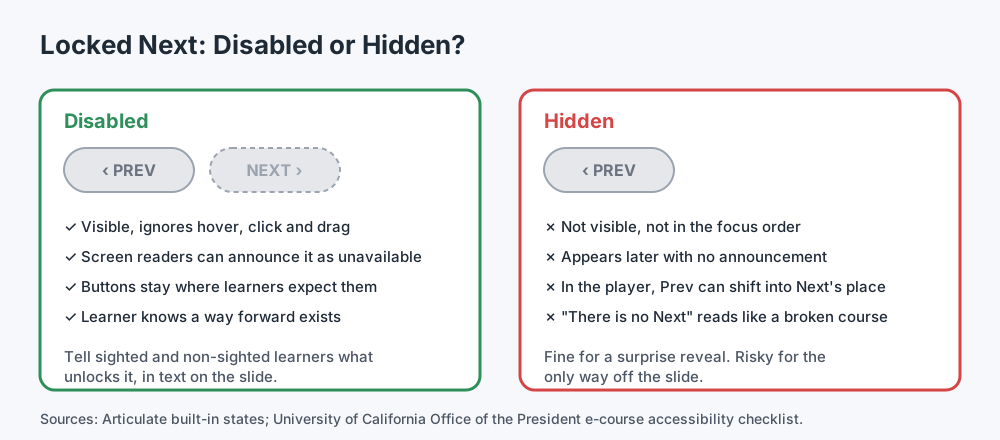 For the only way off a slide, Disabled is the safer lock. Hidden is a design choice best kept for reveals.
One more note on accessibility, to be honest about scope: Storyline 360 has a built-in Accessibility Checker, and it is the right tool for accessibility issues across your course. Use it. What it isn't designed to do is tell you whether a gate can actually be opened.
A note on Selected and Visited
If your items also have a Selected state, or sit in a button set, test the gate with extra care. Community threads such as how do button states stack show that authors are regularly surprised by how Selected and Visited combine on the same object. I don't rely on either state for gate logic for exactly that reason. States are for how an item looks; variables are for what the course remembers. Which brings us to the recipe.
A build recipe that survives layers, revisits and resumes
This is the pattern I use. It is not the only correct one, but every step exists because one of the seven failures above happened to me or to a course I reviewed.
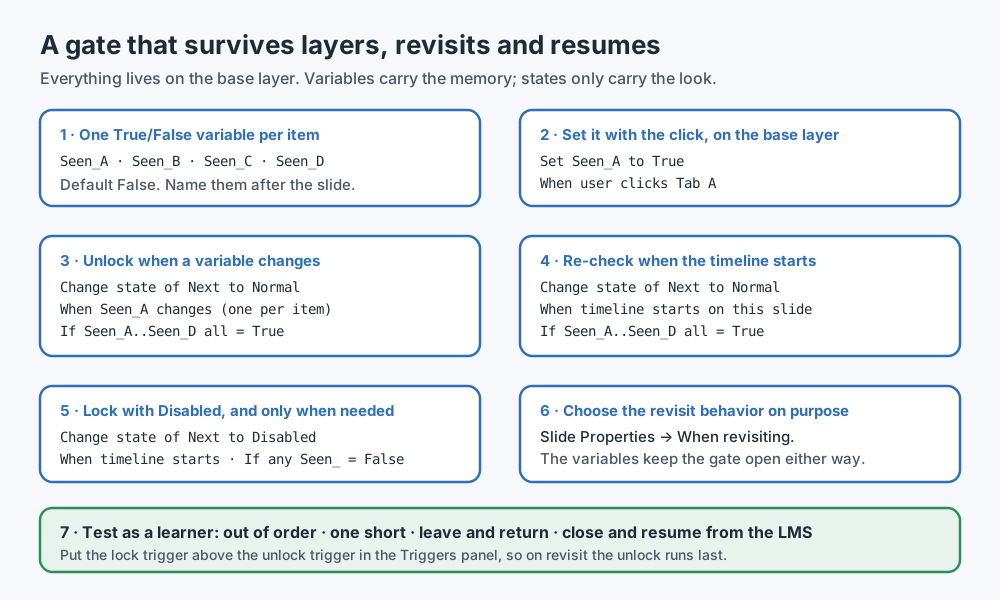 Variables carry the memory; states carry only the look.
Step 1 — Decide which button is the gate. Before you build anything, decide whether the learner leaves by the player's Next or by a custom button. Turn the other one off for this slide (Slide Properties for the player's Next; delete or hide the custom one). One slide, one way forward.
Step 2 — Create one True/False variable per item. Name them after the slide and the item, for example S3_Seen_A to S3_Seen_D. Default value False. A slide prefix avoids the classic copy-paste bug where the next gated slide reads the previous slide's variables and opens immediately.
Step 3 — Set each variable with the click, on the base layer. On each item: Set S3_Seen_A to True when the user clicks Tab A, placed in the same trigger group as Show layer A. This is the important move. The variable changes on the same layer and slide where the gate trigger lives, at the moment of the click, regardless of what the layer does next.
Step 4 — Keep the Visited state for the look. Leave the built-in Visited state on each item so learners can see their progress. Just don't make the gate depend on it.
Step 5 — Lock with Disabled, with a condition. On the base layer: Change state of Next to Disabled when the timeline starts on this slide, if S3_Seen_A = False or S3_Seen_B = False or S3_Seen_C = False or S3_Seen_D = False. The condition is what keeps a revisit from re-locking a completed gate. If you'd rather set the custom button's initial state to Disabled instead of locking with a trigger, that works too for a custom button, and you still need step 7 for revisits.
Step 6 — Unlock when a variable changes. On the base layer, one trigger per variable: Change state of Next to Normal when S3_Seen_A changes, if all four are True. Because step 3 changes the variable on the base layer, these triggers hear the change.
Step 7 — Unlock again when the timeline starts. Also on the base layer: Change state of Next to Normal when the timeline starts on this slide, if all four are True. This is the trigger that rescues revisits, resumes and anything you haven't thought of. Place it below the lock trigger.
Step 8 — Set the revisit behavior on purpose. Choose Resume or Reset in Slide Properties because you decided, not because it was the default. With variables carrying the gate, both work: Reset will clear the Visited look, but the gate stays open because the variables are still True. If you want the learner to redo the slide on every visit, reset the variables on purpose with a trigger, and say so on the slide.
Step 9 — Check restricted navigation. If the course uses restricted or locked navigation, confirm it isn't unlocking the player's Next at the end of a short timeline, and that no master-slide trigger locks or unlocks it on its own.
Step 10 — Tell the learner. One line of on-slide text that says what unlocks Next. It doubles as accessible instructions and as a promise you can test.
Test checklist for a gated slide
Copy this into your review sheet. Run it on the published course, from the start, the way a learner arrives, not with Preview This Slide.
| # | Test | Pass when |
|---|---|---|
| 1 | Arrive and do nothing; wait for the timeline to end | Next stays locked |
| 2 | Click items out of the order you built them | Next unlocks only after the last one |
| 3 | Stop one short, leaving a different item out each time | Next stays locked every time |
| 4 | Compare the gate's list with every item on the slide and its layers | Same items, same count |
| 5 | Check every item has a state the gate can read (or a variable) | No item the gate waits for can't reach it |
| 6 | Open two items, leave, come back | Items and Next match your revisit decision |
| 7 | Complete the gate, leave, come back, twice | Next is still unlocked |
| 8 | Close the course mid-slide, relaunch from the LMS, resume | Gate state matches what you intended |
| 9 | Check which Next the learner sees (player, custom, both) | Exactly one, and it's the one the gate controls |
| 10 | Look for a timeline-end or master-slide trigger on Next | Nothing else unlocks it early |
| 11 | Tab through the slide with the keyboard | Locked Next is reachable and announced, or the slide explains why it isn't |
| 12 | Read the on-slide instruction | It describes exactly what unlocks Next |
If a gated slide passes all twelve, the remaining risk is mostly in the content, not the mechanics.
Where Story Checker fits
Doing this by hand works, and it scales badly. A 40-slide course with eight gated slides is ninety-six checks, and the ones you skip are the ones on the slide you edited last.
Story Checker is the QA tool we built for Articulate Storyline courses, and gates are one of the things it looks at. When you give it the .story file, it reads the triggers and flags an object that starts hidden and that no trigger on the slide, its layers, its layout or its master ever reveals, and says so more urgently when that object is the only way off a slide whose player Next is off. It also flags a gate that reveals its button after only some of a set of identical items on the slide, for example 3 of 4, and words it as a deviation from the slide's own pattern, because a designer may have meant it. When you give it the published course, it walks through it like a learner from the first slide, and reports where that path stops.
You upload the published course as a ZIP (a Web or LMS publish), the .story file, or both; for the full results, both. The scan runs on a server in the EU (Frankfurt). During the scan the course plays in an isolated browser where every attempt it makes to reach the internet is blocked, and the report ends with an evidence line showing what was tried and blocked. The course files are deleted once the scan succeeds. It also works on a published course you received from a vendor without the source file. In that case, checks that need the .story are listed in the report as not checked rather than quietly passed. It is not an accessibility checker. For accessibility, use Storyline's own checker, and for the Disabled-versus-Hidden question, use your judgment and the guidance above.
FAQ
Why is my Storyline Next button not enabling after all layers are visited?
Usually because the gate trigger never fires or never sees all the items. Check that the condition lists every item, that the variable or state it reads changes where the trigger can hear it (ideally on the base layer), and that the trigger targets the Next button the learner actually sees: the player's or your custom one.
Does "Reset to initial state" reset button states in Storyline?
Yes, according to Articulate's current documentation: the slide restarts from the beginning of its timeline and interactive objects return to their initial states. A gate that reads Visited states will need every item again after a revisit. A gate that reads variables won't.
Why does my Next button turn off again when I return to the slide?
A trigger that disables Next when the timeline starts can run again on a revisit, even with "Resume saved state". Add a condition so it locks only if an item is still unvisited, and add a second trigger that unlocks Next when the timeline starts if everything was visited.
Should I hide or disable the Next button until the learner is done?
For the only way off a slide, Disabled is usually safer. A disabled button stays visible and can be announced as unavailable, so learners know a way forward exists. Hidden suits deliberate reveals. Either way, tell learners in text what unlocks it.
Should I use states or variables to track visited items?
Use states for how items look and variables for what the course remembers. Variables survive revisit settings and layer changes, and one True/False variable per item, set on the base layer when the item is clicked, makes the gate easy to read and test.
Can restricted navigation enable my Next button too early?
It can. Under restricted navigation, the player's Next is managed by Storyline until you add your own trigger for it. Check that nothing other than your gate, such as a short timeline or a master-slide trigger, unlocks it.
Conclusion
A gated Next button is a promise: do these things and you can continue. Most broken gates keep the first half of the promise and break the second, for some learners, on some paths. The fix is rarely clever. List every item, set the memory on the base layer when the learner clicks, unlock at two moments instead of one, lock with Disabled and a condition, and decide what happens on a revisit instead of inheriting it. Then test the way a learner arrives, not the way you built it.
If you'd like a second pass that reads every gate in the .story and walks the published course from the first slide, try Story Checker at story-checker.com. For the wider picture, see why Storyline triggers stop working, common Storyline bugs that pass Preview and the full Storyline QA checklist.
Story Checker is an independent tool and is not affiliated with or endorsed by Articulate Global, LLC.